PDF Online Viewing Without Download — A Better Reading Flow
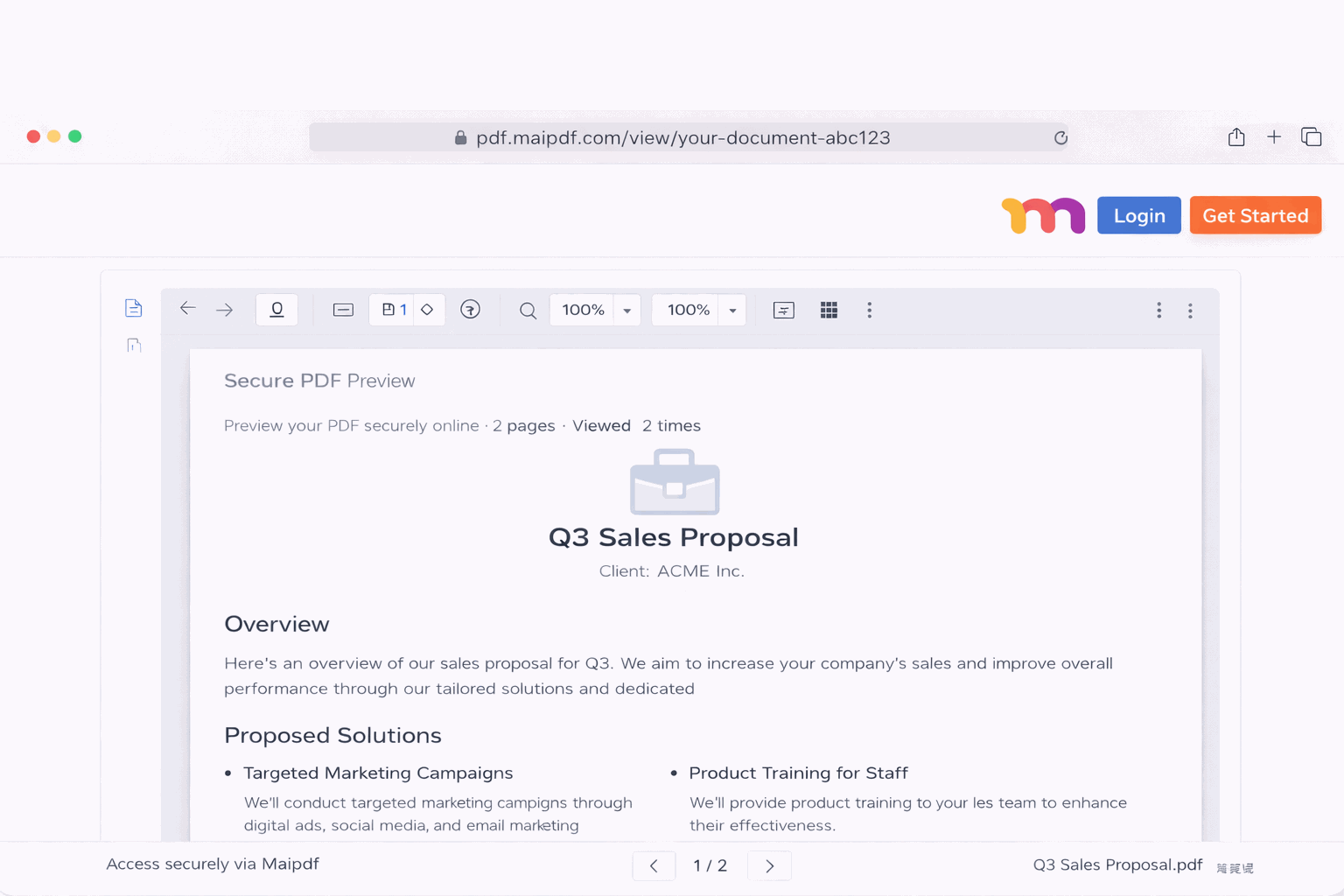
Most teams don’t actually want to “block access” to their PDF. They want something more specific: let the recipient read it easily, but don’t make the first step a file download into their device. That one decision — read-in-browser instead of save-then-open — is what keeps the document closer to a controlled reading destination and further from a scattered pile of local copies.
Quick navigation
- The one-click read vs. the five-step download
- What “view-only” actually blocks (and what it doesn’t)
- How to set it up on MaiPDF
- Which documents benefit most
- Keep Download ON when…
- Layering controls on top of view-only
- Common mistakes
- FAQ
- Related reading
The one-click read vs. the five-step download
Sending a PDF as an attachment or a raw cloud-drive download quietly costs your reader five steps: click → wait → find the file → open it in a reader → start reading. On a phone, finding the file afterwards is so painful that a measurable fraction of readers just give up. A view-only link collapses that to one: click → read.
That difference matters twice. Once for engagement — fewer steps means more readers actually reach the content. And once for control — the further the document stays from the reader’s local filesystem, the less a “PDF share” turns into “one file in 40 inboxes that nobody can revoke.”
What “view-only” actually blocks (and what it doesn’t)
“View-only” is not magic DRM. It’s the removal of the easy paths that casual redistribution depends on. Knowing the line between what it blocks and what it doesn’t is the thing that stops you from over-promising security to a stakeholder.
| Action | Does view-only block it? | Notes |
|---|---|---|
| Clicking a “Download” button | ✅ yes | the button is gone from the viewer |
| Right-click → Save As | ✅ yes | context menu is restricted |
| Print → Save as PDF | ✅ yes if print is disabled | enable it alongside download-off for anything sensitive |
| Selecting and copy-pasting the text | ✅ yes if selection is off | pair with FineView for tighter selection control |
| Phone screenshot | ❌ no | nothing browser-side can stop the OS shortcut |
| Phone camera photo of the screen | ❌ no | but a dynamic watermark still traces the leaker |
| Screen recording | ❌ no | same — watermark + access log is your recourse |
| Determined manual re-typing | ❌ no | you can’t prevent human effort |
The takeaway: view-only closes the easy exit doors. For screenshots and cameras, the right pairing is a dynamic watermark so leaks trace back to a specific reader. See the watermark guide for why server-side watermarks survive screenshots.
How to set it up on MaiPDF
- Upload the PDF at maipdf.com.
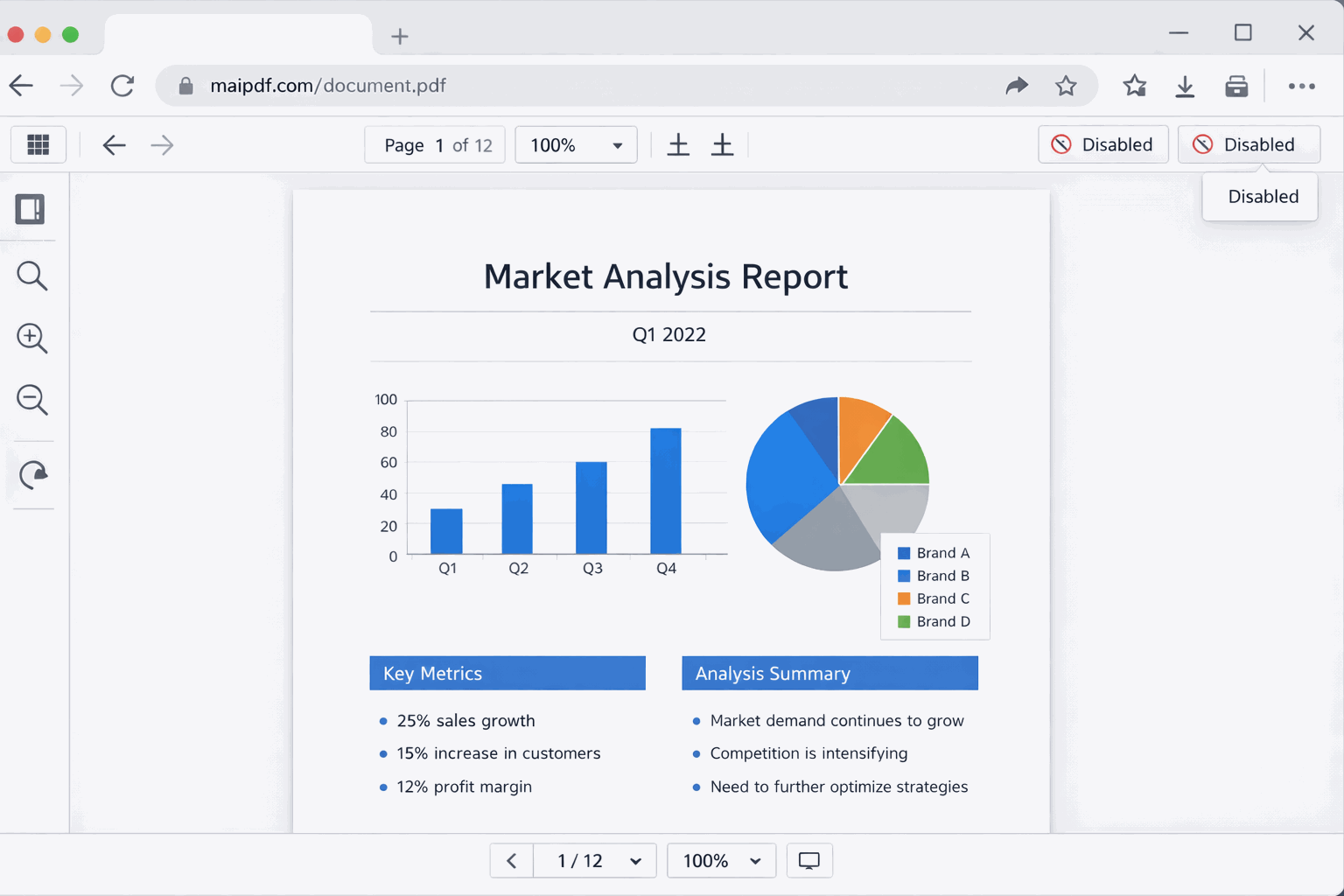
- On the configuration screen, switch Download to off. (That’s the one decision that defines “view-only.”)
- If the document is sensitive, also turn Print off and text selection off in the same panel.
- Optionally pick FineView as the protection mode for tighter viewer behavior.
- Generate the link and test it once on your phone before sharing.
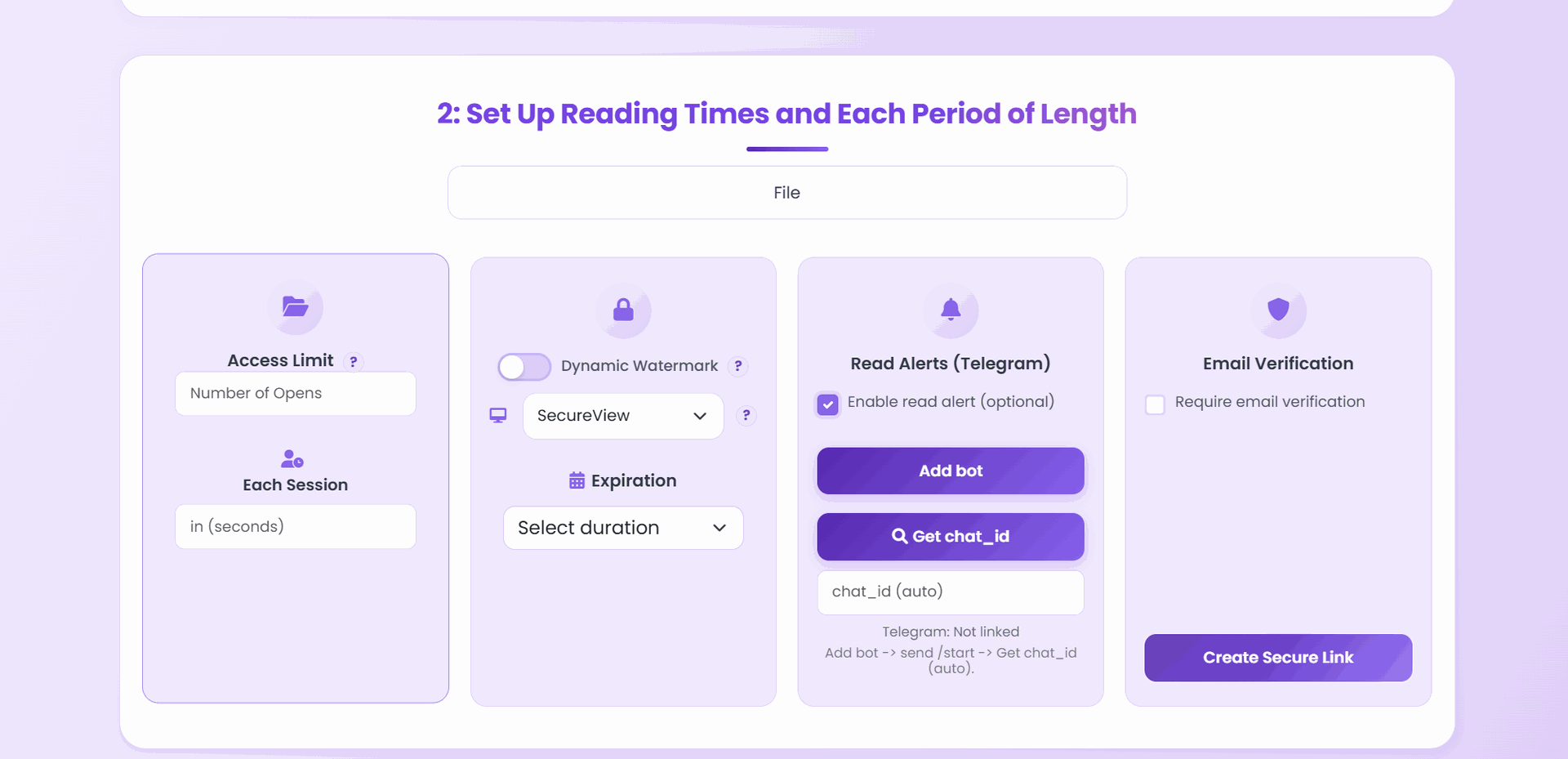
The viewer the reader sees will look like a clean, normal PDF reading experience — zoom, scroll, page jump, search — just without the save button. That “feels normal” experience is the whole reason it works: readers don’t resent being blocked because they don’t feel blocked, just focused.
Which documents benefit most
| Document type | Why view-only fits |
|---|---|
| Sales proposals / pricing sheets | you want the prospect to read, not to shop your numbers around |
| Contract drafts under review | everyone reads the same version; nobody holds stale drafts |
| Job applications / portfolios | the hiring panel reads; you keep one managed link you can update |
| Board / investor decks | deck gets read; PDF doesn’t end up on a competitor’s desk |
| Research reports for clients | clients read; unpublished findings don’t get forwarded |
| Training handouts with an access window | link opens during the training, closes after |
| Product previews to partners | partners preview; file doesn’t reach the public |
| Internal drafts in review | reviewers comment; drafts don’t leak out of the review group |
| QR-distributed handouts at events | scan → read in browser; no mystery PDF on a thousand phones |
The common thread: the reader is meant to read and react, not to archive and redistribute.
Keep Download ON when…
View-only isn’t universally correct. Turn Download back on when the document’s job is to end up on the reader’s device.
- Templates — blank forms, worksheets, printable handouts readers will fill in offline
- Invoices and receipts — readers often need to file or forward these
- Public brochures — you want maximum distribution, not friction
- Reference PDFs readers come back to offline — manuals, cheat sheets, policies
- Signed contracts after signature — the recipient’s own record should be downloadable
If the reader can’t do their job without a local copy, making them fight for one just generates support emails.
Layering controls on top of view-only
View-only is the floor, not the ceiling. For anything genuinely sensitive, stack:
| Add this layer | What it buys you |
|---|---|
| Expiry date | link dies after the review window — old URLs can’t be rediscovered and exploited |
| Open limit | caps total opens so a forwarded link can’t keep circulating forever |
| Email verification | only approved addresses can open — an actual identity gate, not just a deterrent |
| Dynamic watermark | screenshots carry the reader’s fingerprint back to the access log |
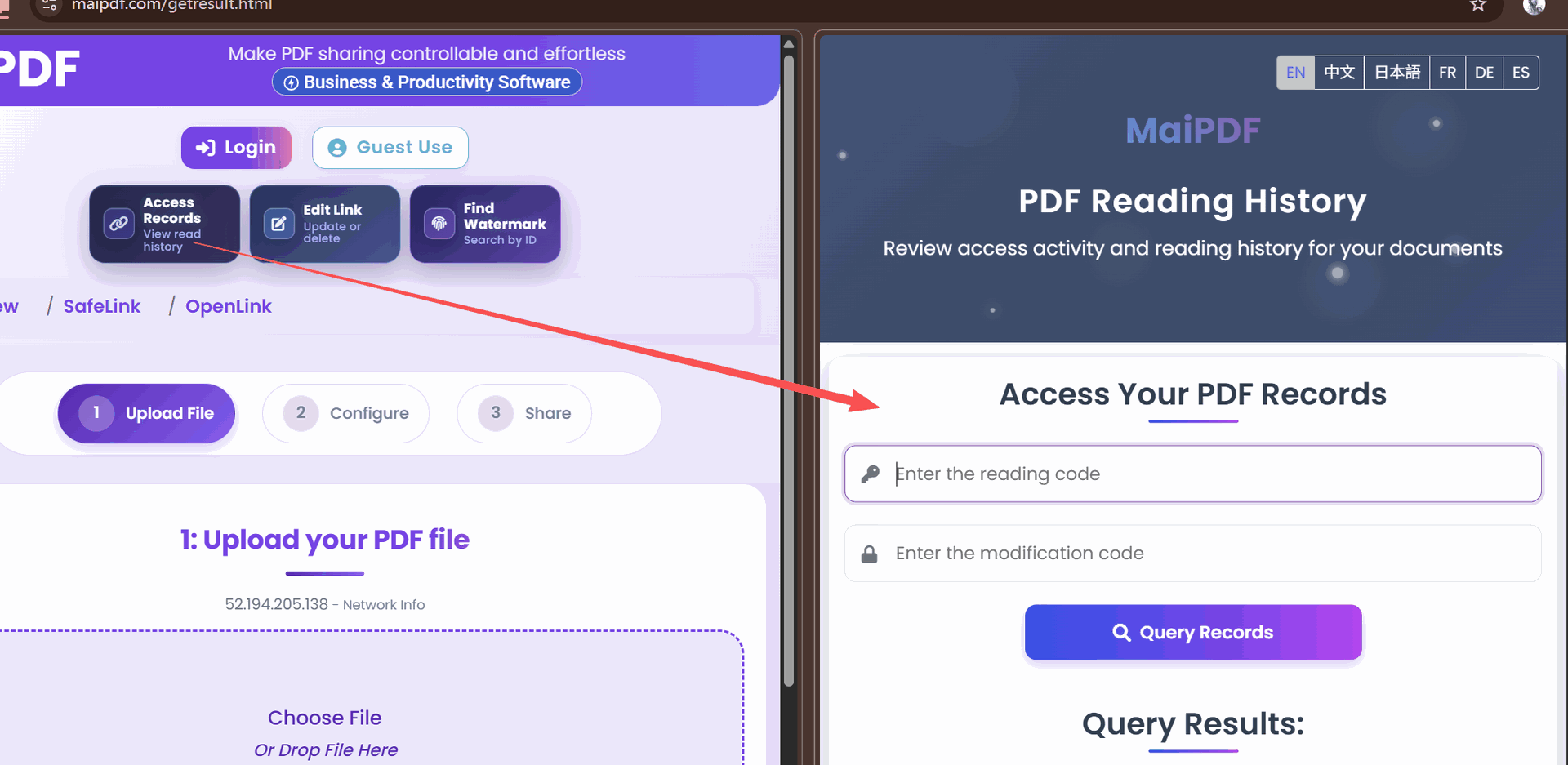
| Access log review | lets you see who opened, from where, at what time, on what device |
| Replace file behind the link | push revisions without changing the URL — see the upload guide |
A sensible “confidential reviewer copy” stack: Download off + Print off + Expiry + Email verification + Dynamic watermark + View limit at audience × 1.5. (See the view-limit calculator for the ×1.5 rule.)
Common mistakes
| Mistake | Why it hurts | Do instead |
|---|---|---|
| Turning off download but leaving Print on | readers hit “Print → Save as PDF” and walk away with a local copy | disable print alongside download |
| Treating view-only as “the document is safe now” | screenshots and phone cameras still work | pair with watermark + access log for real accountability |
| Sending the attachment and the view-only link together | readers open the attachment and bypass every control | send the link only |
| One view-only link for every audience | can’t revoke per audience, can’t tell engagement apart | one link per audience segment |
| Never opening the link yourself after generating | the first failed reader is your stakeholder | always mobile-test before sending |
| Disabling download for a public brochure | forced friction, no security benefit, worse engagement | keep download on when distribution is the goal |
FAQ
Does the reader need to install anything or create an account? No. View-only works in any modern browser — Chrome, Safari, Firefox, Edge — on desktop and mobile, no plugin or login on the reader side.
Will view-only slow down loading? No. The viewer renders page-by-page as the reader scrolls; first page typically loads in 2–3 seconds even for large documents.
Can I change a link from view-only to download-enabled later? Yes. The download setting is editable in the control panel; changes apply to every subsequent open without regenerating the URL.
Does view-only preserve the original layout, fonts, and images? Yes — readers see the PDF rendered faithfully at its original quality. View-only restricts extraction, not appearance.
What happens if someone takes a screenshot? The screenshot works — that’s a limit of every in-browser viewer. The real defense is pairing view-only with a dynamic watermark so the screenshot carries the reader’s fingerprint.
Is view-only the same as “no print”? No. Download off stops saving; print off stops printing (including Print-to-PDF as a download workaround). For sensitive documents, enable both.
Related reading
- How to upload a PDF and generate a secure link — the full upload-to-share workflow
- Dynamic watermarks on PDF — the pairing that makes screenshots traceable
- Limit how many times a PDF link is opened — the lifecycle layer on top of view-only
- Share a PDF securely — the wider decision tree across all controls
- Disable download on a shared PDF link — the tight walkthrough focused only on the download toggle
- Prevent copying in the online PDF viewer — selection and copy-paste lockdown