MaiPDF: A Cleaner Way to Share PDFs Without Losing Control
MaiPDF: A Cleaner Way to Share PDFs Without Losing Control
2026 update: MaiPDF now includes both Online Cloud Sharing and App DRM. Browser links are best for fast distribution; .maipdf protected files are better for device binding, revocation, and screenshot-aware reading. See What Is a .maipdf File?.
The easiest way to make PDF sharing messy is to treat every document as an attachment problem — a file that gets emailed, forwarded, re-emailed as v2, and lives in ten different inboxes with nobody sure which copy is current. The cleaner way is to treat the document as one managed destination: upload once, share one link, add only the controls the situation actually needs, and keep updates flowing behind the same URL. That is the workflow this article walks through.
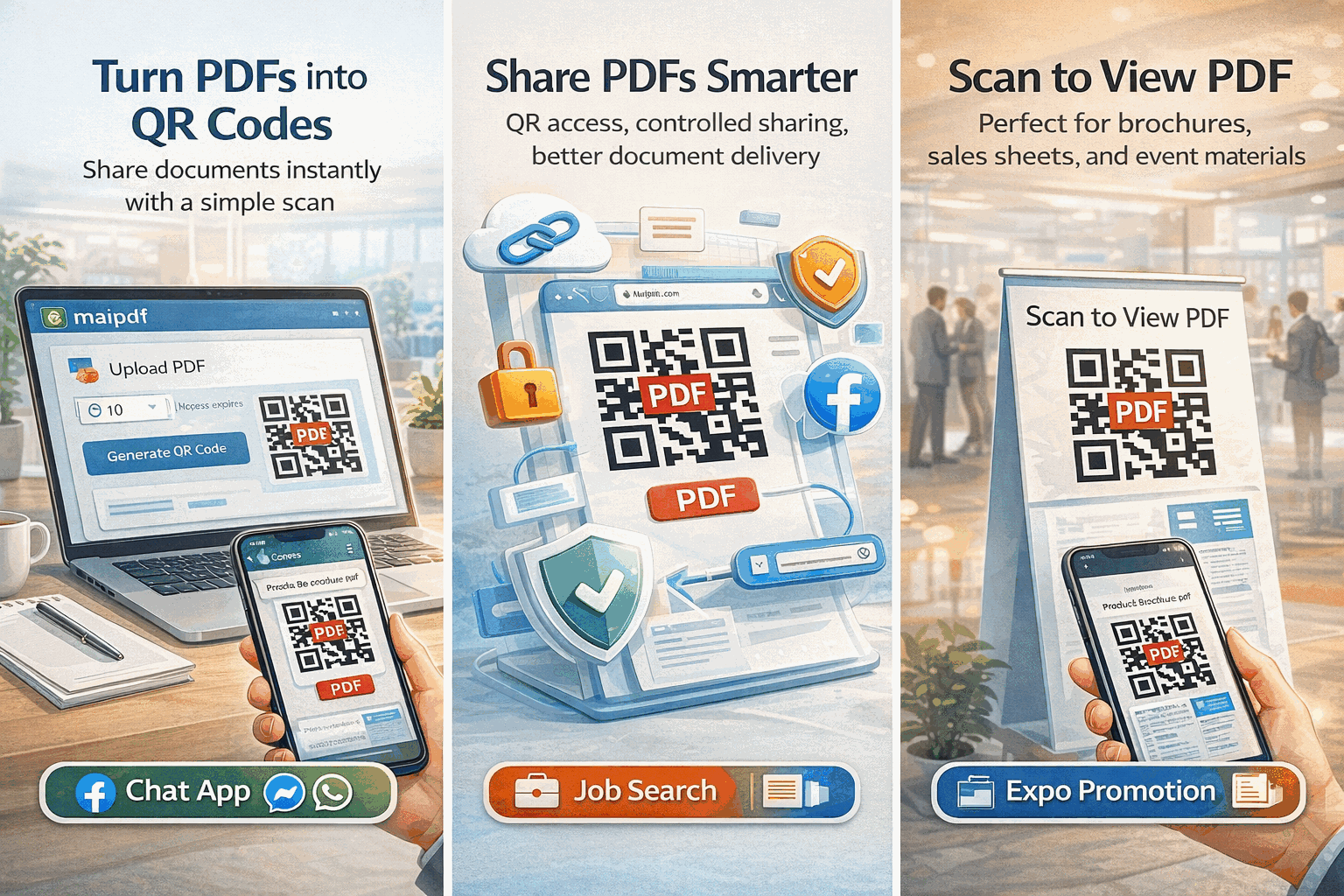
The core idea: one destination, many channels
Every PDF you share through MaiPDF becomes a single URL. That URL is what travels — in email, in chat, on a poster, under a QR code on a conference badge — and it keeps pointing at the same managed destination no matter how many people you hand it to.
The practical effect is small-feeling but significant. You stop tracking “which version did I send to which person”; you track one link. You stop begging recipients to delete the old attachment before opening the new one; the old file is already gone the moment you replace it. And when someone eventually asks whether the document was opened, forwarded, or ignored, there is a real answer — not a guess based on email read receipts.
What you actually do during upload
The upload itself is a drag-and-drop: files up to 80 MB are accepted, no account is required to get a first link, and the result is a shareable URL the moment the upload finishes. Where the workflow earns its keep is the panel that appears alongside the link — the controls that decide how the document behaves once it leaves your screen.
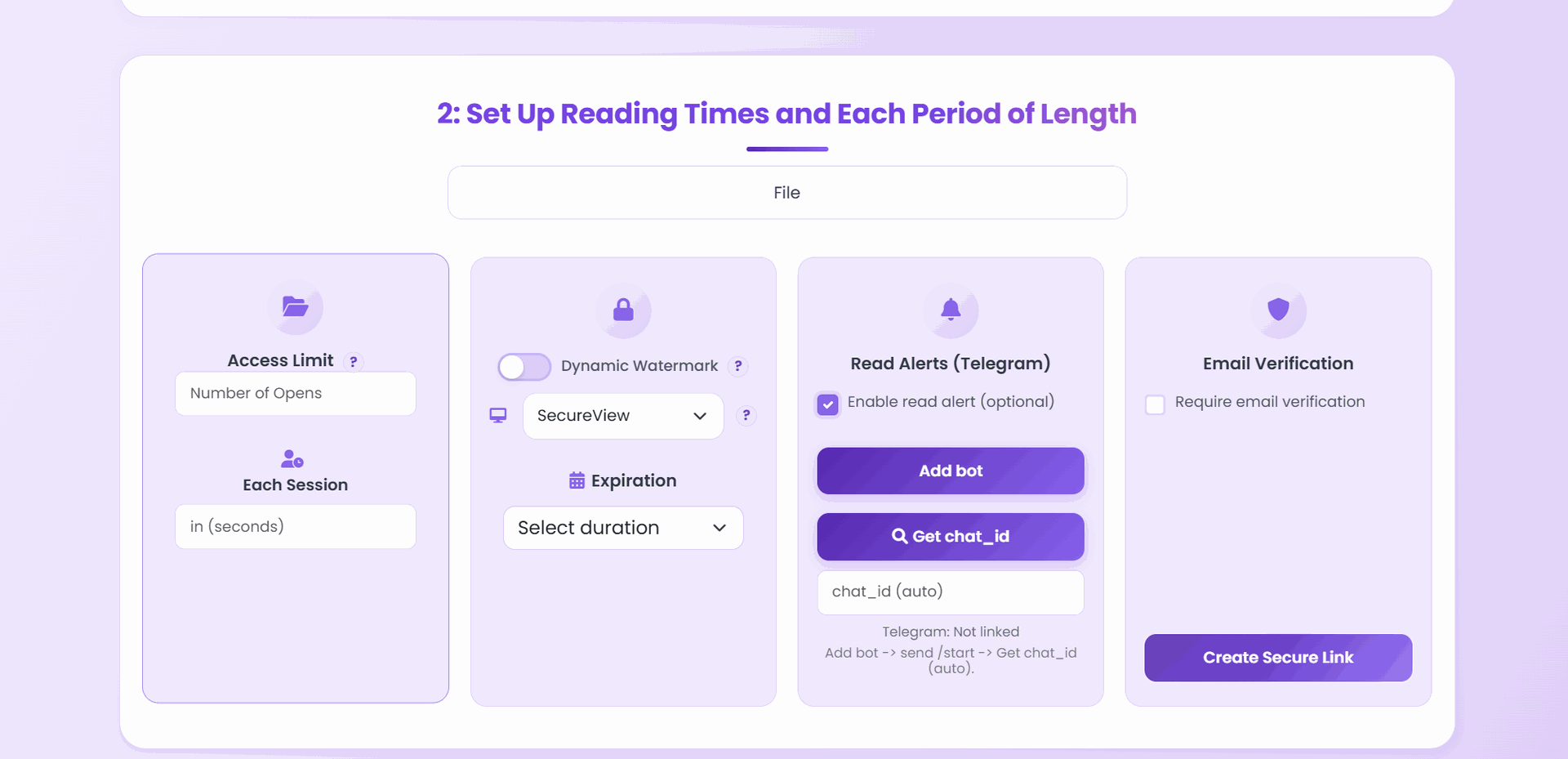
The controls worth knowing about, in order of how often they get used:
- Expiry date. The link stops working on the date you pick. Good for proposals (“valid through the end of the month”), interview takeaways, and any document that logically has a shelf life.
- View limit. Either a total cap across everyone, or per-person. A portfolio with “unlimited scrolls allowed for the hiring team” versus a legal draft with “three opens and then call me” uses the same control, tuned differently.
- Password or email verification. Password is faster to set up; email verification is more useful when you want to see who actually opened the file, not just that somebody did. Email verification pairs naturally with an allowlist of partner domains.
- Dynamic watermark. Stamps the viewer’s email or IP onto each page at open time, so a leaked screenshot traces back to the person who took it.
- Read alerts via Telegram. Optional, but worth turning on for anything high-stakes — you get a ping the moment the link is opened, with the location and device.
- Download on or off. Default is view-only in the browser. Turn downloads on when the recipient genuinely needs the raw file (design deliverables, signed contracts); leave it off for anything you want to stay governable.
None of these are mandatory. A fully public brochure might need none of them; a client proposal usually wants expiry plus a view cap plus watermarking; an internal draft often just wants email verification against the company domain. The rule of thumb is to make the setup proportional to the real risk, not the imagined one.
Where this workflow fits best
Four situations show up most often in practice:
Proposals and quotes. One link stays current for the whole sales cycle. If the quote changes after the first call, you replace the file — the prospect’s bookmark still works, but now points at v2. The access log tells you whether the decision maker ever opened it.
Portfolios and resumes. The opening experience is cleaner than a 15 MB attachment that chokes someone’s phone. Recruiters scan on mobile, tap through in the browser, and the watermark (if you set one) discourages the portfolio from landing in a shared drive at an agency you did not apply to.
Internal drafts and reviews. Email verification limited to the company domain means external forwards silently fail. You send one link to a review distribution list; everyone who opens it is logged with their email.
Event and printed material. The same URL that lives in email can also live under a QR code on a flyer or booth sign. The document travels through two channels, but you still only manage one destination.
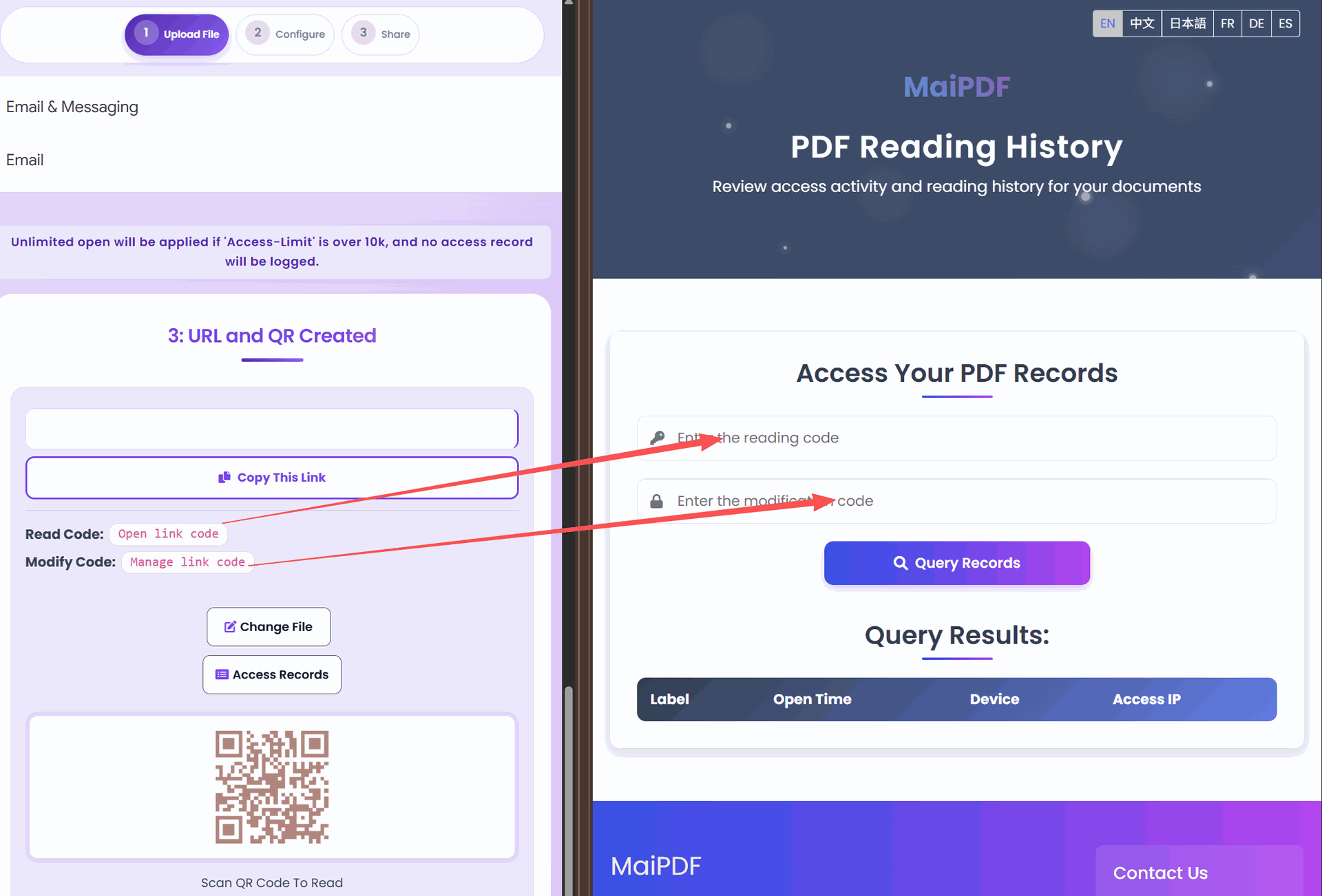
What the access log actually tells you
Most teams underestimate how much they will use the access record until they have one. After you send a link, three questions usually show up within the first week:
- Did anyone open it? The log shows opens by time of day — useful on the morning of a deadline to see whether a proposal actually landed in the right inbox.
- Did the right person open it, or did it get forwarded? Email verification logs the verified address; without verification, you at least see the IP and rough location.
- Is someone trying to get in who should not be? Expired-link attempts, wrong-password attempts, and denied email domains all appear in the log. Occasionally that is noise; sometimes it is a signal that the link leaked and you should rotate it.
The log is also where view-limit enforcement becomes visible — you can see which recipient is about to exhaust their quota, and decide whether to raise it or let the limit do its job.
Replacing the file without breaking the link
This is the feature people are most surprised by, so it deserves its own paragraph. Once a link exists, you can swap the underlying PDF at any time. The URL does not change. The QR code printed on last month’s flyer does not change. Every bookmark in every recipient’s browser still resolves — but now it opens the updated document.
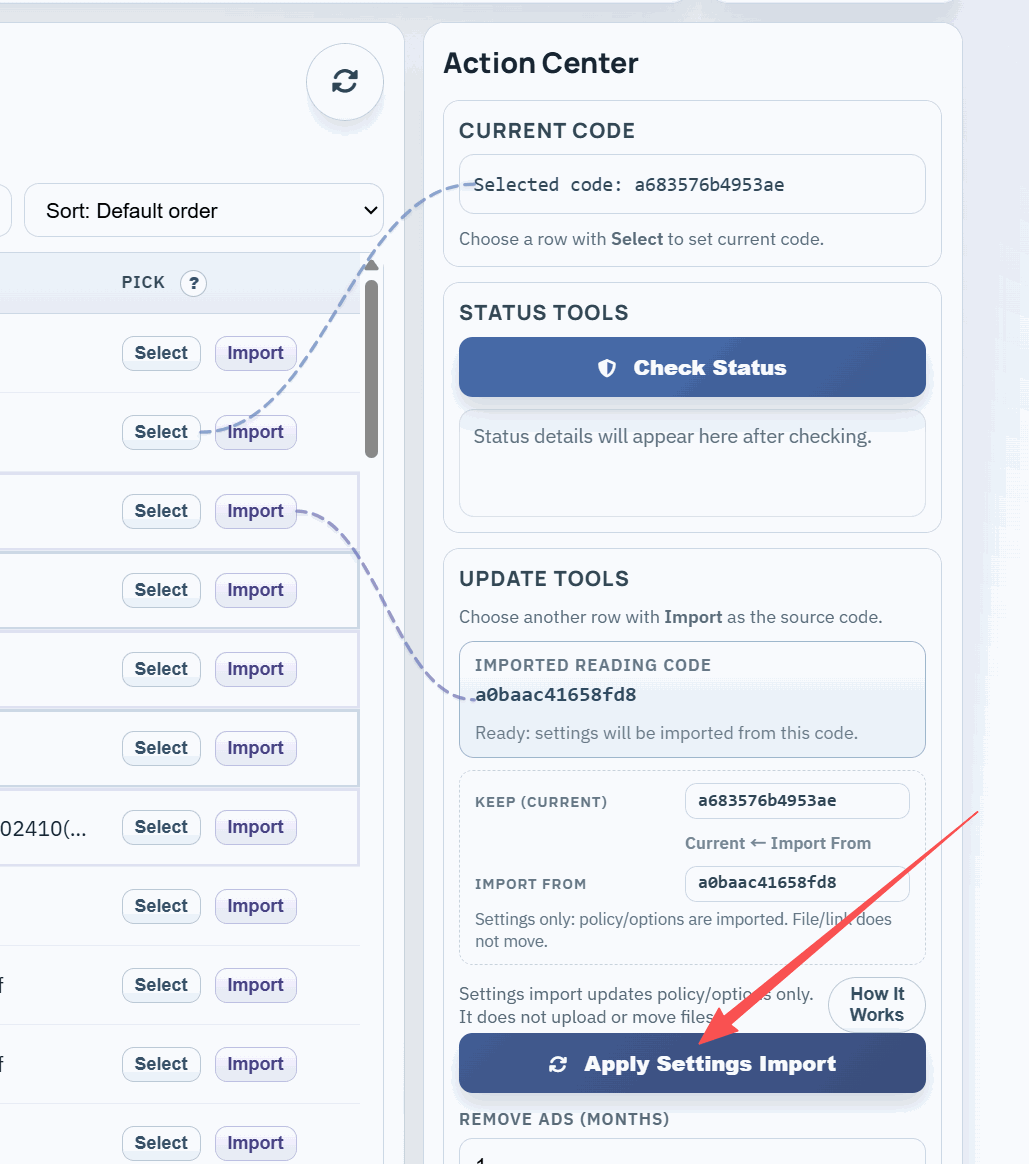
Why it matters:
- A menu, manual, or price list changes; the posters stay on the wall.
- A proposal is revised after the first call; the prospect’s bookmark now shows the revised numbers.
- Event handouts are corrected after printing; one QR stays in circulation across revisions.
The access log keeps a note of the swap, so you have a trail of which version was live when each open happened.
Tuning controls to the scenario
A few presets that cover most cases:
- Public brochure or marketing PDF. No password. No expiry, or a very long one. Download on. Watermark off. You want reach; the log is mostly for curiosity.
- Client proposal or quote. Expiry matching the quote’s validity. View cap around ten per recipient. Email verification if you want to know who opened it. Download off until the deal closes.
- Internal draft or review document. Email verification restricted to the company domain. Watermark on with the viewer’s email. Download off. Short expiry tied to the review window.
- Portfolio or resume. Reasonable expiry (a few months). View cap generous or off. Download optional — some recruiters want to archive it. Watermark optional.
- High-stakes contract or financial document. Email verification with explicit allowlist. Per-person view limit. Download off. Watermark on. Telegram alerts on.
The point of the presets is not that these are the only right answers — it is that once you have picked a shape for the document, every subsequent send of that type takes thirty seconds instead of a full think.
When link-first sharing is not the right call
Honest caveat: this workflow is not universally better than an attachment. A few cases where a raw file still makes more sense:
- The recipient genuinely needs offline possession. A contract about to be signed, a compliance filing, an archival copy for a legal record. Send the file.
- A fully public, permanent document. A public whitepaper that should be indexable and downloadable forever is better off as a plain host-anywhere PDF.
- The recipient will edit it. MaiPDF is a sharing and delivery layer, not a collaboration editor. For back-and-forth editing, use the tool that produces the document.
For everything in between — which is most business sharing — the link-first workflow removes more friction than it adds.
Short answer
Upload the PDF once, get a managed link, attach only the controls the document actually needs, share the link (or the QR tied to it), and use the access log to see what happened after. When the document changes, replace the file behind the same link — recipients keep the same URL, you keep one clean source of truth.