Limit PDF Views: Pick a Number That Matches Real Reading
Limit PDF Views: Pick a Number That Matches Real Reading
2026 update: This article mainly covers browser-based Online Cloud Sharing controls. For paid course files, workbooks, exam-prep PDFs, or documents that need device binding, license revocation, and screenshot-aware protected reading, use MaiPDF App DRM / .maipdf. Start with Online PDF Sharing vs App DRM or PDF DRM for Online Courses.
A view limit only works when the number matches how the document is actually read. Too low and a legitimate reader on a mobile refresh gets locked out. Too high and the limit stops being a control. This guide gives you the formula, the presets, the pairings, and the failure modes — skim the table of contents, read only the sections you do not already know.
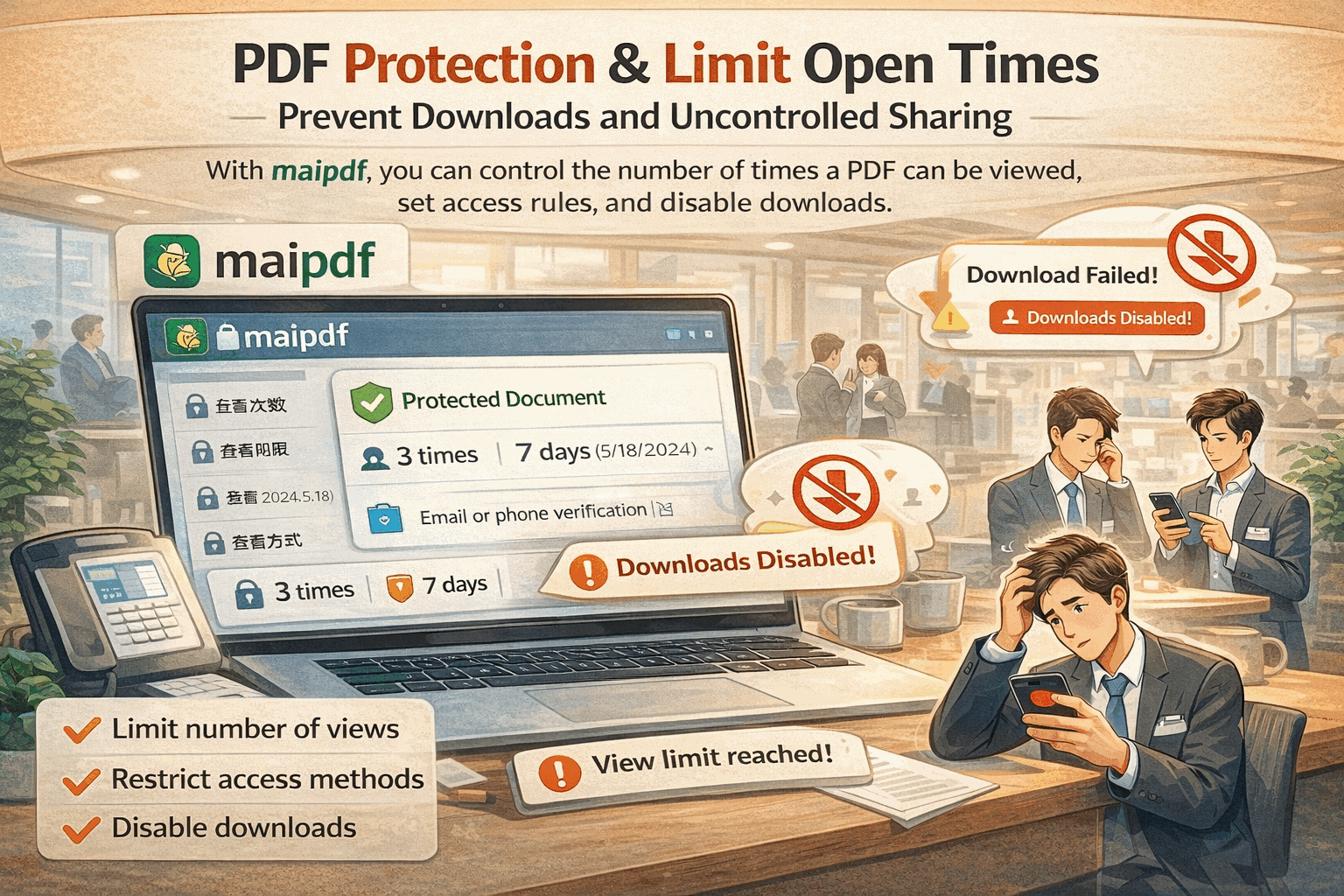
Where this guide fits in MaiPDF’s two-path model
MaiPDF now has two main protection paths, and this guide should be read inside that structure:
- Online Cloud Sharing is the fast path: upload a PDF, generate a link or QR code, control download behavior, set expiry or view limits, add watermarks, and track opens in the browser.
- App DRM /
.maipdfis the stricter path: package the PDF for the MaiPDF App protected reader when you need screenshot-aware controls, device binding, license checks, and revoke-after-send workflows.
If you are not sure which path fits your file, start with Online PDF Sharing vs App DRM. If screenshots or protected-reader behavior are the main concern, read Secure PDF Reader with Screenshot Protection and Free PDF Screenshot Protection Software.
Quick navigation
- Why view limits matter — most leaks are not hacks; they are links that lived too long
- The formula — audience × rereads × 1.5
- Mobile reality — 1 read ≈ 3–5 counted opens
- Scenario presets — 9 starting numbers across proposals, hiring, legal, press, exams, events, brochures
- Pairing controls — limit + expiry / watermark / email whitelist / Telegram alerts
- At the cap — what readers see, what you can still change
- Replacing the file — keep the same URL and the same limit, swap the PDF
- Access log signals — three things worth watching after the send
- Common mistakes — the ones that show up in support tickets
- Wrong tool? — when a limit hurts more than it helps
- FAQ — quick answers for the questions that come up most
Why view limits matter
Most document leaks are not hacks — they are links that lived too long. A March proposal gets rediscovered in an inbox in November. A draft contract drifts into a competitor’s chat six months after review. A salary benchmark makes it past HR into general staff rotation. None of these needed a breach. They needed only a link that never stopped working.
A view limit closes that door by tying the link’s life to usage, not calendar time. The document stays open for as many opens as the work genuinely needs, and then it stops — whether that is three weeks from now or three months from now. It is the cleanest control you can apply without also making the reader’s experience worse.
The formula
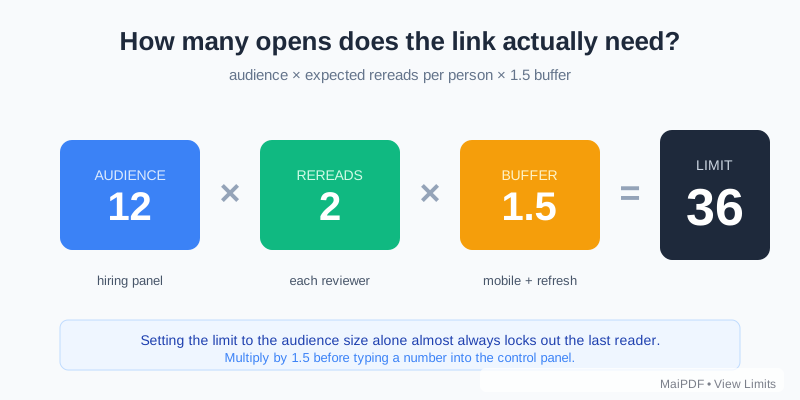
audience size × expected rereads per person × 1.5 buffer
Three quick examples:
| Audience | Rereads | × 1.5 | Starting limit |
|---|---|---|---|
| 5 executives reviewing a proposal | 2× each | buffer | ~15 |
| 12-person hiring panel reviewing a portfolio | 2× each | buffer | ~36 |
| 8 internal reviewers on a draft contract | 2× each | buffer | ~24 |
The 1.5 buffer is the part most people skip. They shouldn’t — see why below.
Adjusting later is cheaper than guessing right. If you set a number, the counter climbs, and a legitimate reader hits the cap on day three — raising the limit in the control panel keeps the same URL working. The bookmark they saved still resolves. You do not need to re-send the link.
What counts as 1 view on mobile
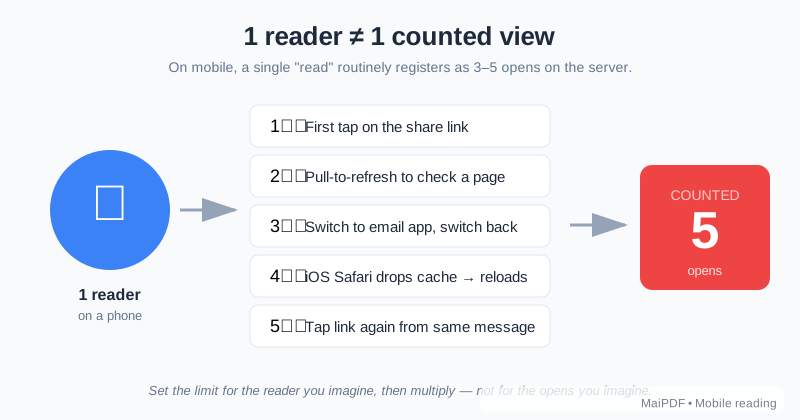
One reader’s single “read” routinely registers as 3–5 counted opens. The multiplier comes from normal phone behavior:
- Pull-to-refresh on a page that felt slow
- Switching to email or messaging and coming back — iOS Safari frequently drops the cached page under memory pressure and reloads it
- Tapping the link a second time from the same thread because they lost their place
- Screen sharing on a quick call — the viewer’s device and the presenter’s device both open it
- A new tab for a second look — some readers compare across tabs
The practical effect: setting a limit of 10 for exactly 10 recipients is the most reliable way to lock out the last person. 15 for the same audience almost never hurts, and the access log will still show you clearly who actually opened it.
Scenario presets
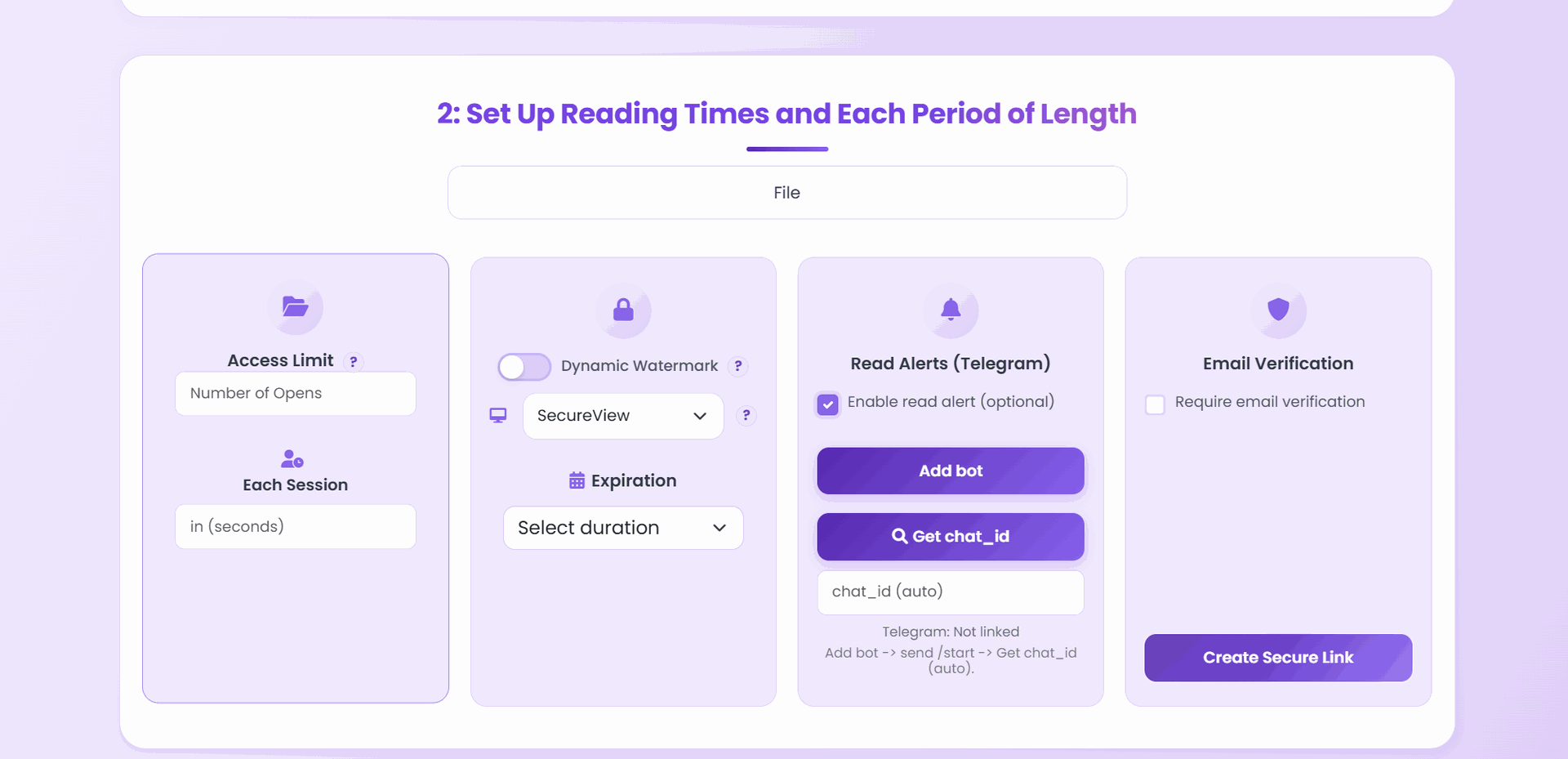
Starting points, not gospel — useful when you need a number in the next thirty seconds.
| Scenario | Starting limit | Pair with |
|---|---|---|
| Client proposal or quote | 10–20 | 14–30 day expiry |
| Hiring portfolio / resume / case study | 20–30 | dynamic watermark with viewer email |
| Training or course handout | 50–200 or unlimited | download off |
| Confidential executive memo | 3–10 | email whitelist + watermark |
| Internal draft for review | 10–20 | email whitelist on company domain + download off |
| Press embargo asset | 20 per journalist | separate link per journalist |
| Event / QR-distributed handout | 200–1000 | short expiry, no password |
| Exam paper or timed release | 1 per student | separate link per student + download off |
| Public brochure / whitepaper | usually no limit | — |
Three presets that deserve a few extra words
Hiring portfolios revisit material across multiple rounds of interviews. A 15-view cap on a 12-person panel guarantees a lockout by round three — because each panelist rereads on their phone between meetings, and mobile refreshes eat the buffer fast. Go 20–30 and pair with a dynamic watermark so any leaked portfolio traces back to the specific panel member whose session produced the screenshot.
Press embargoes only work if each journalist has their own link. Share one link with fifty journalists and an early publication traces back to the whole distribution — you cannot tell who broke embargo. Separate links plus per-link alerts turn a leak into a named incident. The 20-per-journalist cap absorbs their editor’s pass and a reread on the morning of the release; anything much higher defeats the purpose of a per-journalist link.
Training material is the place a low cap generates support tickets, not security. People are supposed to reread it. Set a high cap or none at all; use download-off (the Standard Protection mode) if you need the reading to stay inside the viewer, but leave the open-count generous — a support ticket from a student who cannot reopen last week’s handout costs more attention than the leak risk.
Pairing with other controls
A view limit on its own is rarely the full answer. The pairings that come up most often:
| Pair | When to use |
|---|---|
| Limit + expiry | Default for anything time-bound — whichever triggers first closes the link |
| Limit + download off (Standard Protection) | Raises the cost of exfiltration — screenshots still work, archiving the file does not |
| Limit + dynamic watermark | Screenshot deterrent with attribution — the viewer’s email or IP is stamped on every page at open time |
| Limit + email whitelist | When the log should show who opened it, not just that somebody did — only listed addresses receive the verification email |
| Limit + Telegram alerts | High-stakes sends — get a real-time ping at open, useful when you want to call five minutes after they finish reading |
A public brochure needs none of these. A signed-NDA draft usually wants the whole stack. Match the pile to the document, not the other way around.
What happens when the limit is reached
The link stops resolving to the PDF. Viewers see a plain “access limit reached” page — transparent on purpose, because the most common reason for hitting the cap is a legitimate reader needing one more look. They need to know to contact you rather than quietly assume the link is broken.
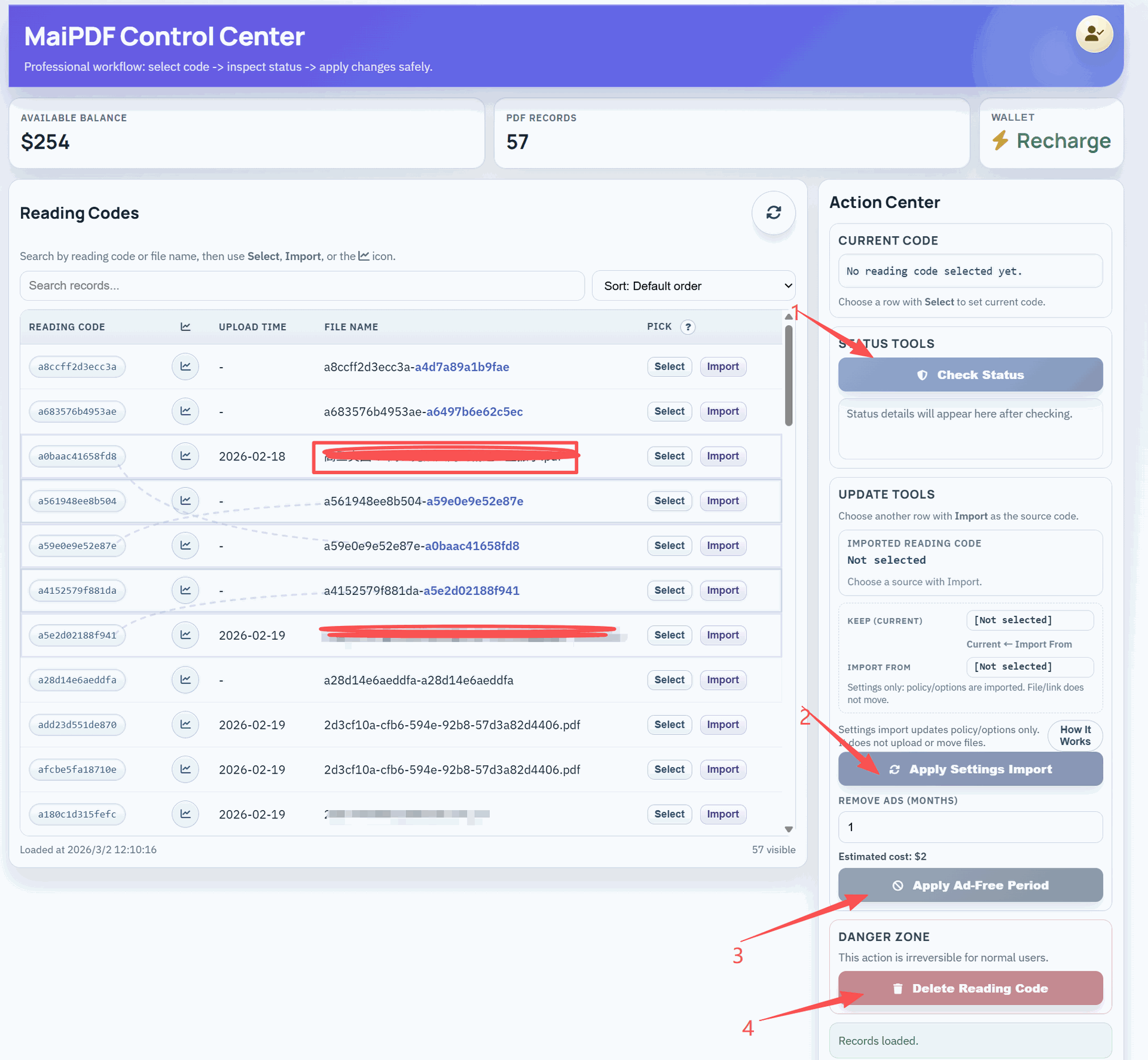
From the control panel side, three actions stay available after the cap is hit:
- Raising the limit keeps the same URL. The counter does not reset, but the ceiling moves up. Every recipient’s bookmark still works.
- Revoking kills the link immediately, regardless of remaining count — use when you know the link has leaked.
- Replacing the file keeps the URL. If the draft moves to v2 while headroom remains (or after you raise the cap), swap the file behind the same link. See the next section for how that actually works.
Replacing the file behind the link
This is the feature most people do not realize they have, so it deserves a dedicated section: the shared link, the printed QR, every bookmark in every recipient’s browser — all of them keep working after you swap the underlying PDF. Only the content and the settings change. Nothing about the URL does.
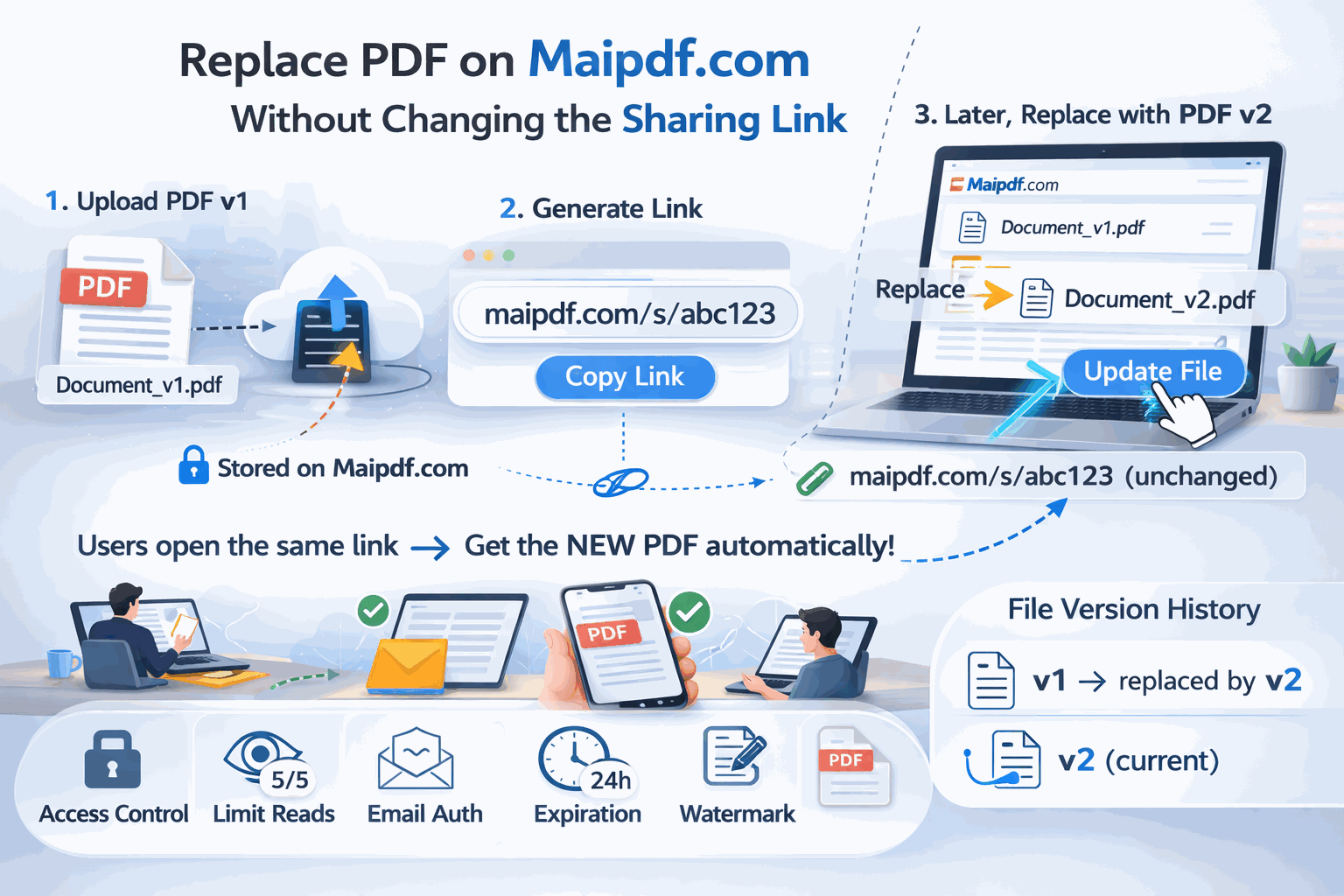
When it is worth using:
- The proposal was revised after the first call — v1 was sent, v2 needs to reach the same prospect without a “ignore the previous link” email
- The menu or price list changed, but the posters with the QR are already on the wall
- A training deck was updated for the new quarter — existing course bookmarks should resolve to the new version
- The view limit was set too tight the first time, and you also want to push the new revision while raising the cap
Two ways to do the swap, depending on how you created the original link.
Registered user — swap from the control panel
If you uploaded while logged in, the replace action is a two-click flow in the user control panel: pick the link, upload the new PDF, and the new file plus any settings you change (open count, expiry, download on/off) overwrite the old configuration in place. The URL is unchanged and so is every existing bookmark.
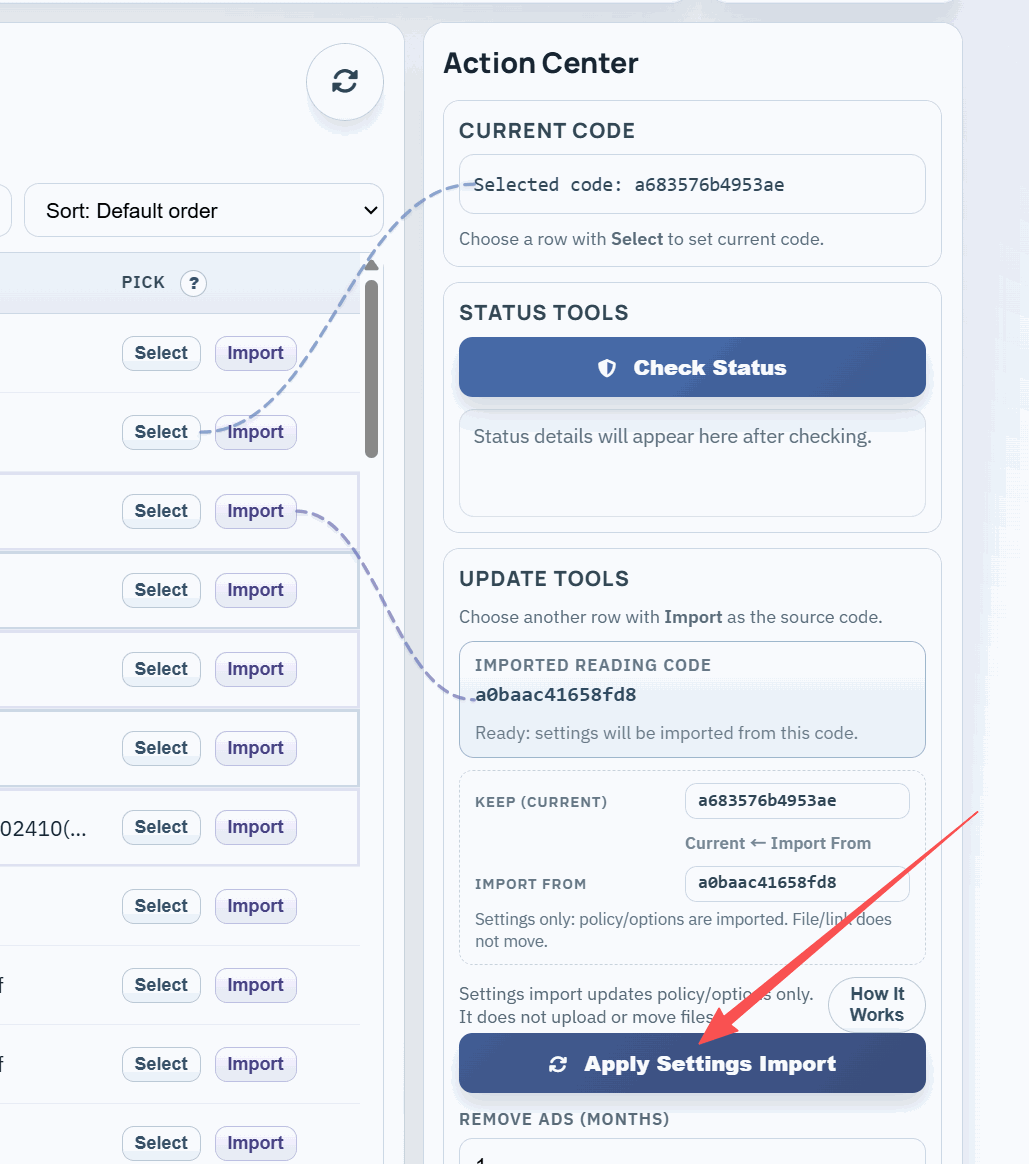
This is the cleaner path for anyone who shares documents more than occasionally — the whole history of your links is in one place, and you can see which of them have been opened since your last visit.
Guest — swap with the modify-code
If you generated the original link without an account, there is no dashboard to return to. Instead, MaiPDF issues a modify-code when you upload — a short credential that proves you are the original uploader. To swap the file later:
- Go to the replace-file page for guests (no login needed)
- Enter the modify-code of the old file (proves you own the existing link)
- Upload the new PDF — the system issues a modify-code for the new file too, which you keep for the next swap
- The URL stays identical; the underlying content and settings are replaced
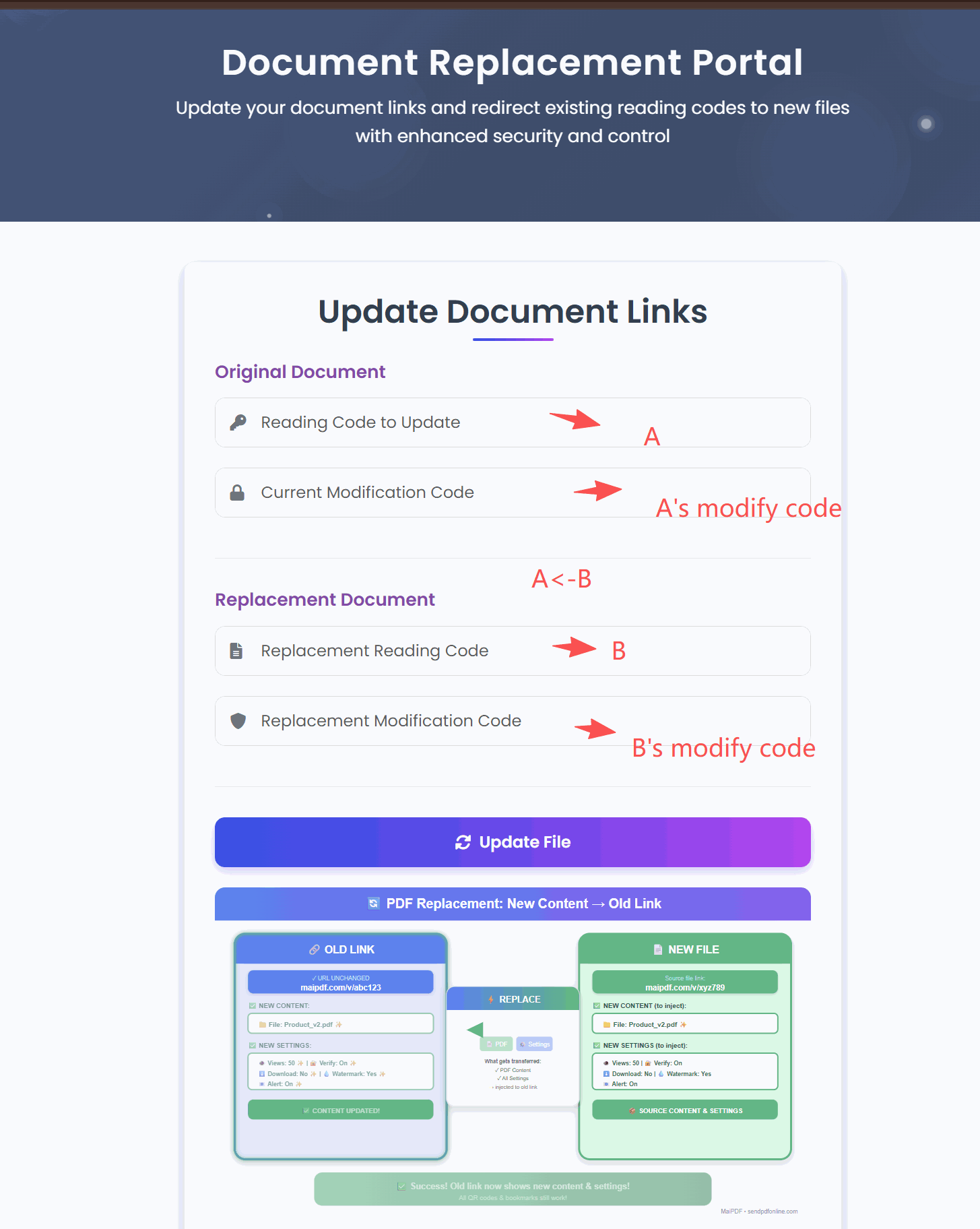
Keep the modify-code somewhere retrievable — it is the only way to re-enter the replacement flow later without registering. If you lose it on a guest upload, the existing link keeps working but cannot be updated in place; you would have to issue a new link.
Reading the access log
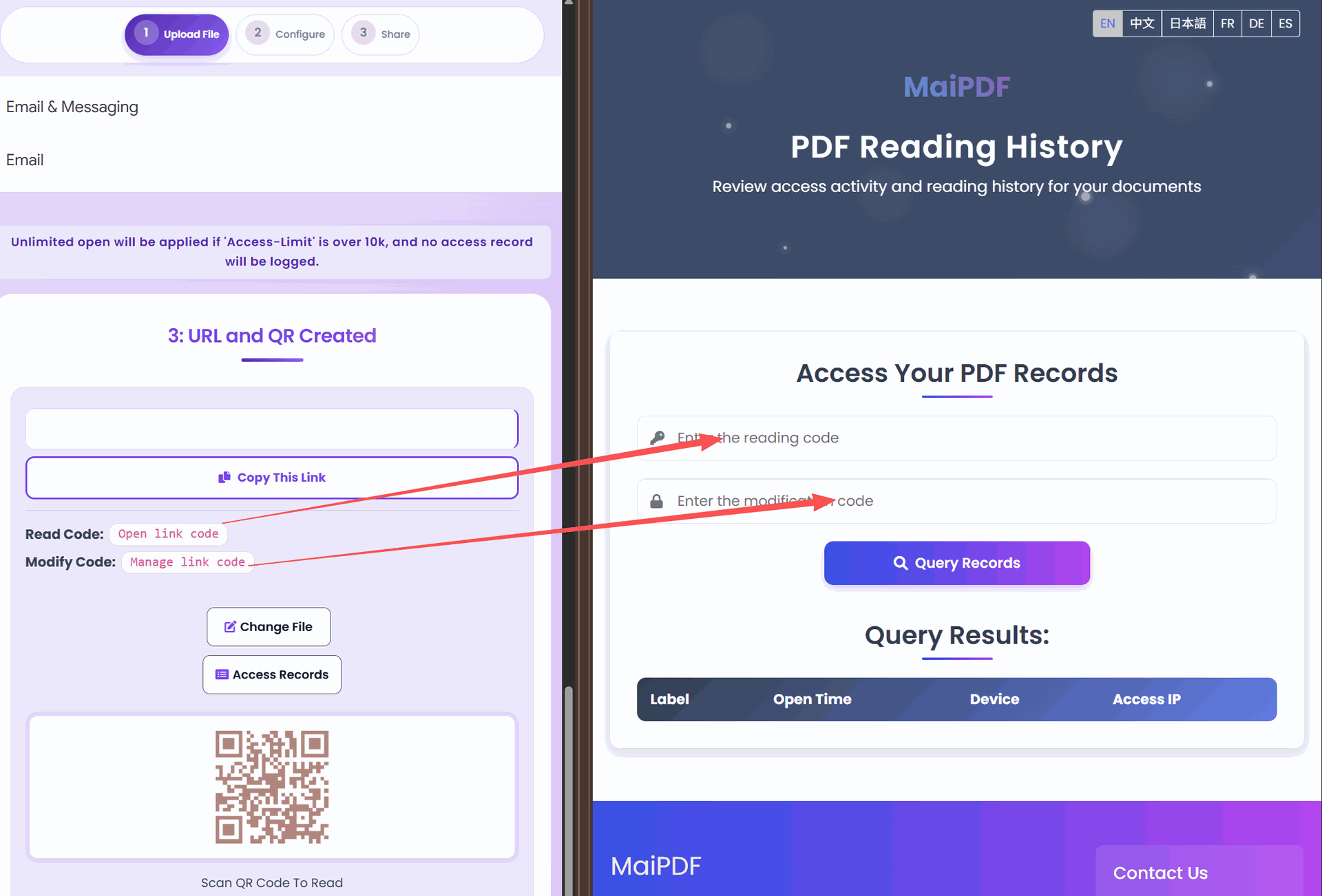
The limit is only half the tool; the log is the other half. Three signals worth watching:
- View count climbing faster than your estimate. Sent to 5 people, counter at 40 three days in? The link is being shared. That is either good word-of-mouth (brochure, public deck) or a leak in progress (proposal, NDA draft) — the interpretation depends on the document, not the number.
- Opens from unexpected locations or devices. An IP range or time zone that does not match any recipient is usually forwarded access. One or two stray opens is noise; a cluster from one unrelated region is signal.
- Denied verification or expired-link attempts. Noise on a public brochure, signal on a partner deck. Someone trying after expiry usually means the document is circulating beyond its intended window, and the next version should tighten up.
Most of the value from a view limit shows up in these after-the-fact signals — not in the limit itself.
Common mistakes
The ones that show up again and again in support tickets:
| Mistake | The fix |
|---|---|
| Limit equals the audience size exactly | Always multiply by 1.5 — mobile refreshes and app-switch reloads eat the buffer before the last recipient gets their turn |
| Low cap on naturally-revisited content | Training material, manuals, price lists and reference PDFs are read many times on purpose; a low cap just generates support requests, not security |
| Not telling readers there is a limit at all | One line in the cover email — “valid for about 20 opens over the next two weeks” — prevents a surprising share of lockout complaints and lets people plan their rereads |
| One link for many audiences | You lose per-audience revocation and the log stops telling you who opened what; separate links per segment even when they all see the same file |
| ”We’ll remember to close the link” | Nobody remembers. Always set an expiry alongside the limit so the close happens whether you remember or not |
| Relying on the limit alone for high-risk files | Limits control how often, not who. Pair with the email whitelist and a watermark for anything sensitive |
| Treating the number as fixed after the send | It isn’t. Raise it in the control panel if a legitimate reader is about to hit the cap; the URL does not change, the bookmark still works |
When view limits are the wrong tool
- Public marketing content — whitepapers, case studies, brochures behind a poster QR. A cap here is self-defeating; reach is the goal.
- Long-term reference documentation — manuals, SOPs, internal wikis. Rereading is the feature, not a threat.
- Archived content for historical access — put it behind a login, not behind a ten-open cap that someone will hit in six months for a perfectly legitimate reason.
For each of these, use other controls — expiry where applicable, download-off to keep content in the viewer, email whitelist when the audience is known — but leave the view counter alone.
FAQ
Does the counter reset if I raise the limit? No. Raising the limit only moves the ceiling up. The counter keeps climbing from wherever it was — which is what you want, because the signal of “this link has been opened a lot” is preserved.
Does the limit count per person or total? Total across the link by default. If you need per-person enforcement, the way to do it is to issue separate links per person and let each one carry its own cap (the pattern used for press embargoes and exams above).
What happens to the limit when I replace the file? Whatever you set on the replace step. You can leave the existing cap as is or change it during the swap; either way the counter keeps its prior value.
Can recipients see that there is a limit? Not until they hit it. The “access limit reached” page is only shown after the cap is exceeded, and the viewer UI otherwise behaves like a normal read. Telling them in the cover email is still a good idea — not for disclosure, just for expectation-setting.
Is there a maximum I can set? Yes — very high caps on a public QR link eventually cross a threshold where the system treats the link as effectively open. For anything you expect to go past a few thousand opens, check the settings-page hint at upload time, because the exact trade-off between “high cap” and “effectively unlimited” is the kind of detail that is easier to read off the real screen than a blog post.
Short answer
Estimate audience × rereads × 1.5 before you type a number. Pair the limit with expiry by default; add download-off, dynamic watermark, or the email/phone whitelist when the document actually needs them. Remember that one mobile read burns 3–5 opens. If the limit turns out wrong, raise it in the control panel — the URL does not change. And when the document itself changes, replace the file behind the same link using the control panel (registered) or the modify-code (guest) so recipients keep the bookmark they already have.