Control how your PDF link behaves
Control how your PDF link behaves
2026 update: This guide mainly covers browser-based Online Cloud Sharing: controlled links, expiry, view limits, watermarks, access records, and download/print restrictions. For files where screenshot risk, device sharing, refund abuse, or post-contract revocation matters, use the stronger App DRM path: protected
.maipdffiles opened in the MaiPDF App with device binding, license revocation, protected reading, and traceable watermarks. A browser cannot fully block operating-system screenshots, and no software can stop someone from photographing a screen with another phone.Start here if you are choosing between the two paths: Online PDF Sharing vs App DRM, secure PDF reader with screenshot protection, and how to revoke access to a PDF after sending.
After uploading a PDF and generating a sharing link, you maintain control over how recipients access your document.
MaiPDF provides simple tools to manage link behavior without requiring recipients to change anything on their end.
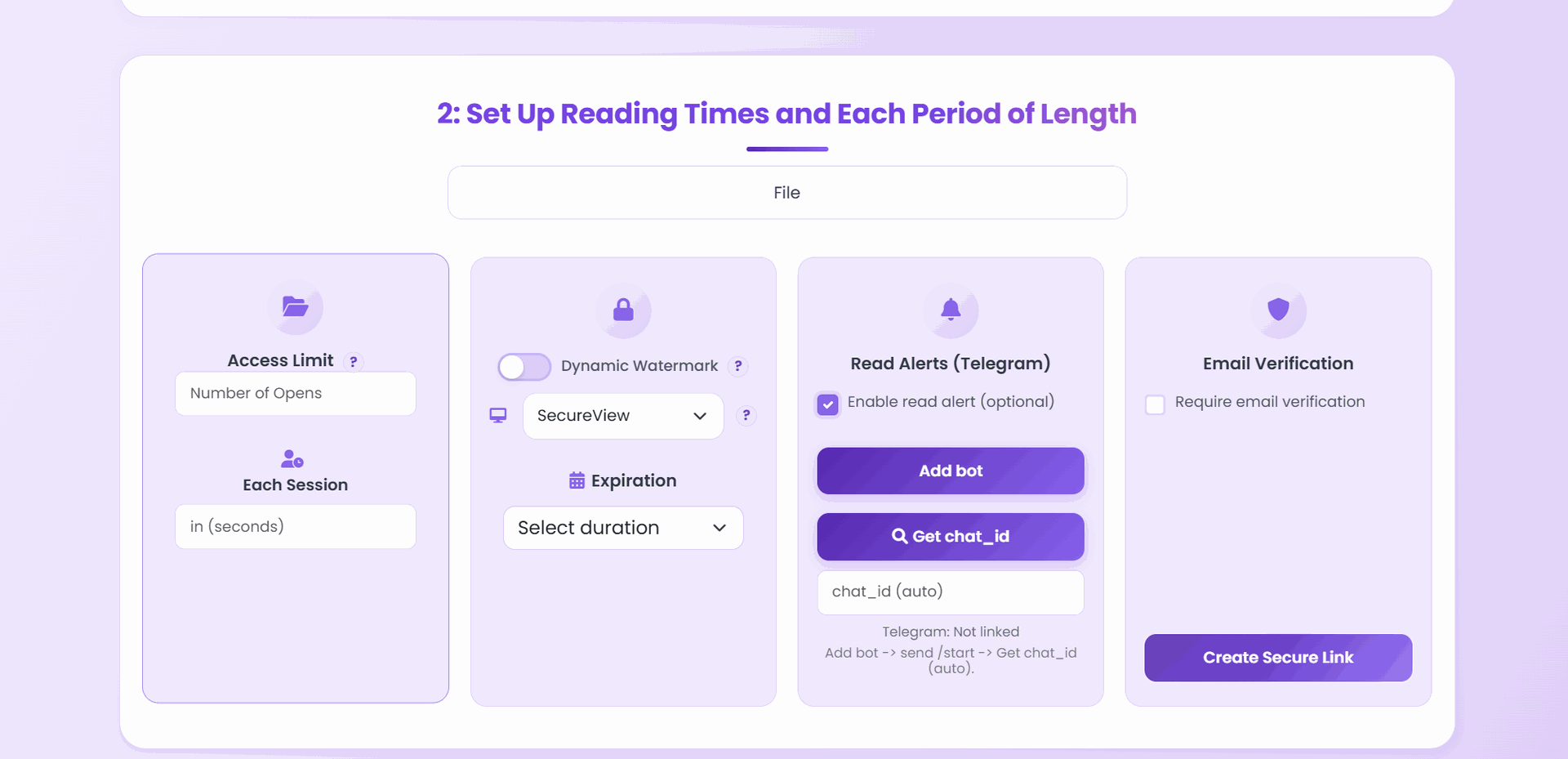
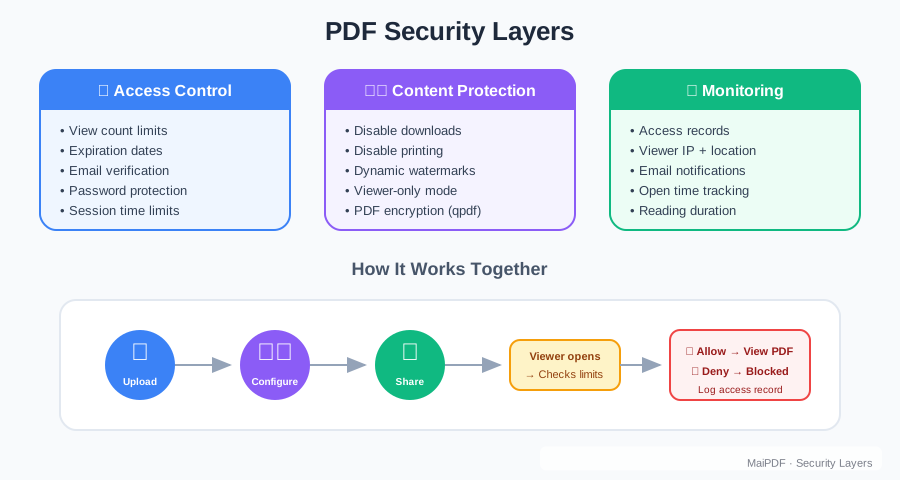
Available controls
View limits
Set how many times your PDF link can be opened. Once this number is reached, the link becomes inactive automatically. This prevents unlimited access while ensuring your intended recipients can view the document.
How it works: Each time someone clicks your link and opens the PDF, it counts toward the total. When the limit is reached, future attempts to access the link will fail.
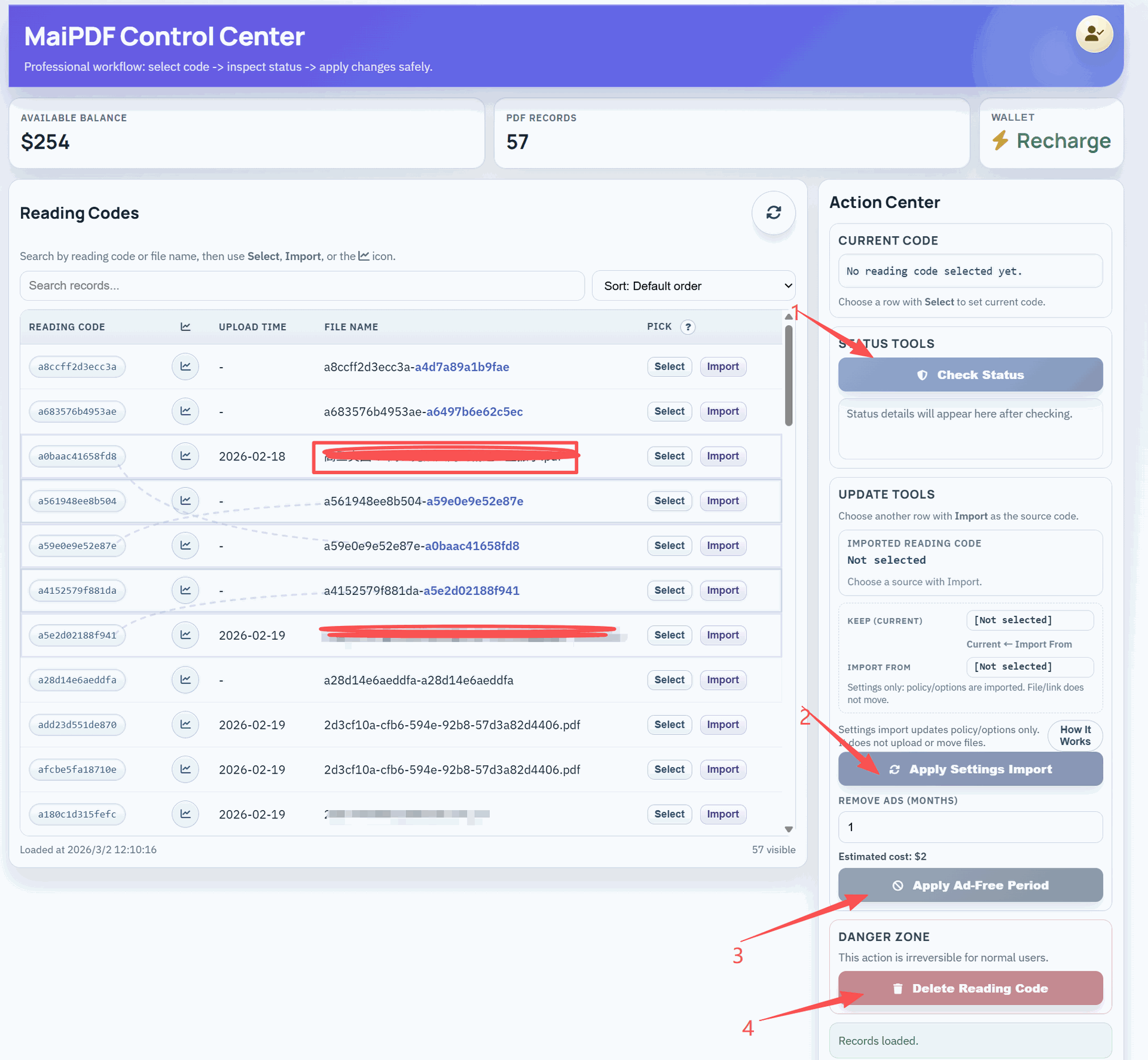
Manual link disabling
Disable your PDF link at any time after sharing it. This gives you immediate control if circumstances change or if you need to revoke access quickly.
How it works: Access your link management interface and disable the link with one click. All future access attempts will be blocked immediately.
File replacement
Replace the PDF file behind your existing link without changing the URL. Recipients continue using the same link but access updated content.
How it works: Upload a new PDF file to replace the original. The sharing link remains identical, but viewers see the new document version.
What’s not included
No automatic expiration
CloudShare mode does not include automatic link expiration based on time. Links remain active until you manually disable them or until view limits are reached.
No scheduled deactivation
There is no feature to automatically disable links after a specific date or time period.
Practical applications
Business documents
Share proposals or reports with view limits matching your intended audience size. Disable the link if negotiations change or contracts are finalized.
Educational materials
Distribute course content with controlled access. Replace files when materials are updated without requiring students to access new links.
Client presentations
Share design work or project updates with limited views. Update the content as projects evolve while maintaining the same sharing URL.
Event information
Distribute event details with the ability to update information as plans change. Attendees keep the same link but see current information.
How to manage your links
Set initial controls
Configure view limits and access settings when first sharing your PDF.
Monitor usage
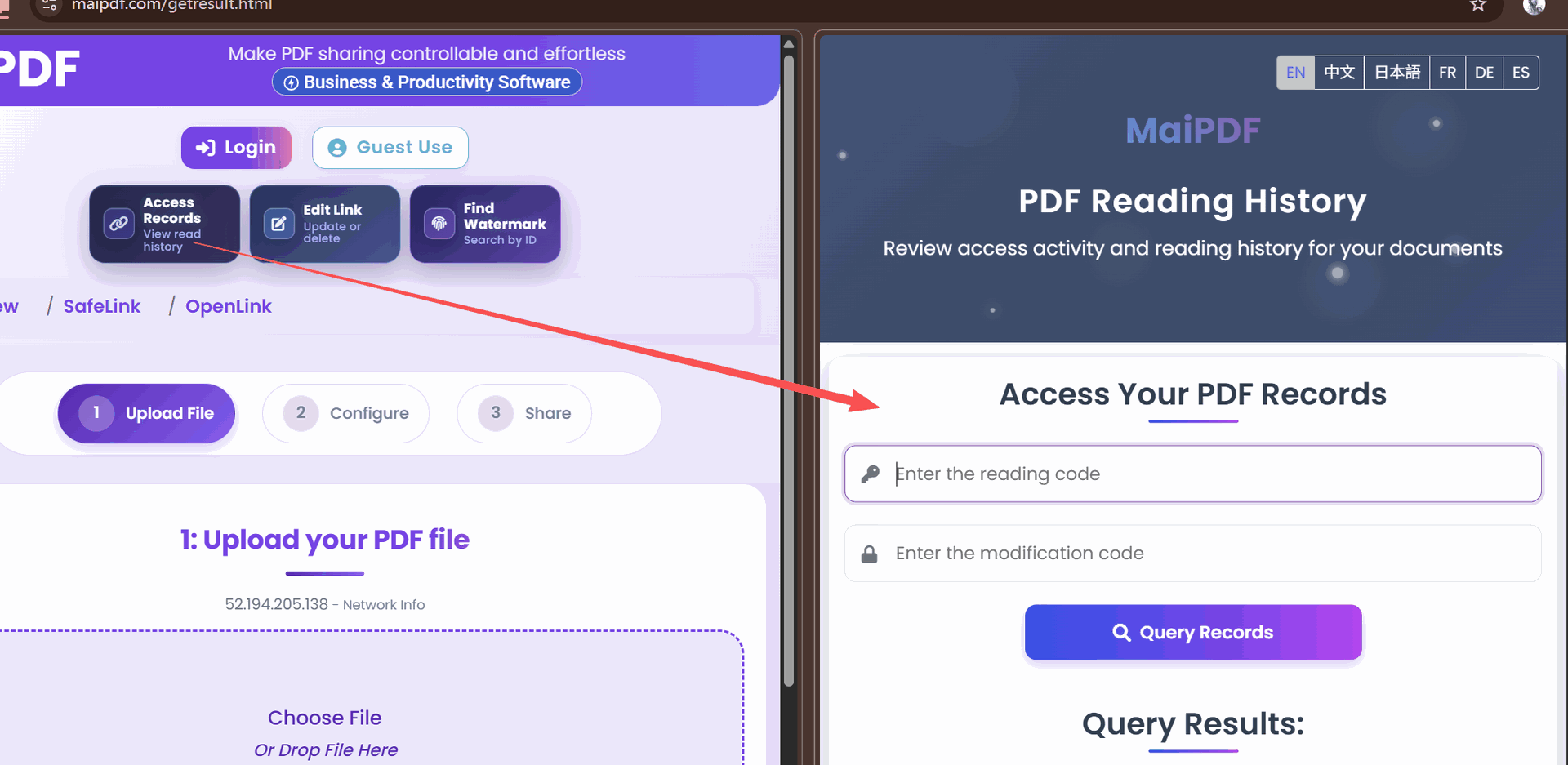
Track how many times your link has been accessed through the management interface.
Update as needed
Disable links, adjust limits, or replace files based on changing requirements.
Link behavior examples
Scenario 1: Limited distribution
Upload a confidential report and set a view limit of 5. Share the link with your team. After 5 people have accessed it, the link becomes inactive automatically.
Scenario 2: Evolving content
Share a project proposal with clients. As the project develops, replace the PDF file with updated versions. Clients continue using the same link but see current information.
Scenario 3: Emergency control
Share sensitive documents with stakeholders. If circumstances change, immediately disable the link to prevent further access.
Technical considerations
Link persistence
Disabled links cannot be reactivated. You need to generate a new link if you want to restore access.
File replacement limitations
New PDF files must be uploaded through the same account that created the original link. The replacement process is immediate.
View counting
View limits count unique access attempts, not unique users. The same person opening the link multiple times uses multiple views.
When to use these controls
View limits are useful for:
- Controlling distribution scope
- Preventing unlimited sharing
- Managing access to sensitive content
- Limiting resource usage
Link disabling works well for:
- Time-sensitive information
- Changing circumstances
- Revoking access quickly
- Emergency content control
File replacement helps with:
- Updating information
- Correcting errors
- Evolving documents
- Maintaining consistent sharing URLs