How to Upload a PDF and Generate a Secure Link
2026 update: Uploading a PDF and generating a link is the fastest sharing path. For high-value paid PDFs, workbooks, or exam-prep files, consider App DRM / .maipdf after upload planning. See PDF DRM for Online Courses.
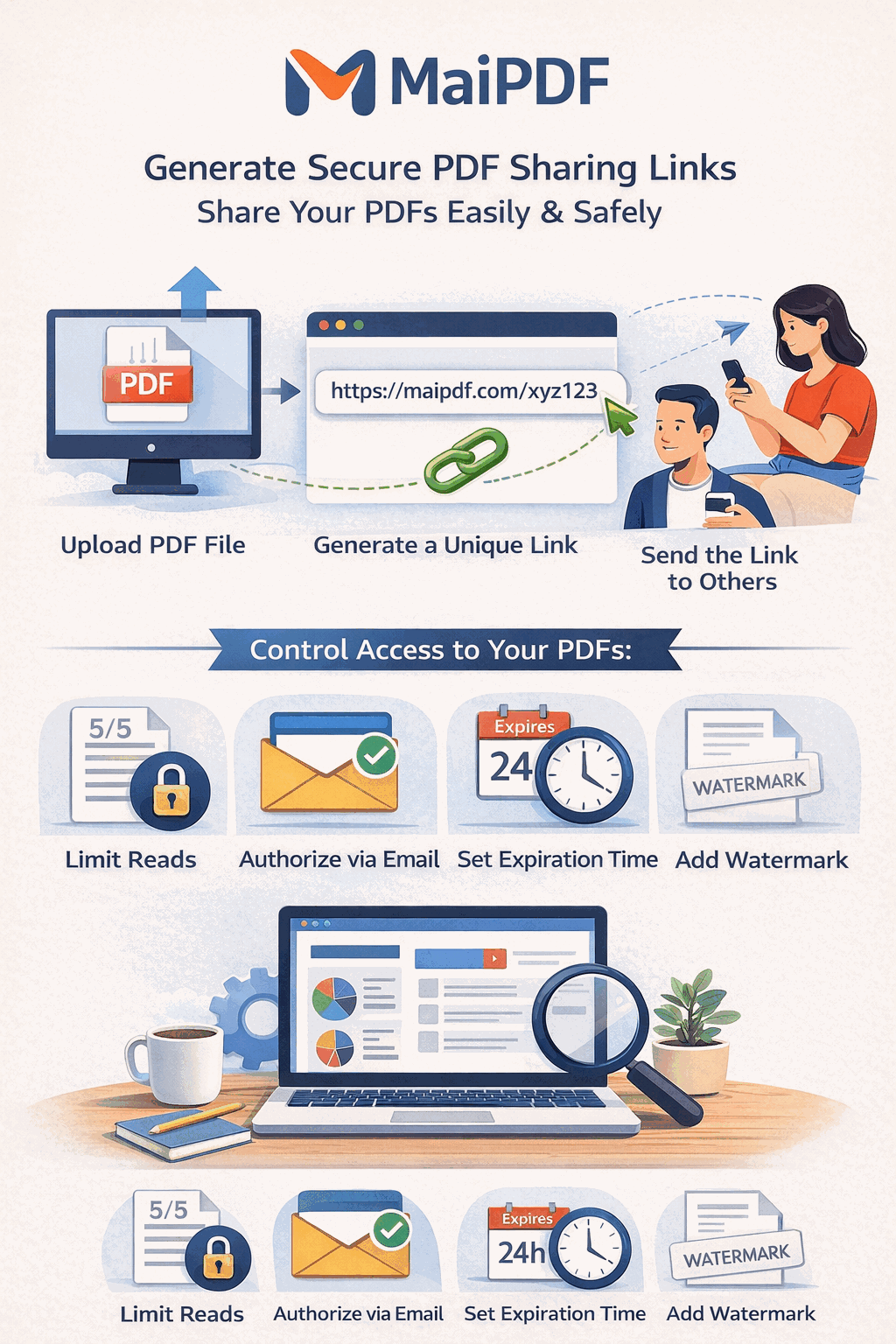
Uploading the file is the easy part. The real upgrade is that the PDF stops behaving like a loose attachment and starts behaving like one managed reading destination — a URL (and matching QR) whose rules you keep controlling after you press send.
Quick navigation
- What “secure link” actually means here
- The 3-step workflow
- Step 1 — Upload
- Step 2 — Configure only what the document needs
- Choosing a view mode: SecureView, Unrestricted, or App DRM
- Preset recipes by scenario
- Step 3 — Share the link and QR
- Replacing the file behind the link later
- Link vs. attachment: what actually changes
- Common mistakes
- FAQ
- Related reading
What “secure link” actually means here
“Secure link” on MaiPDF isn’t a buzzword — it is the combination of controls you actually turn on for one URL. A generated link is only as tight as its settings. That’s also why it can be loose on purpose when you want a public brochure, and very tight when you’re sending a contract draft to a hiring panel.
One link carries:
- an open limit (how many times it can load)
- an expiry (when it stops working)
- a session length (how long a single continuous reading session lasts)
- a protection mode that decides what the reader can do inside the viewer
- optional email verification before anyone sees a page
- optional Telegram read alerts so you know when it was opened
Skip everything you don’t need. Most documents need two or three controls, not all of them.
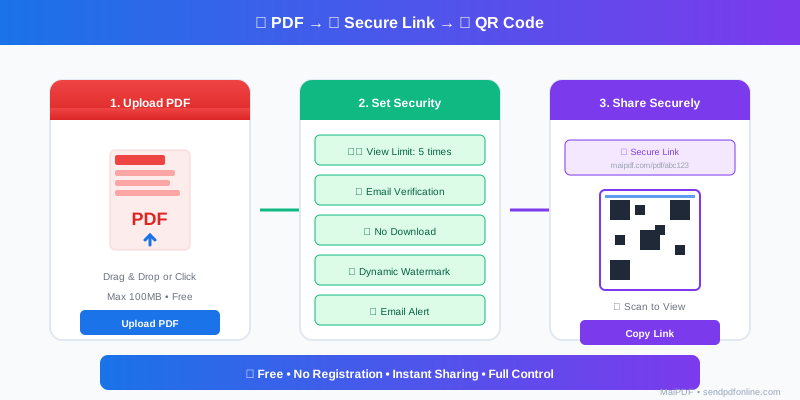
The 3-step workflow
- Upload the PDF.
- Configure only the controls that match the audience and the document’s sensitivity.
- Copy the link and QR — and open it once on your phone before you send it anywhere.
Step 1 — Upload
Open MaiPDF and drag the PDF into the upload area (or pick it from your files). No software install, no account required for a basic share — but signing in unlocks a control panel that makes everything later easier, especially replacing the file behind the same URL.

A small habit that pays off later: before uploading, make sure the filename you want is the one you actually want to show — some sharing channels display it next to the link.
Step 2 — Configure only what the document needs
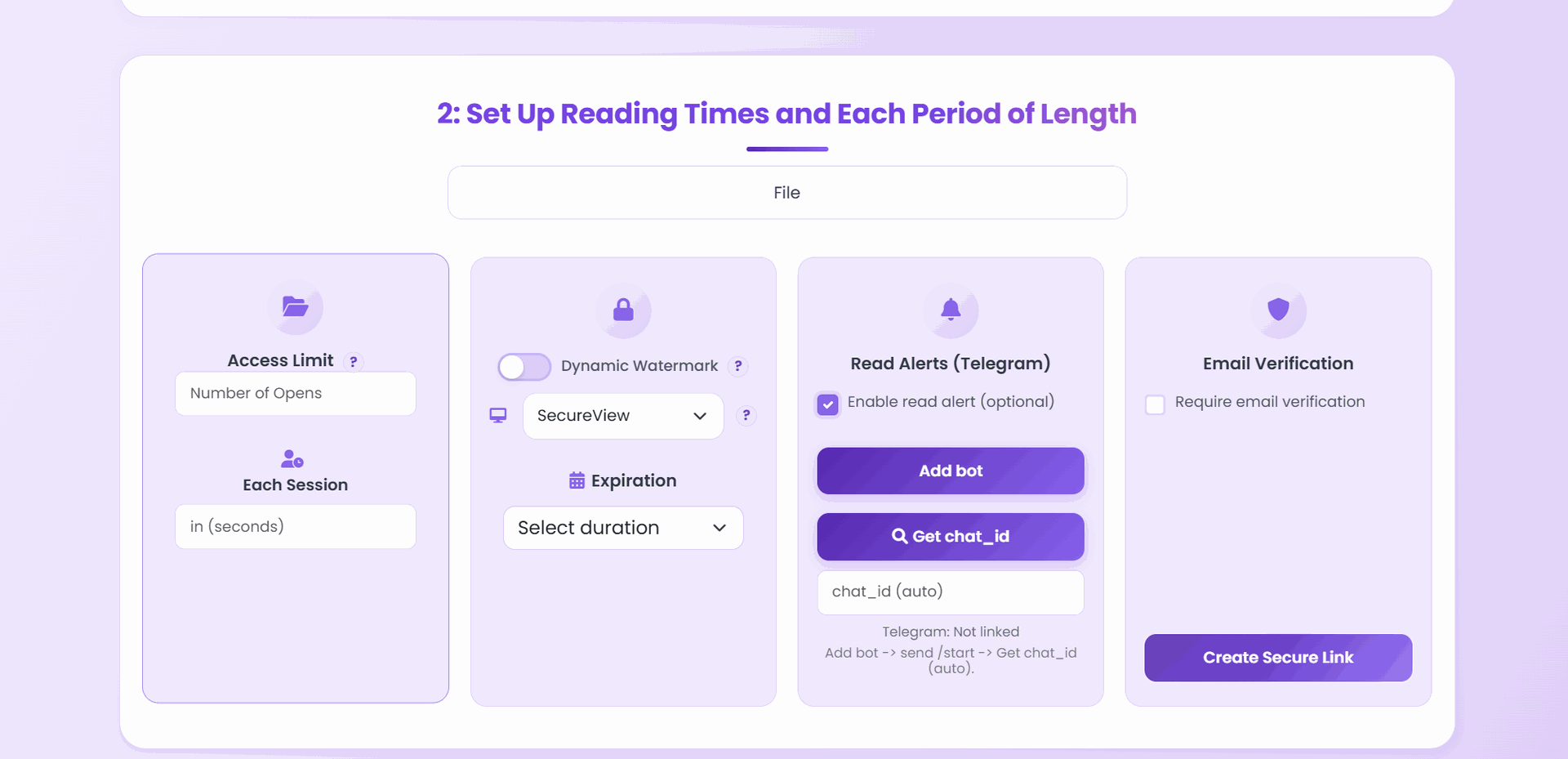
After upload you land on the configuration screen. Resist the instinct to flip every switch — each control has a cost (friction, forgotten readers, support messages), and the goal is the lightest useful policy.
| Control | Turn it on when… | Sensible starting point |
|---|---|---|
| Access limit | the file shouldn’t be re-openable forever | 1.5× the real audience size |
| Each-session length | readers only need a quick look, not hours in the tab | 10–30 minutes |
| Expiry | the document has a review window or a campaign window | set one whenever timing matters |
| Email verification | you care who opens it, not just how many times | contract / legal / offer letter |
| Telegram read alerts | you want a nudge on your phone when it was opened | handoffs, deadlines, one-shot shares |
| Dynamic watermark | the content could be screen-captured and re-forwarded | drafts, proposals, pricing |
For access limits specifically, the common mistake is typing the audience size directly. Mobile reading routinely registers as 3–5 opens per person. Multiply before you type — see the view-limit calculator and mobile multiplier for the math.
Choosing a view mode: SecureView, Unrestricted, or App DRM
The upload page offers three view modes. Pick one per link.
| Mode | What the reader can do | Use it for |
|---|---|---|
| SecureView (recommended) | Reads in the browser; the download and print controls are removed from the viewer | most shares — proposals, reports, portfolios |
| Unrestricted | Plain browser reading with no viewer restrictions | public brochures, anything you want maximally easy to open |
| App DRM (reader installs the app) | The file becomes an encrypted .maipdf; the operating system itself refuses screenshots | anything where a screen capture would be genuinely costly: drafts, internal decks, contracts |
One thing worth being straight about: no browser mode can block a screenshot. A web page has no way to refuse a system shortcut such as Win+Shift+S. SecureView removes the obvious download and print paths and the watermark makes a leak traceable, but if capture itself has to fail, that is App DRM — and it costs your reader an install.
Preset recipes by scenario
| Scenario | Mode | Open limit | Expiry | Email verify | Watermark |
|---|---|---|---|---|---|
| Public brochure | Unrestricted | unlimited or high | optional | off | off |
| Client proposal | SecureView | 20–40 | 7–14 days | optional | on |
| Contract draft to 3-person legal panel | App DRM | 8–10 | 3–5 days | on | on |
| Portfolio for job applications | SecureView | 30–60 | 30 days | off | optional |
| Resume sent directly to a recruiter | SecureView | 10–20 | 14 days | off | off |
| Pricing sheet to one prospect | SecureView | 5–8 | 3 days | on | on |
| Event handout via printed QR | SecureView | high | event window | off | off |
| Board / investor deck | App DRM | audience × 2 | meeting week | on | on |
The rule of thumb: start from the row that looks closest to your case, then loosen one thing if you’re worried about locking a reader out.
Step 3 — Share the link and QR
You get back a copyable URL and a matching QR code — both carry the same rules. Use whichever channel fits: email, chat, intranet post, Slack DM, slide footer, printed handout.
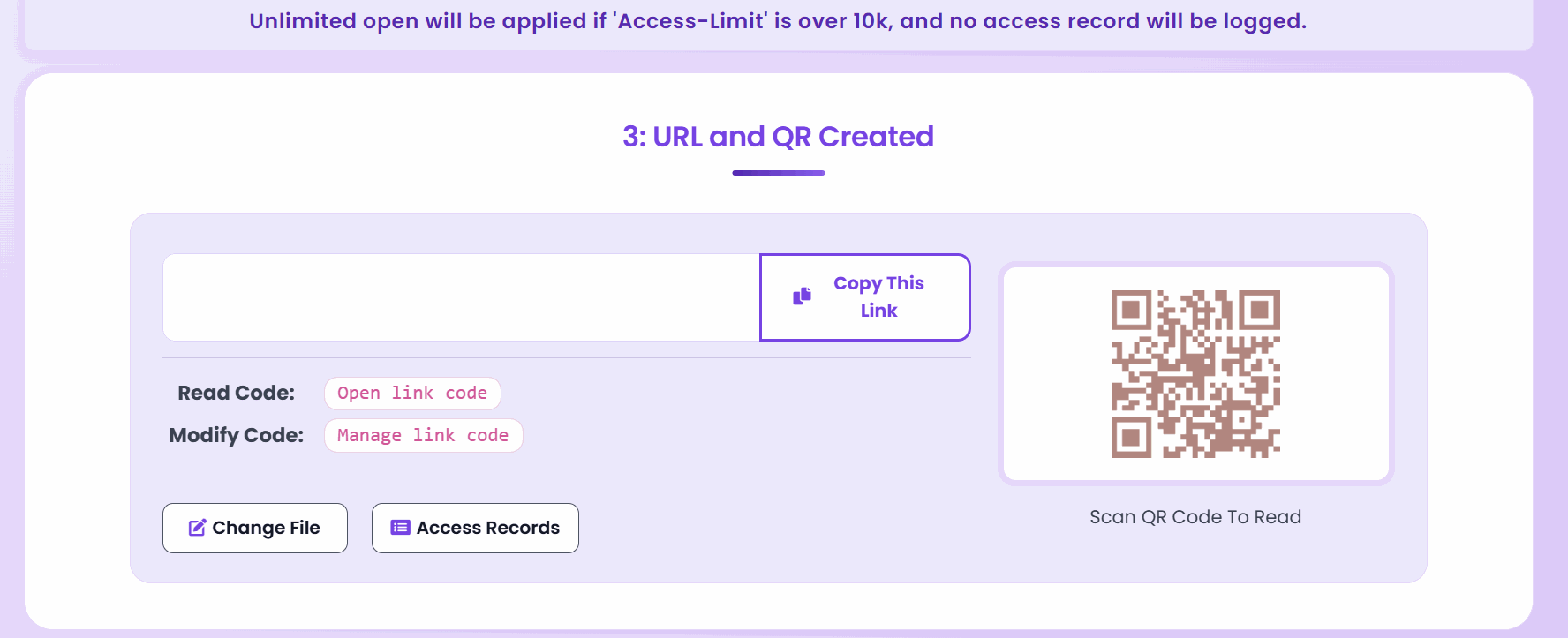
Before it goes anywhere real, do a 30-second pre-flight:
- Open it on your phone in cellular (not Wi-Fi) to check first-load feel.
- Open it once on desktop to confirm the viewer shows what you expect.
- If you set email verification, open it from an address that isn’t on the whitelist to confirm it actually blocks.
That last check catches the most common embarrassing failure: a lock that’s locked against nobody.
Replacing the file behind the link later
This is the single biggest reason to pick a managed link over an attachment: the URL can outlive the file. If you revise the PDF, you replace the file — the link and all access rules stay.
There are two replacement paths depending on how you uploaded.
If you uploaded while signed in
Open the control panel, find the link, and swap the file in place. The URL, QR, open count, expiry, and all settings carry over. Anyone who already has the link automatically sees the new version the next time they open it.
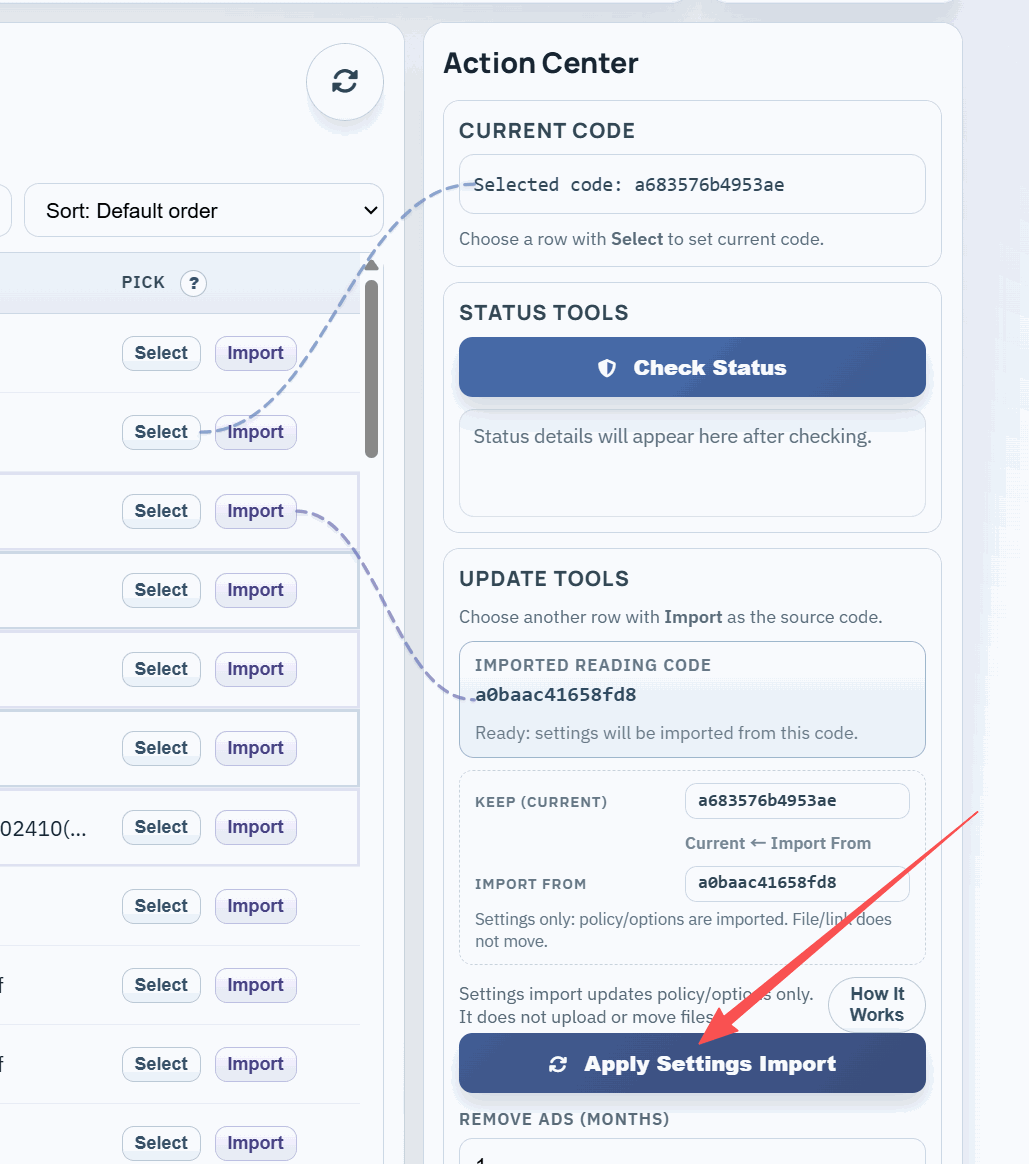
If you uploaded as a guest (no account)
The first time you generated the link, you were offered a modify code — save it. Later, open the same link, use the modify-code flow, and you can replace the file without signing in.
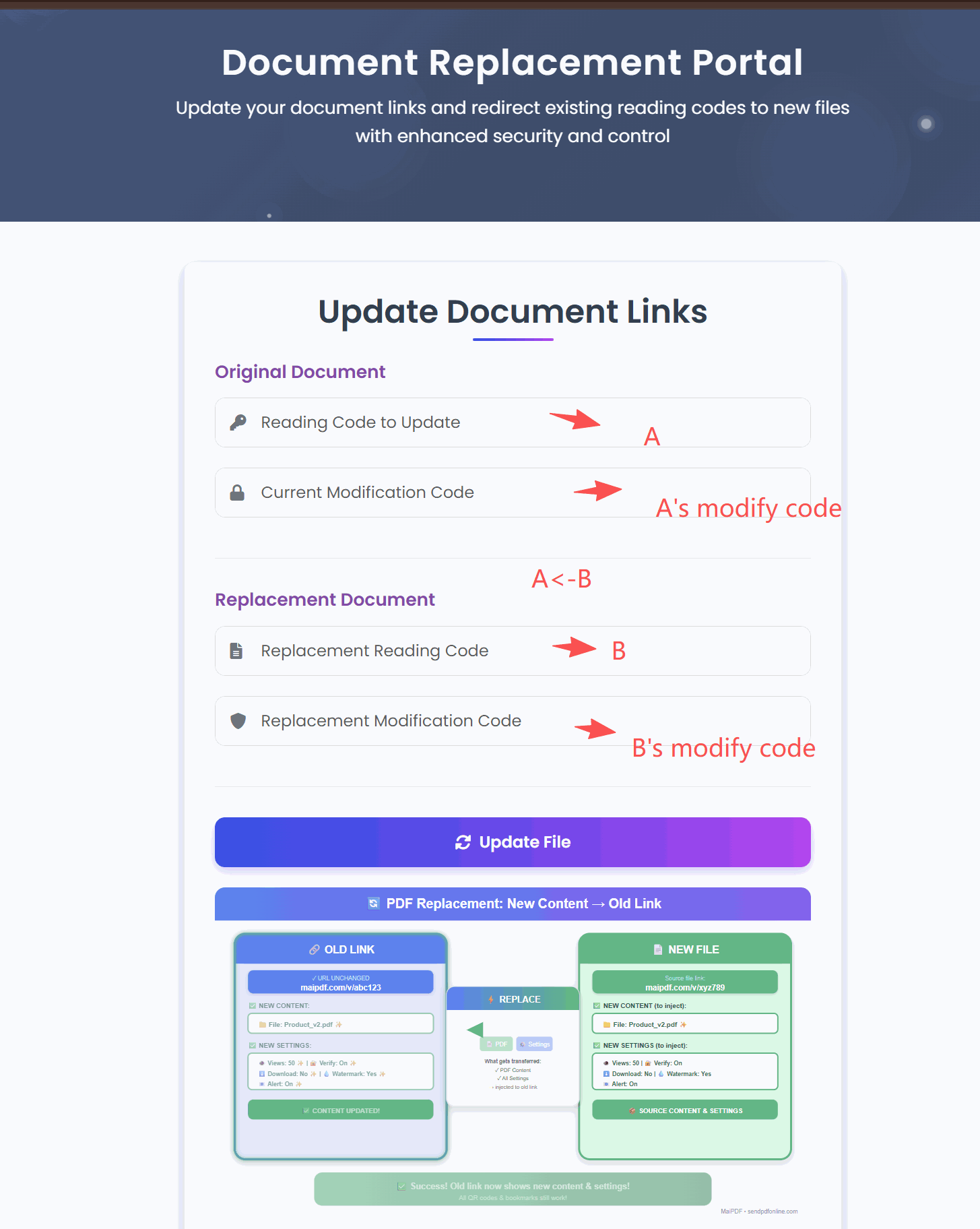
Either way, the rule is the same: don’t generate a new link for every revision. A moving target breaks reviewer bookmarks and multiplies version confusion.

Link vs. attachment: what actually changes
| Decision point | Email attachment / cloud folder | MaiPDF managed link |
|---|---|---|
| Does the recipient need to log in? | often yes (cloud drives) | no |
| Can you cap how many times it’s opened? | no | yes |
| Can you set an expiry? | no (folder), partial (some drives) | yes |
| Can you see when it was opened? | no | yes (Telegram alerts) |
| Can you replace the file without changing the URL? | no — every revision is a new email | yes |
| Can you close access after the fact? | no — copies live in inboxes | yes |
| Does the same destination work through QR? | awkward | yes |
The decision isn’t “link vs. email.” Email is still the delivery vehicle. The question is whether the thing you paste into the email is a file that escapes you, or a link you still own.
Common mistakes
| Mistake | Why it hurts | Do instead |
|---|---|---|
| Sending the attachment and the secure link in the same email | readers open the attachment and ignore every control you set | send the link only |
| One permanent link for every audience | impossible to cap or revoke per audience | one link per audience segment |
| Setting the open limit to the audience size exactly | mobile reloads lock out the last reader | multiply by 1.5 |
| Generating a new URL for every revision | reviewers lose track, bookmarks break | replace the file behind the same link |
| Skipping the mobile pre-flight | first impression fails for half the readers | always open once on phone before sending |
| Flipping every control “just in case” | support messages instead of signatures | start minimal, tighten only when needed |
FAQ
Does the reader need to install anything or create an account? No. Opening a MaiPDF link works in any modern browser — mobile or desktop — without a download or an account on the reader side.
What happens when the open limit is reached? The link stops loading the document. There is no field to edit the cap afterwards — to let a late reader in, replace the share with a PDF carrying the count you now want. The URL and QR stay exactly as they are.
Can I change the settings after sending? Yes. The whole point of a managed link is that the policy is editable — tighten, loosen, extend, or close it at any time.
Will the QR still work after I replace the file? Yes. The QR encodes the URL, and the URL doesn’t change when you swap the file.
Is the share analytics-only, or can I actually block specific people? Both layers exist. Telegram alerts are analytics. Email verification with a whitelist is an actual block — only the addresses you listed can open the PDF.