MaiPDF complete workflow guide (2026): Upload → Configure → Share, with diagrams
At a glance
- Flow: Upload → Configure (rules) → Share (link + QR).
- Rules you’ll set: expiry, open cap, session length, viewing mode; optional watermark, email check, Telegram open alerts.
- After sharing: same link can get a new PDF from the control panel; optional reading history when logging is enabled.
MaiPDF’s core idea is simple: the file stays a file, but sharing becomes a controlled link.
Instead of sending large attachments (or leaving a PDF in a public folder), you publish a link that honors rules like:
- Expiration (time-based)
- Access limit (view/open cap)
- Each session reading time (per-open time box)
- Viewing mode: SecureView, FenceView, or Unrestricted
- Optional dynamic watermark, email verification, and Telegram read alerts
The whole flow is Upload → Configure → Share.
The full workflow (diagram)
flowchart TB
  A[Upload PDF] --> B[Configure rules]
  B --> C["Create share link or QR"]
  C --> D[Send to recipients]
  D --> E[They open in browser]
  E --> F{Update or revoke}
  F -->|"Review history if logged"| G[Query reading history]
  F -->|Replace file| H[Swap file while keeping link]
  F -->|Tighten controls| I[Adjust settings]
  F -->|Done| J["Expire or close out"]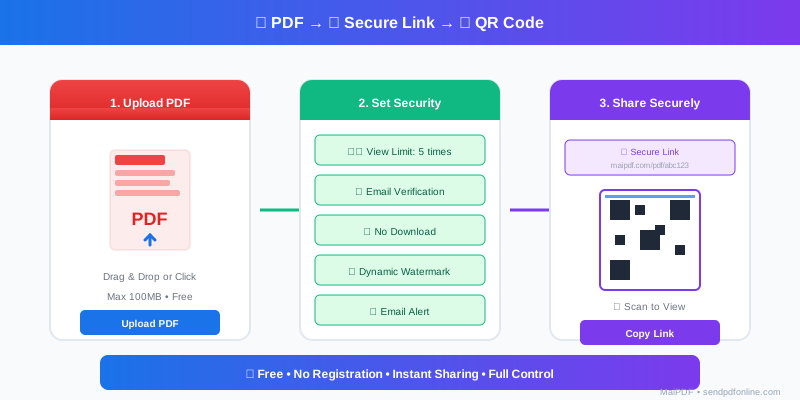
Step 1: Upload
What you’re doing
You’re putting the PDF into MaiPDF so the product can host it and attach rules—not emailing the binary around.
In the UI
Upload the PDF you want to share.

Step 2: Configure (the controls that matter)
This is where “a URL” becomes “a controlled PDF link.”
Core controls
- Expiration: end access automatically after a date / duration
- Access limit: cap total opens/reads
- Each session: limit reading time per open
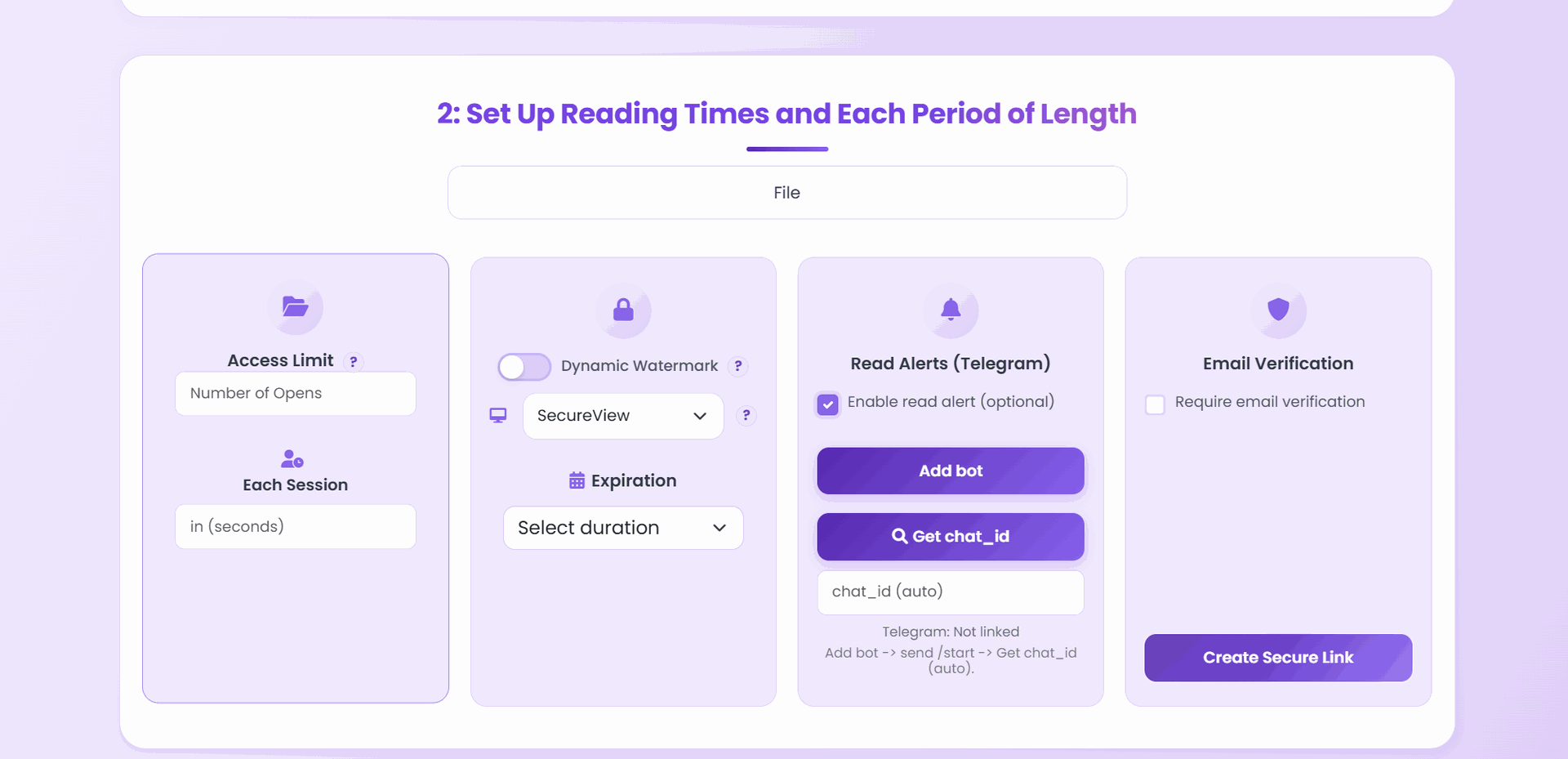
Viewing modes (how the PDF is displayed)
- SecureView: strongest protection, designed to reduce casual copying
- FenceView: adds a visible “fence” layer to deter screenshots/recording
- Unrestricted: easiest viewing for public/low-risk documents
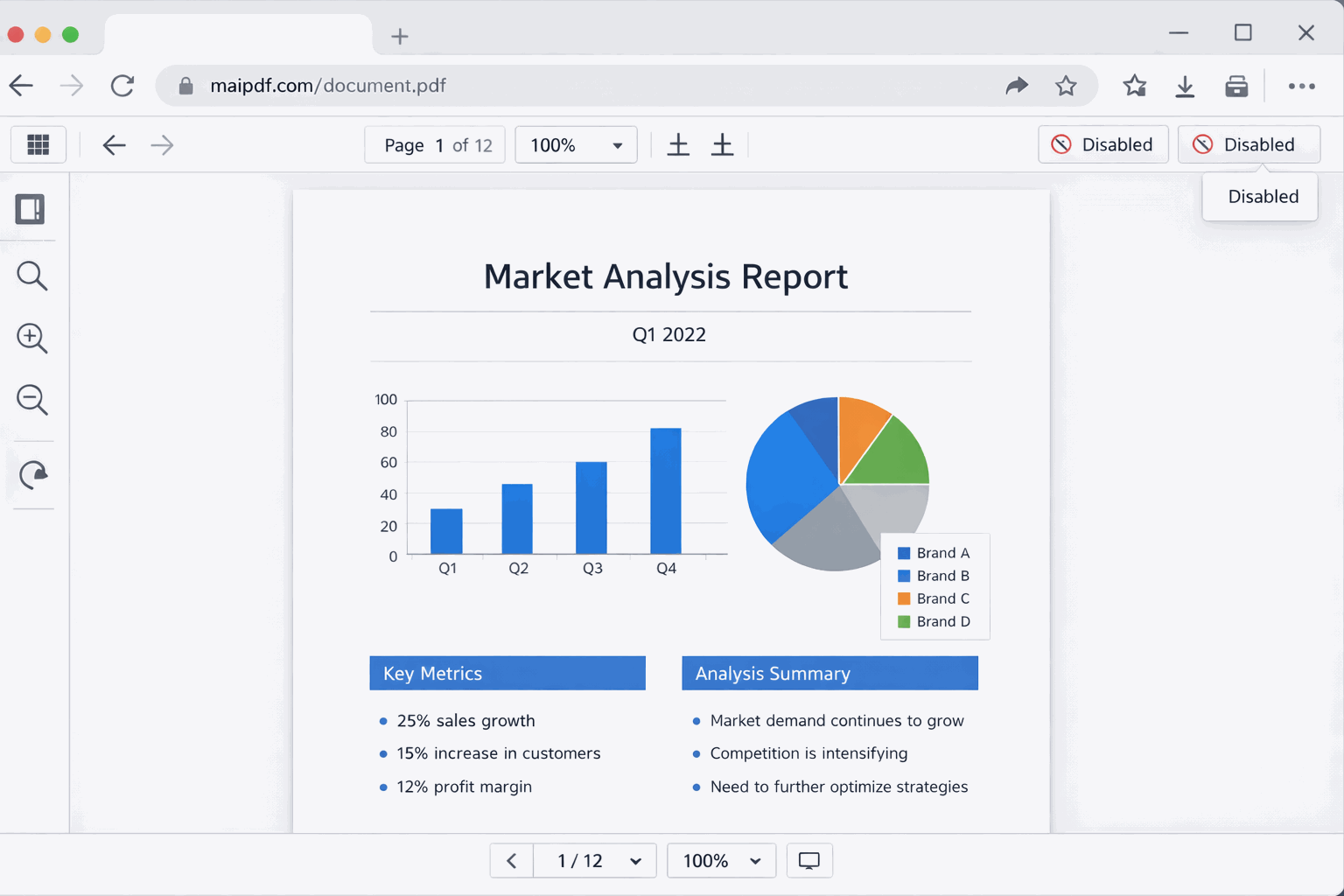
If you need to show the “no print / no download” style viewer UI:
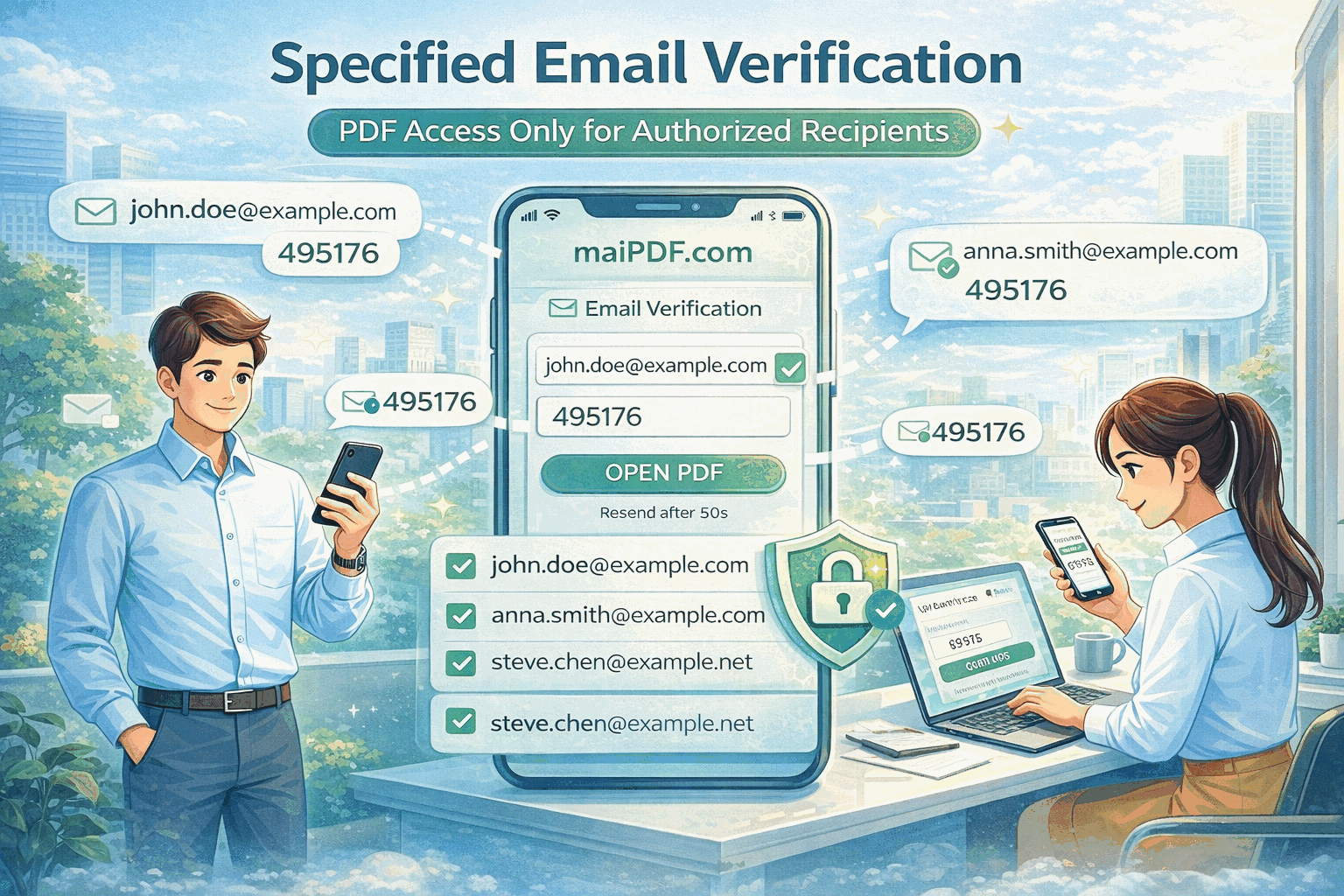
Optional hardening (use when the audience is strict)
- Dynamic watermark: overlay viewer context so leaked screenshots are less useful
- Email verification: only specific recipients can open the PDF
- Telegram read alerts: get notified when people open/read
Step 3: Share (link + QR)
What recipients get
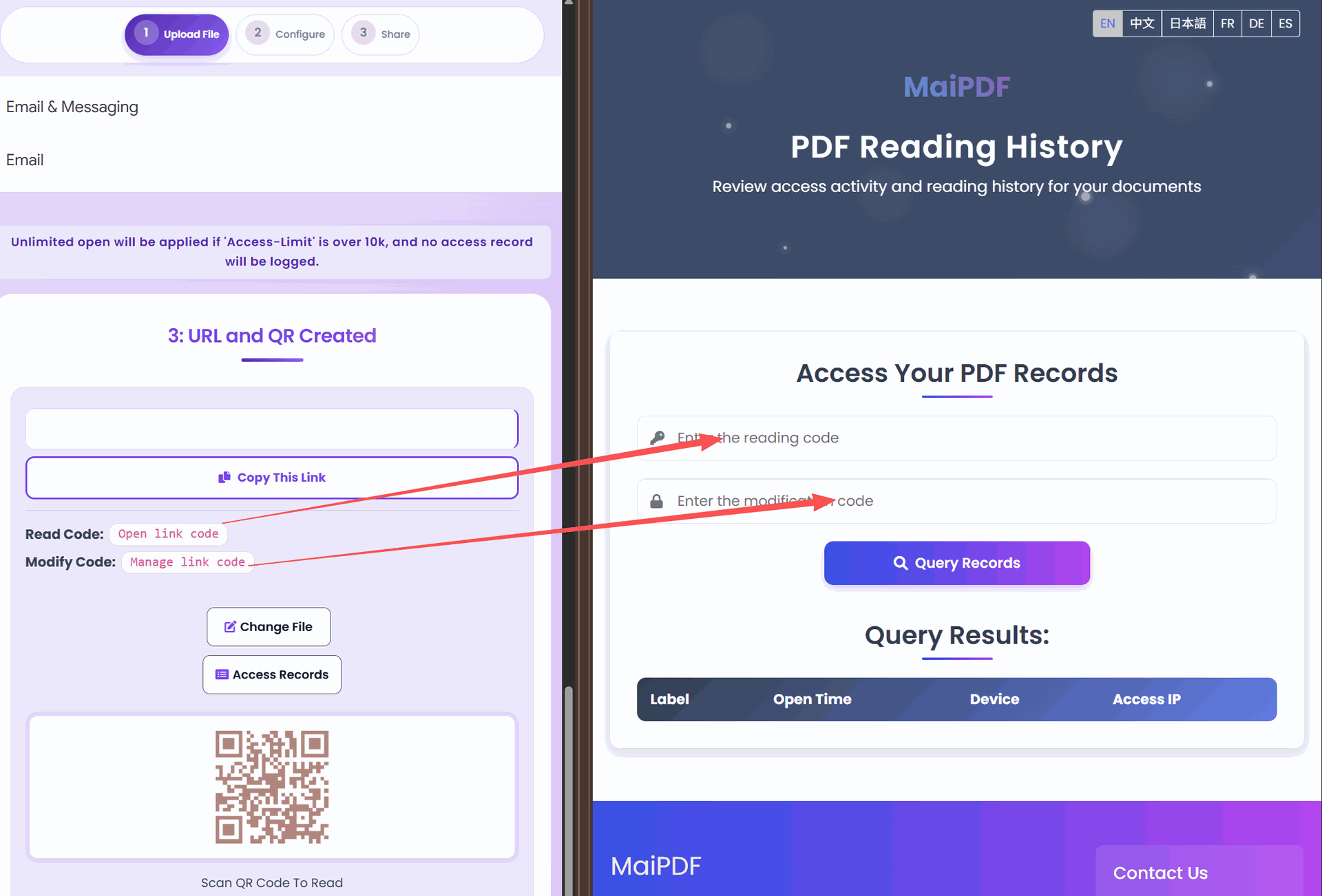
A URL (and optionally a QR). You keep Read / Modify codes to manage the share later.
When configuration is done, generate the link and (optionally) a QR code.
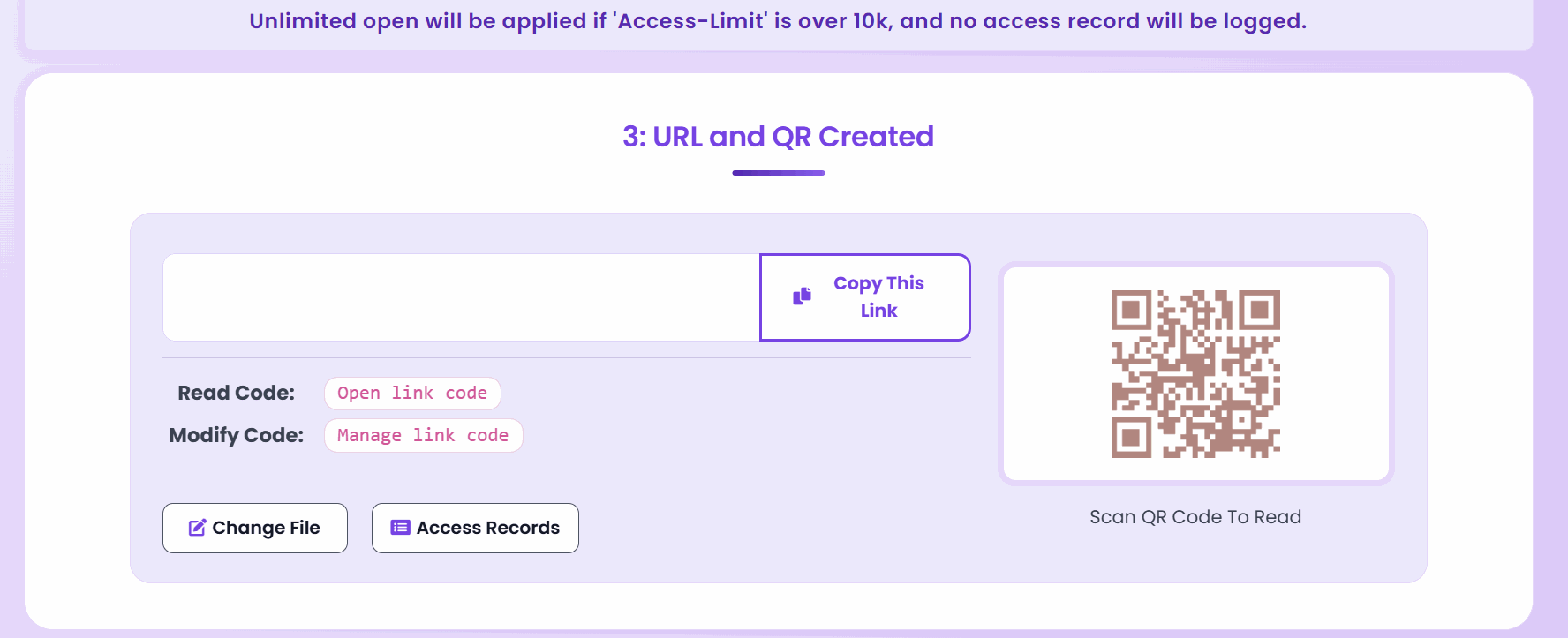
Large access limits caveat
If Access limit is above 10,000, the link can behave like it’s effectively public, and access records may not be logged. Use a limit that matches your real audience.
Reading history (when available)
When logging applies, you can use the Read / Modify codes on the share page to see high-level open activity—useful for follow-ups, not “surveillance-style” tracking. (Very high access limits can disable some logging; see the caveat above.)
Replace the file (without changing the share experience)
When you update a proposal deck, syllabus, or product sheet, you often want the same “share channel” to point to the newest version.
MaiPDF supports swapping/replacing the file via the control panel, so you don’t have to resend a brand-new link every time.
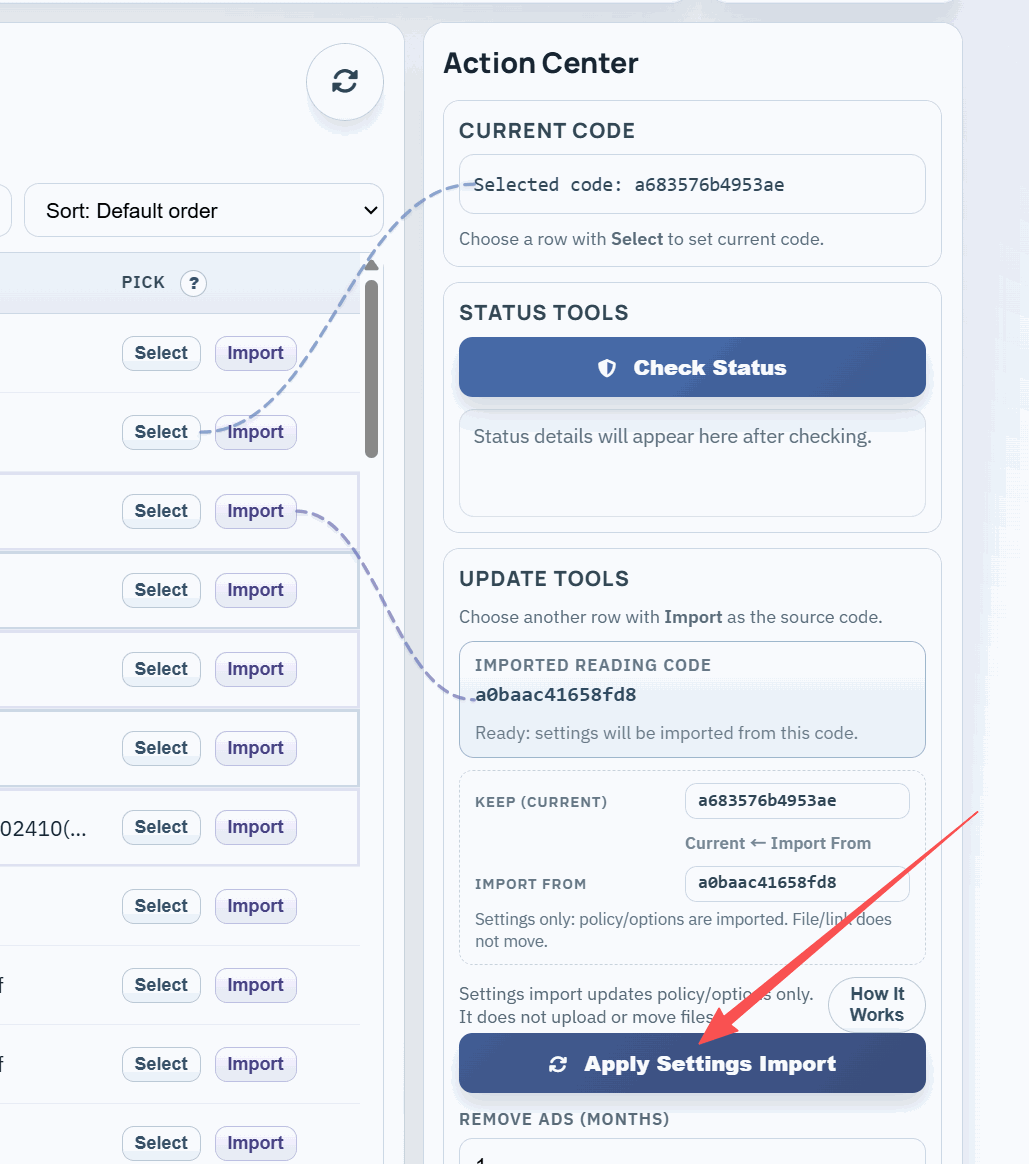
Replace flow (diagram)
flowchart LR
  A[Share link is sent] --> B[PDF needs a new version]
  B --> C["Replace file or import settings"]
  C --> D[Recipients open the same link]
  D --> E[They see the updated PDF]
Related: Secure PDF links · Host a PDF online for secure sharing · PDF to QR