PDF Online Viewer Prevent Copy: Practical Protection Guide
PDF Online Viewer Prevent Copy: Practical Protection Guide
2026 update: This guide mainly covers browser-based Online Cloud Sharing: controlled links, expiry, view limits, watermarks, access records, and download/print restrictions. For files where screenshot risk, device sharing, refund abuse, or post-contract revocation matters, use the stronger App DRM path: protected
.maipdffiles opened in the MaiPDF App with device binding, license revocation, protected reading, and traceable watermarks. A browser cannot fully block operating-system screenshots, and no software can stop someone from photographing a screen with another phone.Start here if you are choosing between the two paths: Online PDF Sharing vs App DRM, secure PDF reader with screenshot protection, and how to revoke access to a PDF after sending.
You share a report. Someone selects the text, copies it, pastes it into their own document, and publishes it under their name. Copy protection in an online viewer makes that much harder — the reader can see the content but can't select or extract the text.
Where this guide fits in MaiPDF’s two-path model
MaiPDF now has two main protection paths, and this guide should be read inside that structure:
- Online Cloud Sharing is the fast path: upload a PDF, generate a link or QR code, control download behavior, set expiry or view limits, add watermarks, and track opens in the browser.
- App DRM /
.maipdfis the stricter path: package the PDF for the MaiPDF App protected reader when you need screenshot-aware controls, device binding, license checks, and revoke-after-send workflows.
If you are not sure which path fits your file, start with Online PDF Sharing vs App DRM. If screenshots or protected-reader behavior are the main concern, read Secure PDF Reader with Screenshot Protection and Free PDF Screenshot Protection Software.
How copy prevention works in practice
When you share a PDF through MaiPDF’s online viewer with copy protection enabled:
- Text selection is disabled — clicking and dragging doesn’t highlight text
- Right-click is restricted — no “Copy” option in the context menu
- Keyboard shortcuts blocked — Ctrl+C / Ctrl+A don’t work in the viewer
- No source file access — with download off, the reader can’t get the raw PDF to extract text elsewhere
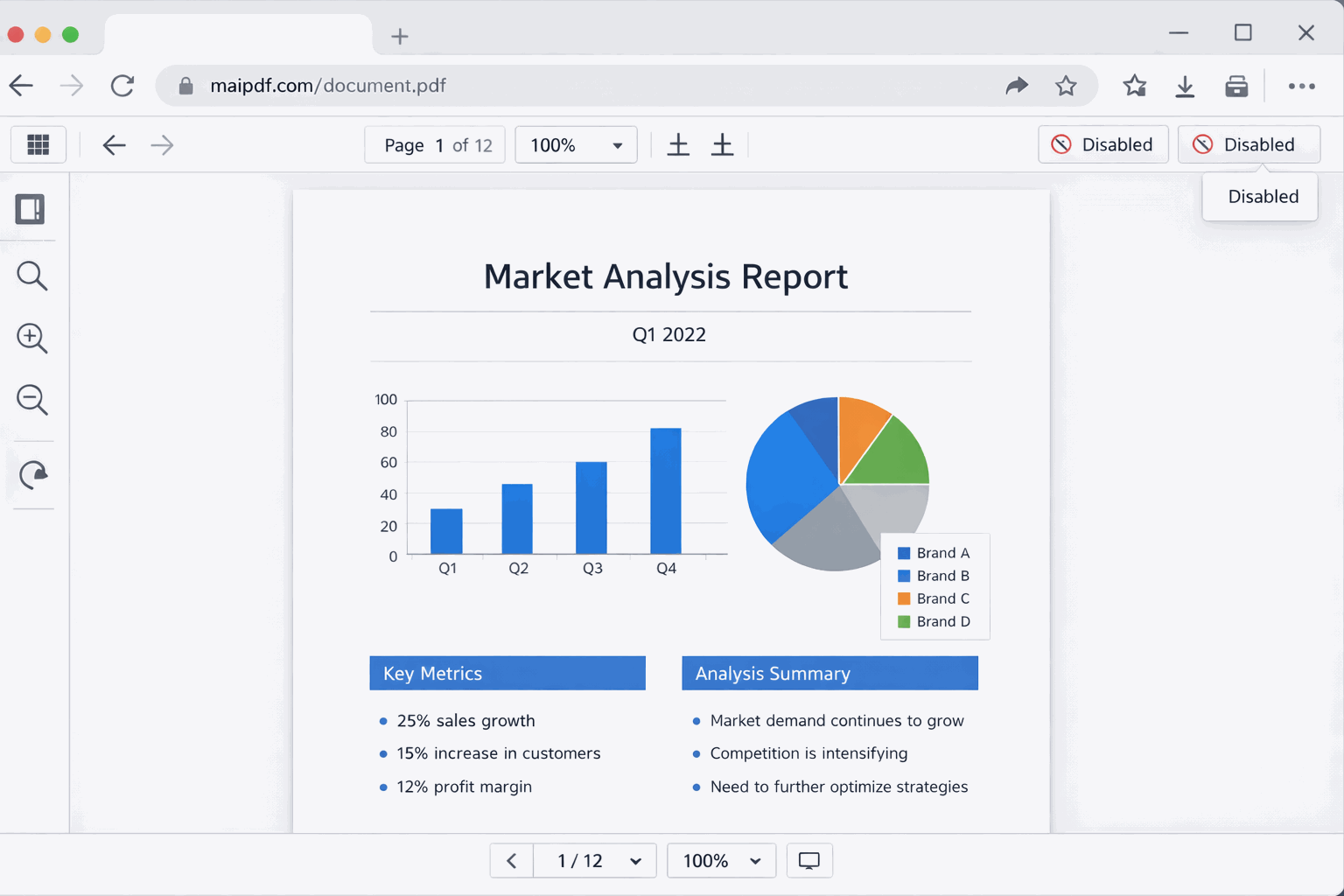
The reader sees the full document. They can scroll, zoom, and read everything. They just can’t select and copy the text out.
Setting it up
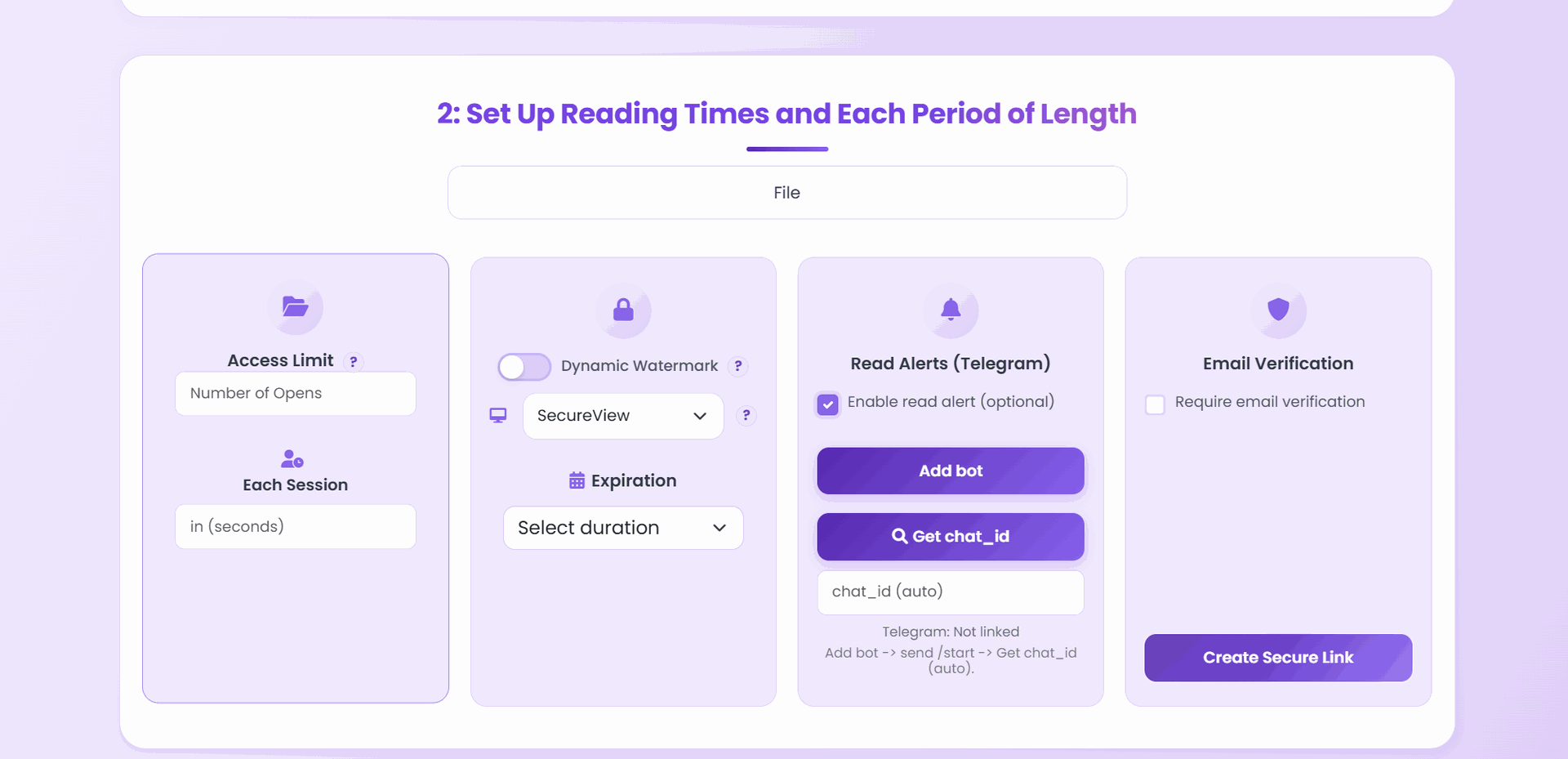
- Upload your PDF at maipdf.com.
- In the settings panel:
- Disable download — removes the save button
- Disable print — removes print option (blocks “Print to PDF” too)
- Set any additional rules — view limit, expiry, email verification, watermark.
- Click Create Secure Link.
The link opens in MaiPDF’s online viewer. The reader views your PDF in the browser with no way to download, print, or copy text.
What copy prevention can and can’t stop
Be honest about what this does:
| Threat | Does copy prevention stop it? |
|---|---|
| Select text → paste | Yes — text selection disabled |
| Right-click → copy | Yes — context menu restricted |
| Download → extract text | Yes (if download is off) |
| Print → OCR the printout | Yes (if print is off) |
| Screenshot → OCR | No — can’t prevent screenshots |
| Phone camera → OCR | No — can’t prevent photos |
Copy prevention stops casual misuse — the quick select-and-paste that accounts for most content theft. It doesn’t stop a determined attacker with OCR tools, but it raises the effort from 5 seconds to 15 minutes.
Layer it for real protection
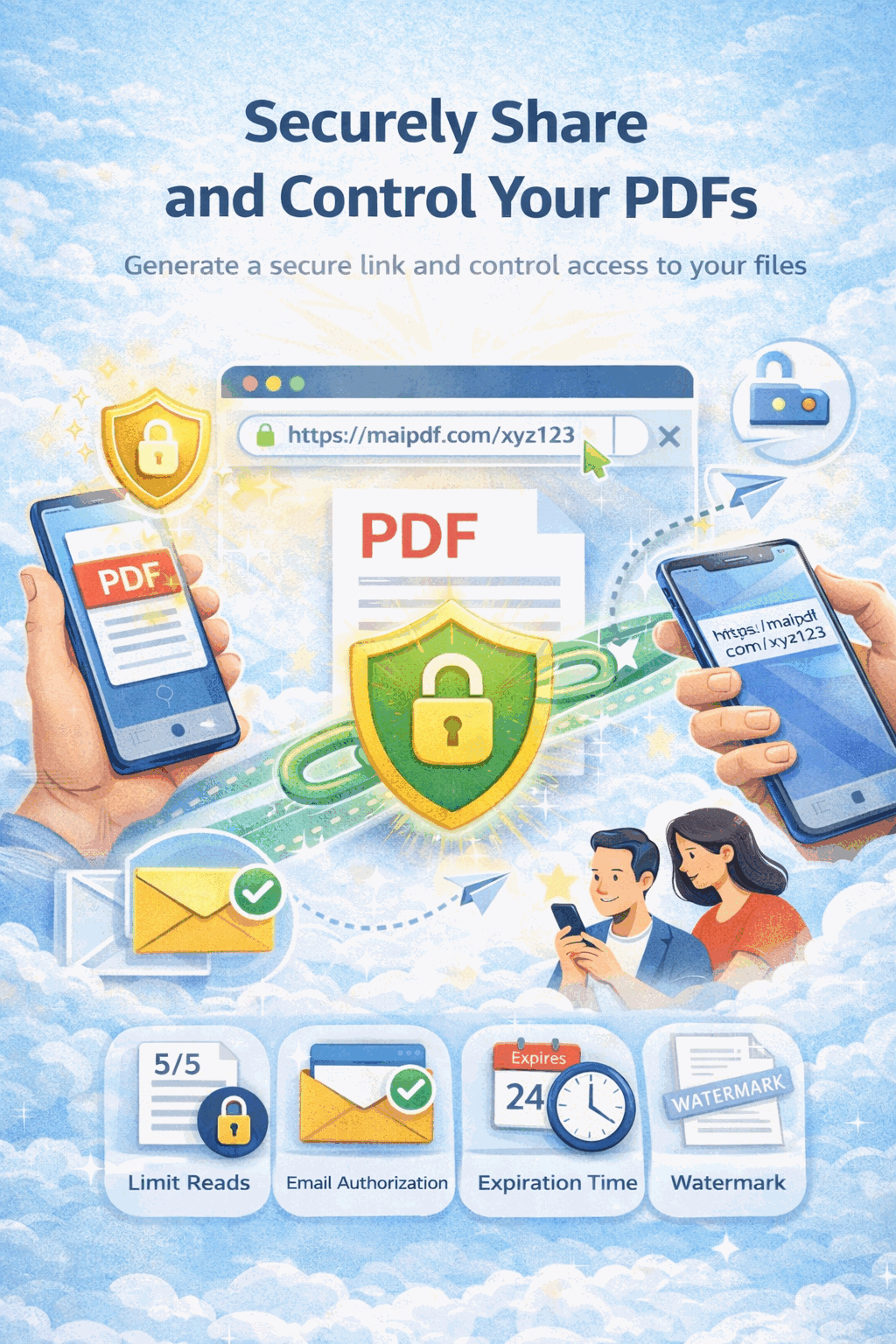
Copy prevention alone is a speed bump. Combined with other controls, it becomes a wall:
Copy prevention + Download off + Print off The reader can only view in the browser. No file to extract from, no printout to OCR.
+ Watermark Even if someone screenshots, your watermark (their email, a custom ID) is burned into every page. This deters sharing because the leak traces back to them.
+ View limit + Expiry The link stops working after N opens or a set date. Even if someone wants to methodically screenshot every page, they have limited chances.
+ Email verification You know exactly who opened the document. If content leaks, you have an audit trail.
When you need copy prevention
- Paid reports & research — subscribers should read, not redistribute
- Pricing documents — you don’t want competitors building a price comparison from your quotes
- Legal drafts — prevent uncontrolled text extraction before the document is finalized
- Course materials — students can study but can’t copy-paste into shared notes
- Design proposals — protect your creative text (project descriptions, strategies) alongside visual work
When you don’t need it
- Public content — blog posts, press releases, marketing PDFs. You want people to share.
- Collaborative documents — if the reader needs to quote or reference your text, copy restriction just frustrates them.
- Internal team docs — if you trust the readers, adding friction slows them down for no gain.
Update after sharing
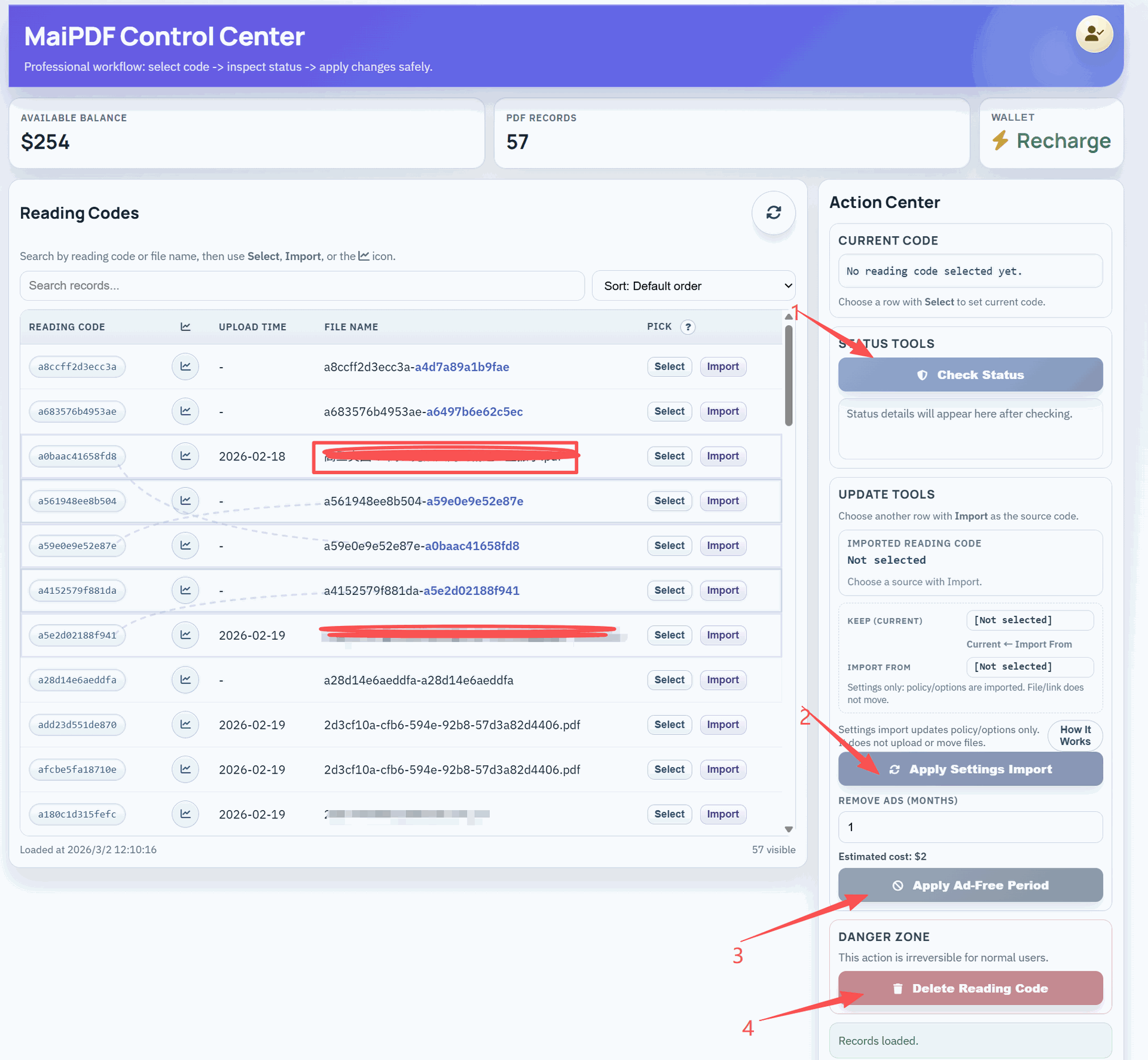
Already sent the link? Go to Control Center and change the download/print settings. Changes apply immediately to the next viewer.
Related reading:
- MaiPDF Print Restriction Settings Guide — detailed guide to disabling print
- Control PDF Access: Enable or Disable Downloads — download prevention explained
- Enhancing Document Security with MaiPDF — all security features overview
- How to Prevent PDF Downloads: Complete Guide — dedicated download prevention guide