PDF Share Link Disable Download: View-Only Setup
PDF Share Link Disable Download: View-Only Setup
2026 update: This article mainly covers browser-based Online Cloud Sharing controls. For paid course files, workbooks, exam-prep PDFs, or documents that need device binding, license revocation, and screenshot-aware protected reading, use MaiPDF App DRM / .maipdf. Start with Online PDF Sharing vs App DRM or PDF DRM for Online Courses.
When you send a PDF as an email attachment, the recipient saves a local copy the moment they open it. That copy is outside your control forever. A view-only link works differently — the reader sees every page in the browser, but there's no download button and no local file is saved.
Where this guide fits in MaiPDF’s two-path model
MaiPDF now has two main protection paths, and this guide should be read inside that structure:
- Online Cloud Sharing is the fast path: upload a PDF, generate a link or QR code, control download behavior, set expiry or view limits, add watermarks, and track opens in the browser.
- App DRM /
.maipdfis the stricter path: package the PDF for the MaiPDF App protected reader when you need screenshot-aware controls, device binding, license checks, and revoke-after-send workflows.
If you are not sure which path fits your file, start with Online PDF Sharing vs App DRM. If screenshots or protected-reader behavior are the main concern, read Secure PDF Reader with Screenshot Protection and Free PDF Screenshot Protection Software.
How to create a view-only link in MaiPDF
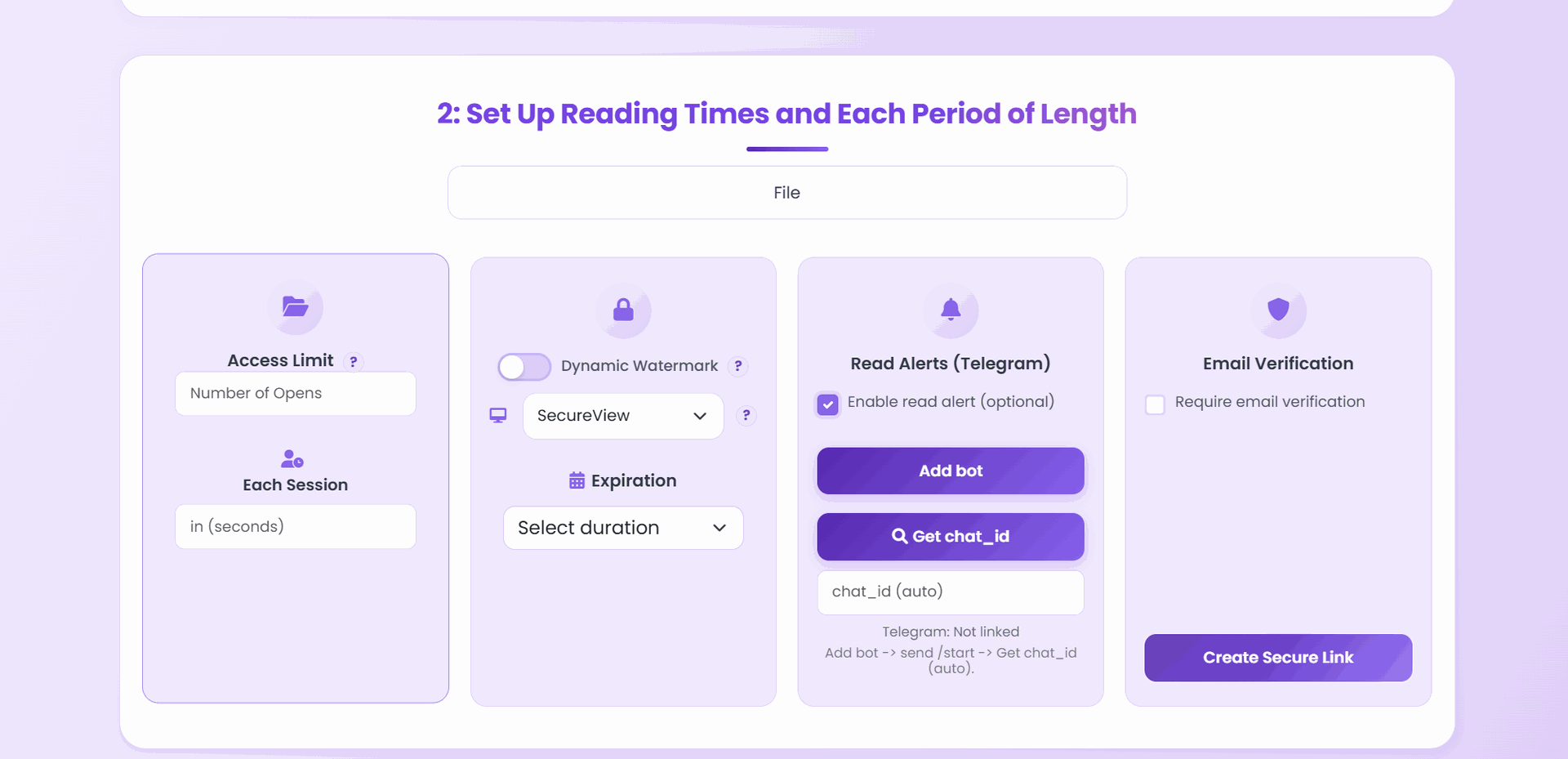
- Upload your PDF at maipdf.com.
- In the settings panel, disable download (and optionally disable print too).
- Set an open limit and expiry date.
- Click Create Secure Link.
The link is ready immediately. You can share it by email, chat, or as a QR code.
What the reader experiences
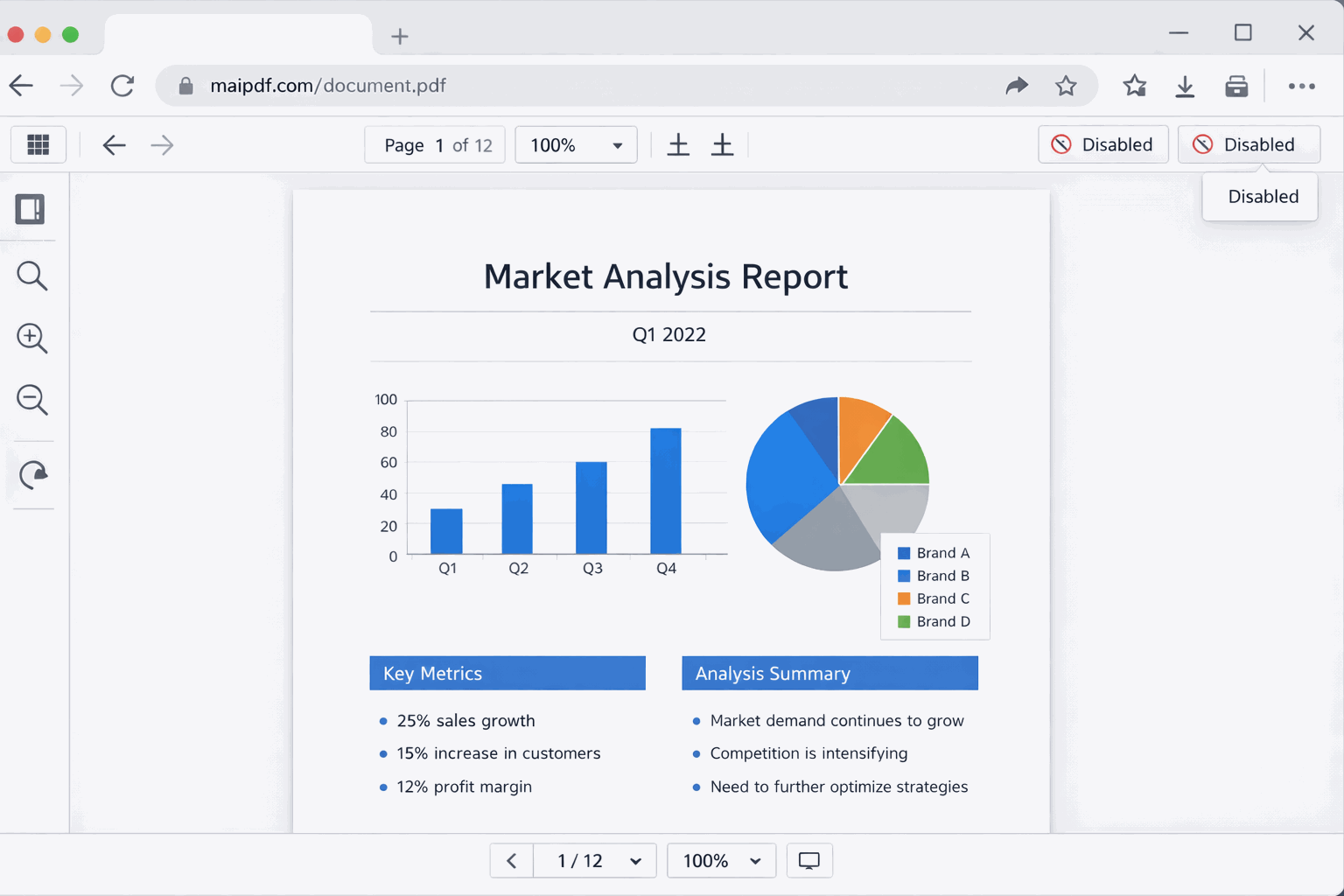
The reader clicks the link and the PDF opens directly in a browser viewer:
- All pages are readable — scroll, zoom, navigate normally
- No download button — the usual save/download icon is removed
- No print option (if disabled) — print dialog is blocked
- No source file — can’t right-click to save the PDF
The experience is clean. Most readers won’t notice a download control is missing — they just read the document.
When to disable downloads
| Scenario | Download off? | Why |
|---|---|---|
| Client proposal | Yes | Reduce unsanctioned copies while deal is active |
| Contract under review | Yes | Version control — only show the latest |
| Paid report / premium content | Yes | Reader pays for access, not a file |
| Design draft | Yes | Protect work-in-progress |
| Marketing brochure | No | You want broad distribution |
| Form that needs signing | No | Reader must print and sign |
Combine with other controls
Download-off alone reduces casual redistribution. For stronger protection:
- Open limit — the link stops working after N views
- Expiry — the link dies on a set date
- Watermark — your text on every page, identifies the reader if something leaks
- Email verification — requires inbox verification before the PDF loads
Change it anytime
Already sent the link? Go to Control Center and toggle download back on or off. The change applies immediately to the next viewer — no need to reshare the link.
Related reading:
- How to Prevent PDF Downloads: Complete Guide — deeper dive on view-only sharing
- MaiPDF Print Restriction Settings Guide — disabling print alongside download
- PDF Online Viewer Prevent Copy — copy prevention in the viewer
- Control PDF Access: Enable or Disable Downloads — when to allow vs block