Email-Verified PDF Links: Stop Forwarded Access
Email-Verified PDF Links: Stop Forwarded Access
2026 update: Email verification helps ensure that a forwarded browser link is not useful to strangers. For stronger post-distribution control, add App DRM / .maipdf with device binding and license revocation. See Online PDF Sharing vs App DRM.
You share a PDF link with one person. They forward it to five. Those five forward it again. Within hours, your "private" document is open to anyone. Email verification breaks that chain — every new reader must prove who they are before the PDF loads.
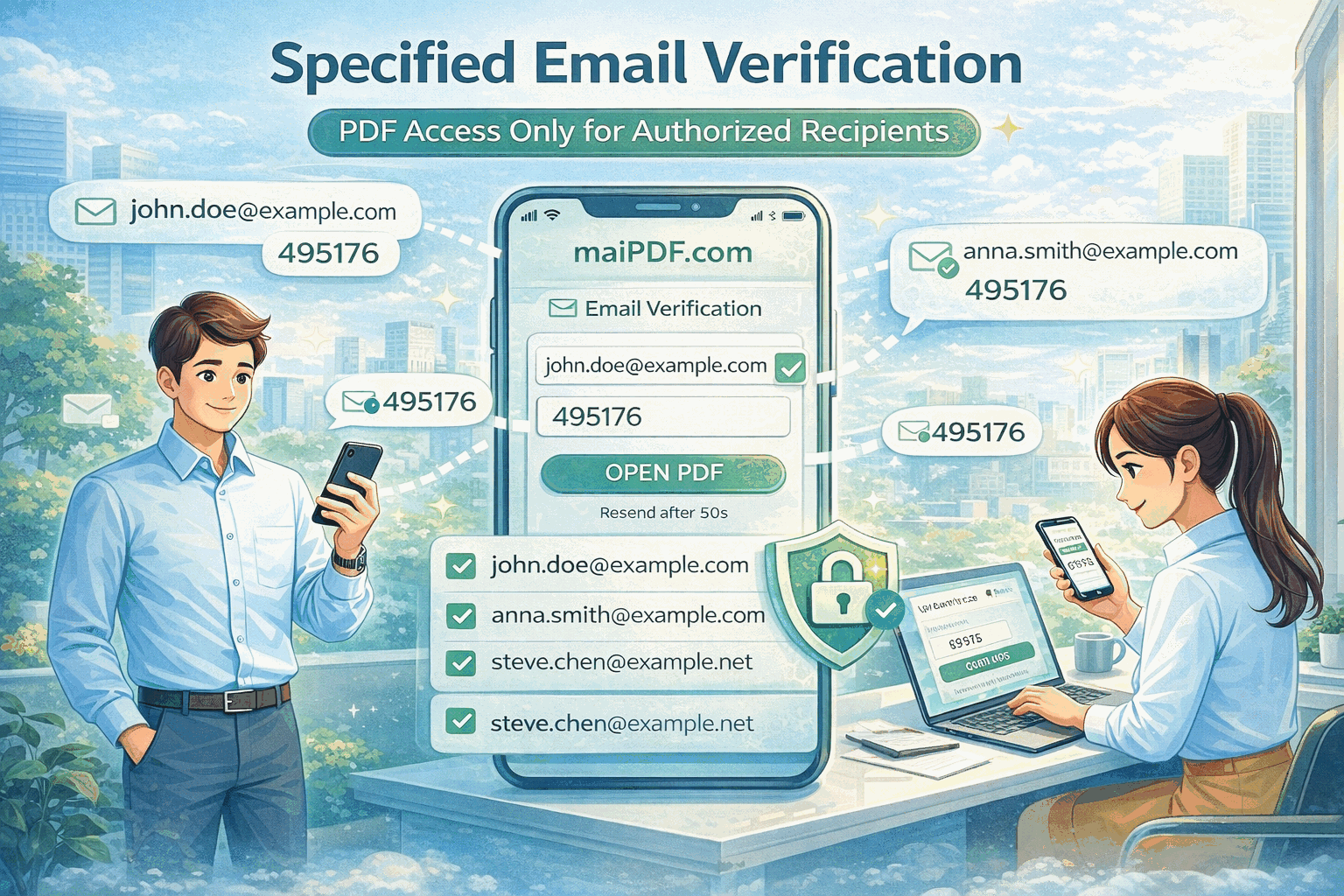
The forwarding problem
A plain PDF link is just a URL. Copy, paste, forward — there’s no gate. Passwords help a little, but the password travels with the link: whoever it gets forwarded to can type it in just as easily as the intended reader.
The only way to stop a forwarded link from working is to verify the person, not the link. That’s what email verification does: the reader must prove they control an inbox before the document opens. The whole flow takes a reader under 30 seconds, and you get a log of exactly who passed the gate.
How MaiPDF’s email-verified links work
| Step | What happens |
|---|---|
| You share the link | Send it to your intended reader by email, chat, or any channel |
| Reader clicks the link | MaiPDF shows a verification screen — not the PDF |
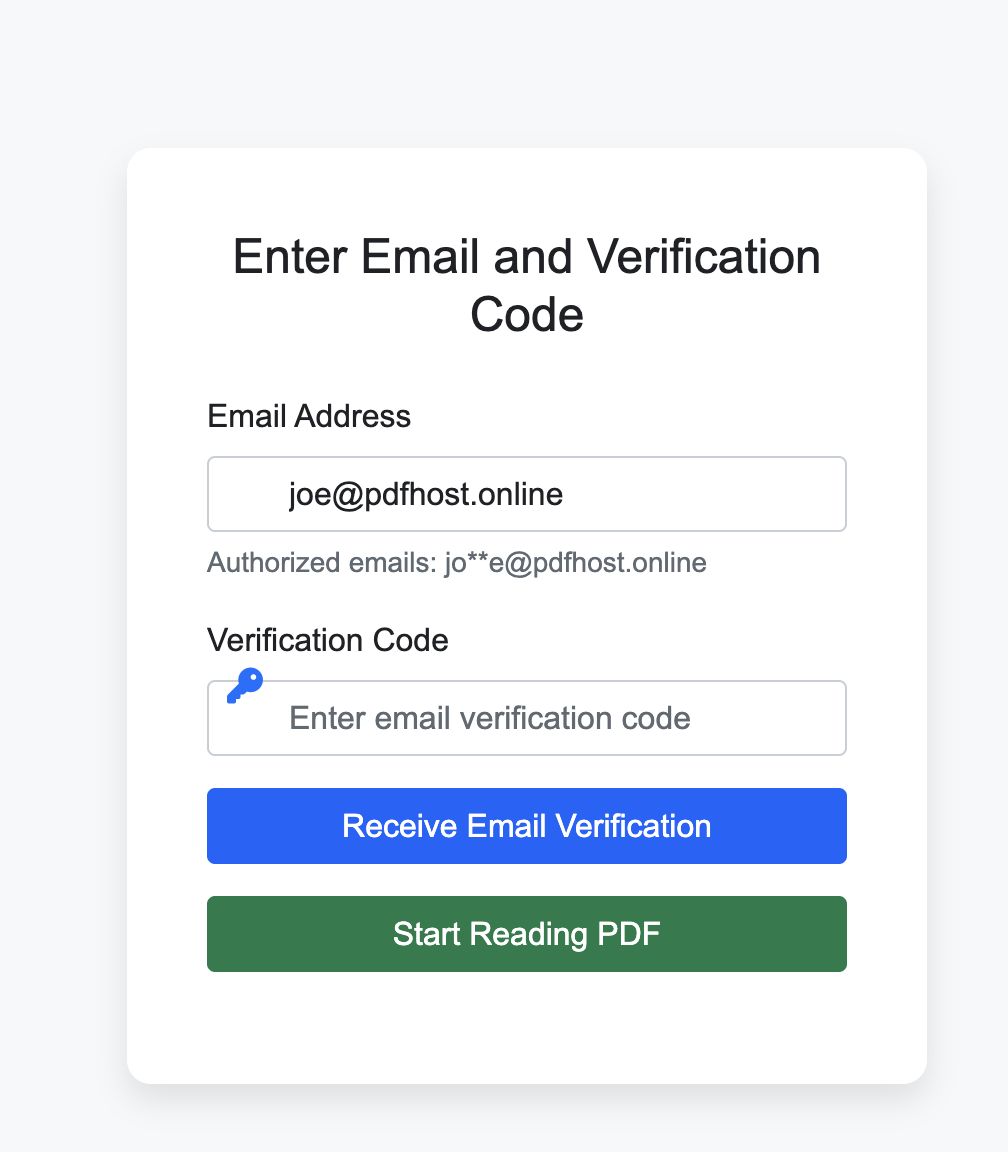
| Reader enters email | The system checks against your allowlist (if set) |
| Code sent | A one-time code goes to that inbox |
| Reader enters code | The PDF opens in MaiPDF’s viewer — no download, no print (if disabled) |
If someone forwards the link, the new person must verify their own email. If you set an allowlist, they can’t even get a code.
Allowlist: the real anti-forwarding weapon
Email verification alone means any inbox can verify. To truly lock down forwarding, combine it with an allowlist:
By specific address — Only a@company.com and b@company.com can receive a code. Anyone else sees “not authorized.”
By domain — Any @company.com address passes. Useful for internal teams where you don’t know every individual address.
When you set an allowlist, forwarding the link is pointless. The new recipient’s email won’t match, they never get a code, and they never see the PDF.
If you skip the allowlist entirely, any inbox can verify. That still stops casual forwarding — each new reader must prove their own address — but it won’t block someone who has their own working email. For private or regulated documents, always pair verification with an allowlist.
Real scenarios
Client proposal
You send a proposal to the client’s procurement lead. You add their email to the allowlist. If they forward the link to a competitor, the competitor enters their email, gets rejected, and sees nothing.
HR policy document
You share a benefits update with the whole team using @company.com as the allowed domain. The link can be forwarded outside the company, but only company email addresses pass the gate.
Freelancer deliverable
You send a design draft to the client (two email addresses on the list). The client can review and verify; their intern (not on the list) cannot.
Contracts and NDAs
You need a record of who opened the document — not just that someone did. Verification logs each reader’s email and timestamp, so later you can prove that a given party accessed the file before signing.
Course materials
You distribute a study packet to students. Set the allowed domain to the school’s (e.g. @state.edu) so only enrolled students can verify, no matter who reshared the link.
What you see after sharing
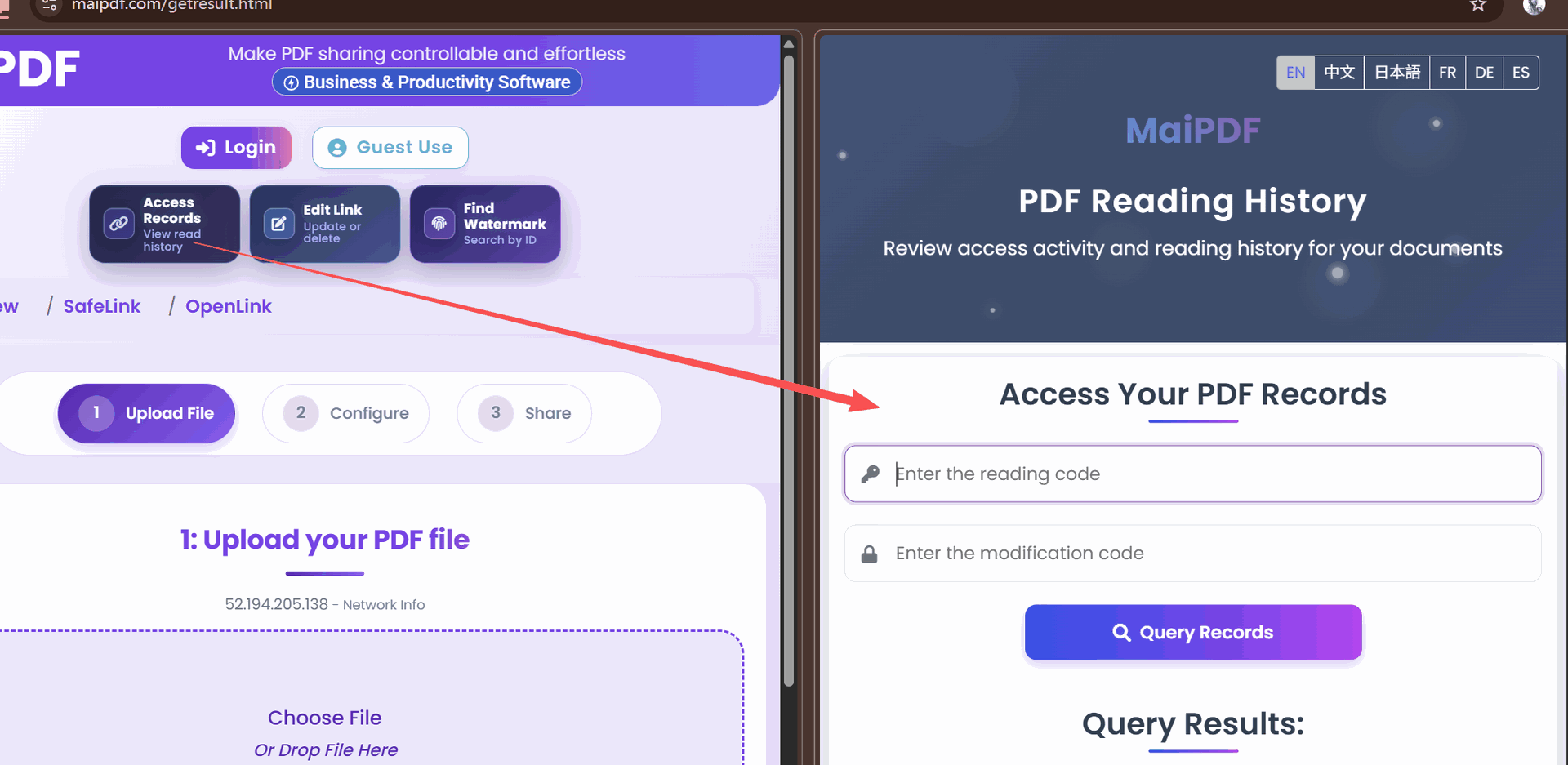
MaiPDF logs every verification attempt:
- Who verified — the email address that passed the gate
- When — timestamp of each open
- How many times — total opens per reader
Check these records anytime in Control Center. You can also enable Telegram alerts to get a push notification the moment someone opens your PDF.
Why email verification beats the alternatives
Of the common ways to gate a shared PDF, only email verification ties each open to a specific person:
Email verification. Stops forwarding — the new reader has to verify their own inbox. Reader effort: low (type email, type code). You learn exactly who opened: yes.
Password. Only partial protection — the password can be forwarded alongside the link. Reader effort: low (type password). You learn who opened: no — just that someone knew the password.
Open limit. Doesn’t stop forwarding at all — whoever gets the link first uses up the allowed opens. Reader effort: none. You learn who opened: no.
Expiry date. Doesn’t stop forwarding — just shrinks the window it works in. Reader effort: none. You learn who opened: no.
Email verification is the only option in that list that ties each open to a real person. Combine it with an open limit and an expiry for the tightest control.
Layer it with other controls
Email verification is strongest when combined with other share rules:
| + This control | What it adds |
|---|---|
| Open limit | The PDF stops working after N total opens — even verified ones |
| Expiry date | The link dies after a set date, no matter who has it |
| Watermark | Each reader sees their email burned into the page — discourages screenshots |
| View-only mode | No download button, no print option in the viewer |
All of these stack. Set them in the same panel when you create the link — no extra tools needed.
Quick setup
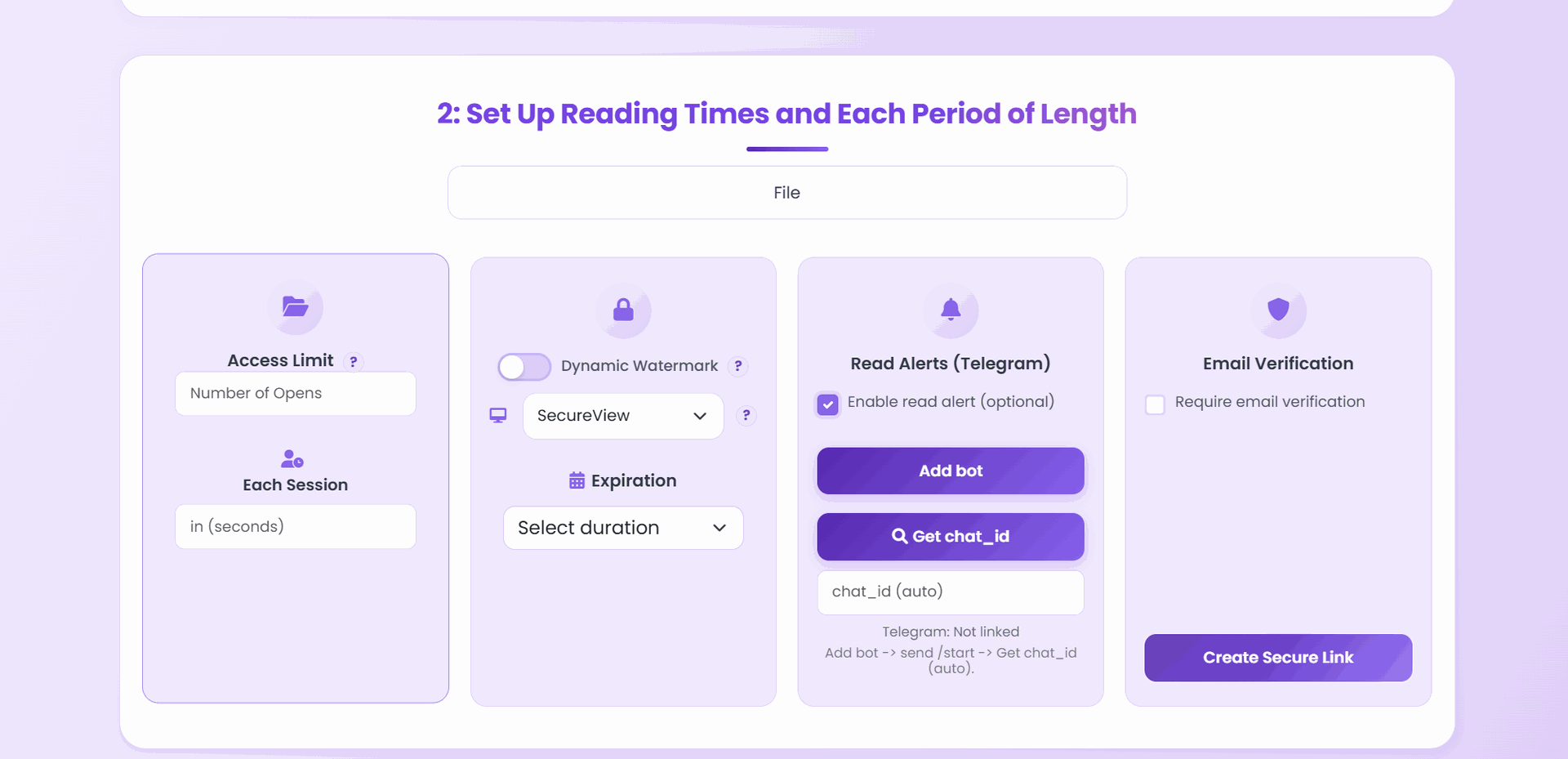
- Upload your PDF on the create-link page.
- Enable email verification.
- Add your allowlist (specific addresses or domain).
- Set open limit, expiry, view mode, watermark as needed.
- Click Create Secure Link and send the URL to your reader.
That’s it. The link now requires email verification before anyone can see a single page.
Related reading:
- PDF Prevent Forwarding: Practical Guide — all anti-forwarding strategies compared
- Limit PDF Views with DRM — add an open-count cap on top of email verification
- Share PDFs Securely — the full picture of protected sharing with MaiPDF
- Dynamic Watermarks on PDFs — burn the verified reader’s email into each page