Freelancer Portfolio Links: Win More Clients with Clear Sharing
Freelancer Portfolio Links: Win More Clients with Clear Sharing
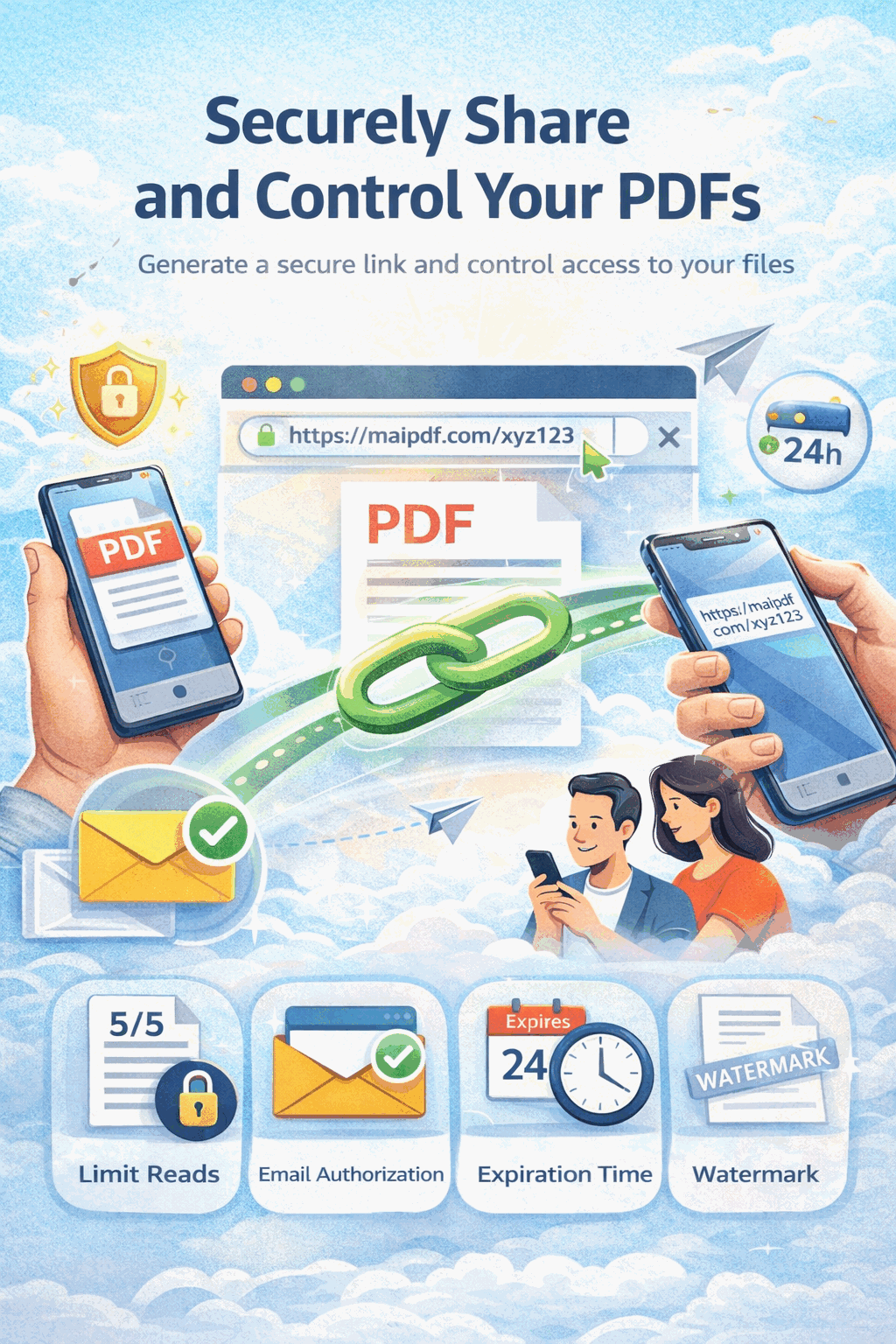
Clients judge your work before they read a word. If your portfolio is a 20 MB email attachment that takes ages to load, you've already lost ground. A controlled link opens instantly in the browser, looks professional, and gives you data on who actually viewed it.
The problem with how most freelancers share work
- Email attachments — bounce in inboxes, hit size limits, end up in spam
- Google Drive / Dropbox — forces recipients to log in or see a cluttered file-manager UI
- Your own website — public to everyone, no control, no analytics per prospect
- WeTransfer-style links — expire automatically, no view tracking, looks disposable
What you actually need: a link that opens instantly on any device, shows your work in a clean viewer, tells you when someone looked, and lets you turn it off when the deal closes.
How a link-based portfolio workflow works
- Build your portfolio PDF — keep it under 10 pages. Lead with your 3 strongest projects.
- Upload to MaiPDF — drag and drop, no registration needed.
- Set your rules — disable download (protect your work), set an open limit or expiry.
- Send the link — paste it in your proposal email, DM, or cold outreach.
- Check who opened — view access records before your follow-up call.
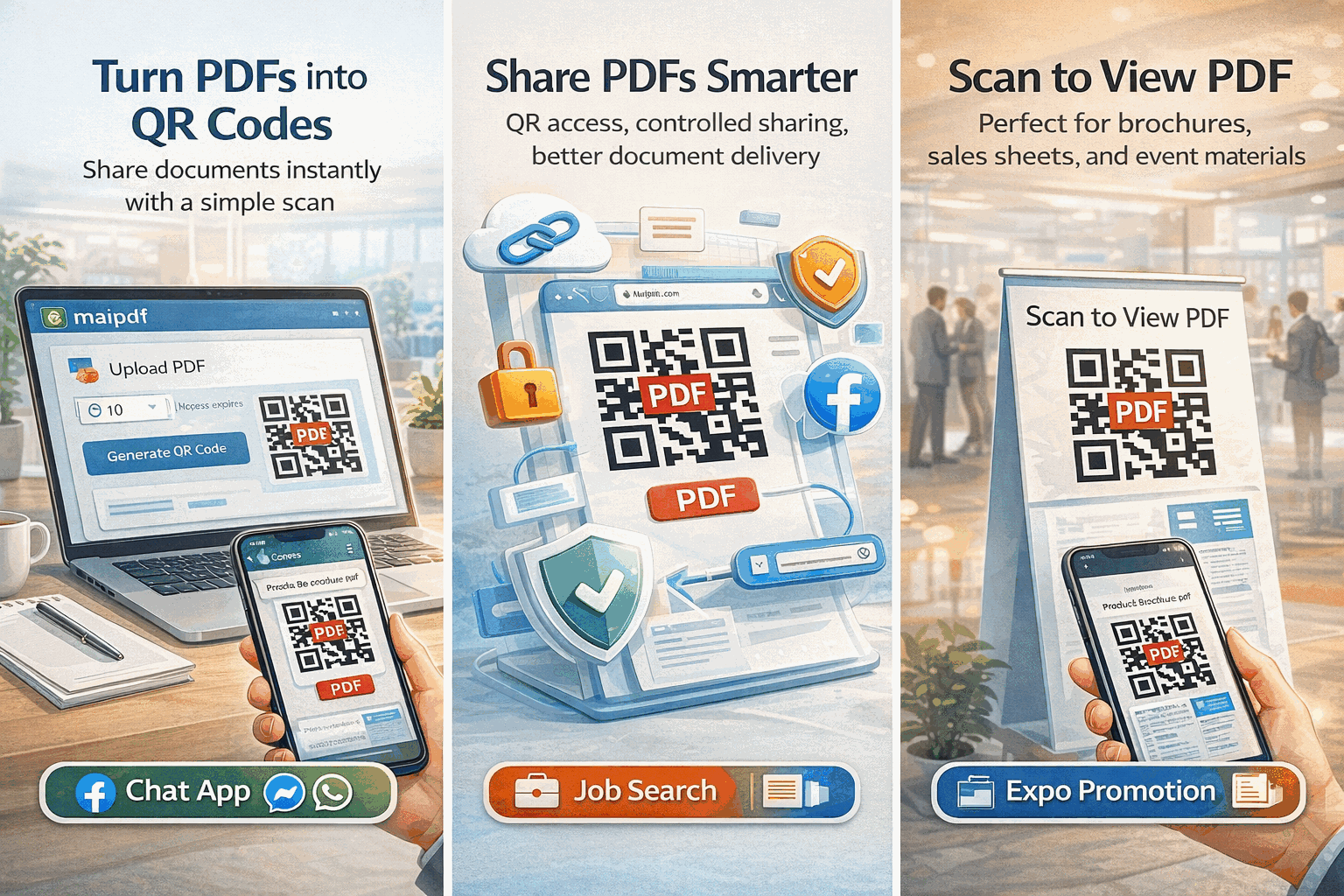
Tailor links to each prospect
Don’t send every client the same portfolio. Create separate links for different audiences:
| Prospect type | Portfolio focus | Suggested settings |
|---|---|---|
| Brand identity client | Logo, brand guide, packaging | Download off, 30-day expiry |
| Web design lead | Landing pages, UI screenshots | Watermark on, open limit 20 |
| Print/editorial | Magazine layouts, book covers | Download off, no expiry |
| Quick pitch | 3 best projects only | 7-day expiry, open limit 10 |
Each link has its own access records. You’ll know which version got opened and how often — useful for adjusting your approach.
What the client sees
Your PDF opens directly in a clean viewer — no login, no download prompts, no file-manager chrome. It looks like your work, not like a cloud storage service.
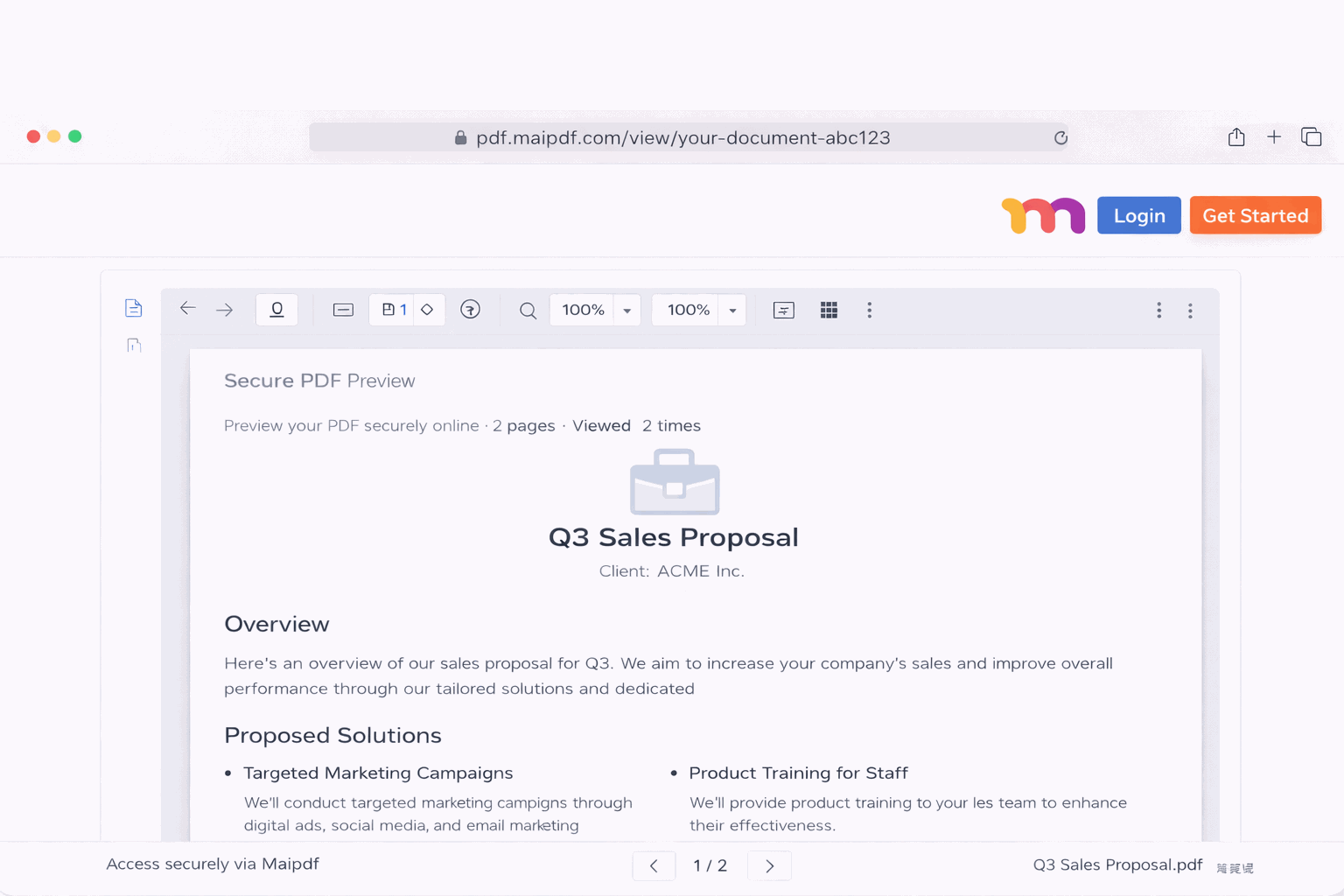
On mobile, the viewer scales automatically. The client can flip through pages wherever they are — on the commute, in a meeting, on their phone.
Protect your work
Freelancers lose work to screenshot-and-steal all the time. A link with the right settings reduces that risk:
- Download disabled — no save button in the viewer
- Print disabled — no print option
- Watermark — your name or email burned into every page
- Open limit — link stops working after N opens, so it can’t circulate forever
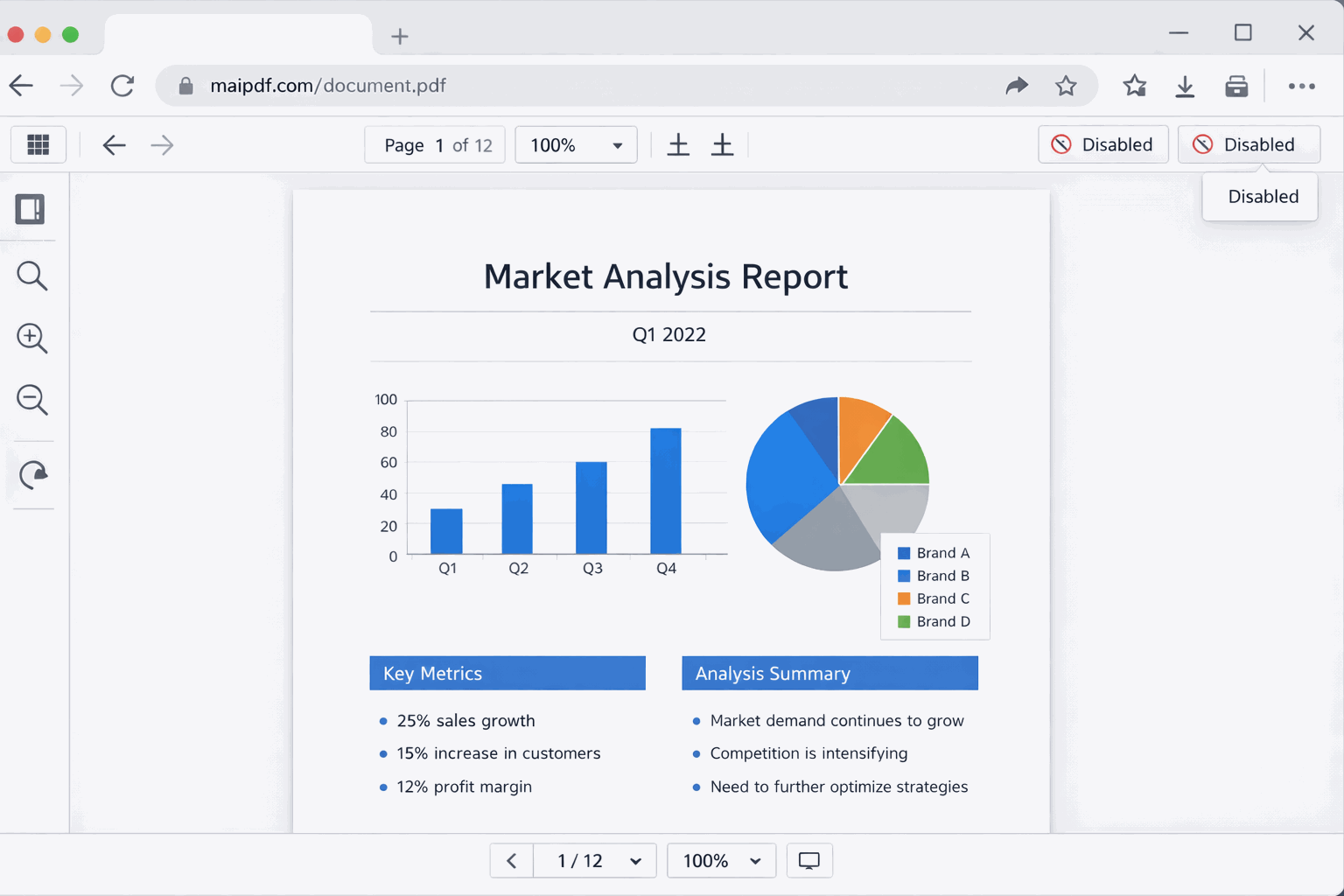
None of these are bulletproof against a determined screen-recorder, but they stop casual theft and make it clear you treat your work seriously.
Use access data to time your follow-up
MaiPDF logs every open with a timestamp. Use that signal:
- Opened within 24h → they’re interested. Follow up while it’s fresh.
- Opened 3+ times → they’re comparing you to others. Send a note highlighting what makes your approach different.
- Never opened → your email may have been missed. Resend with a different subject line.
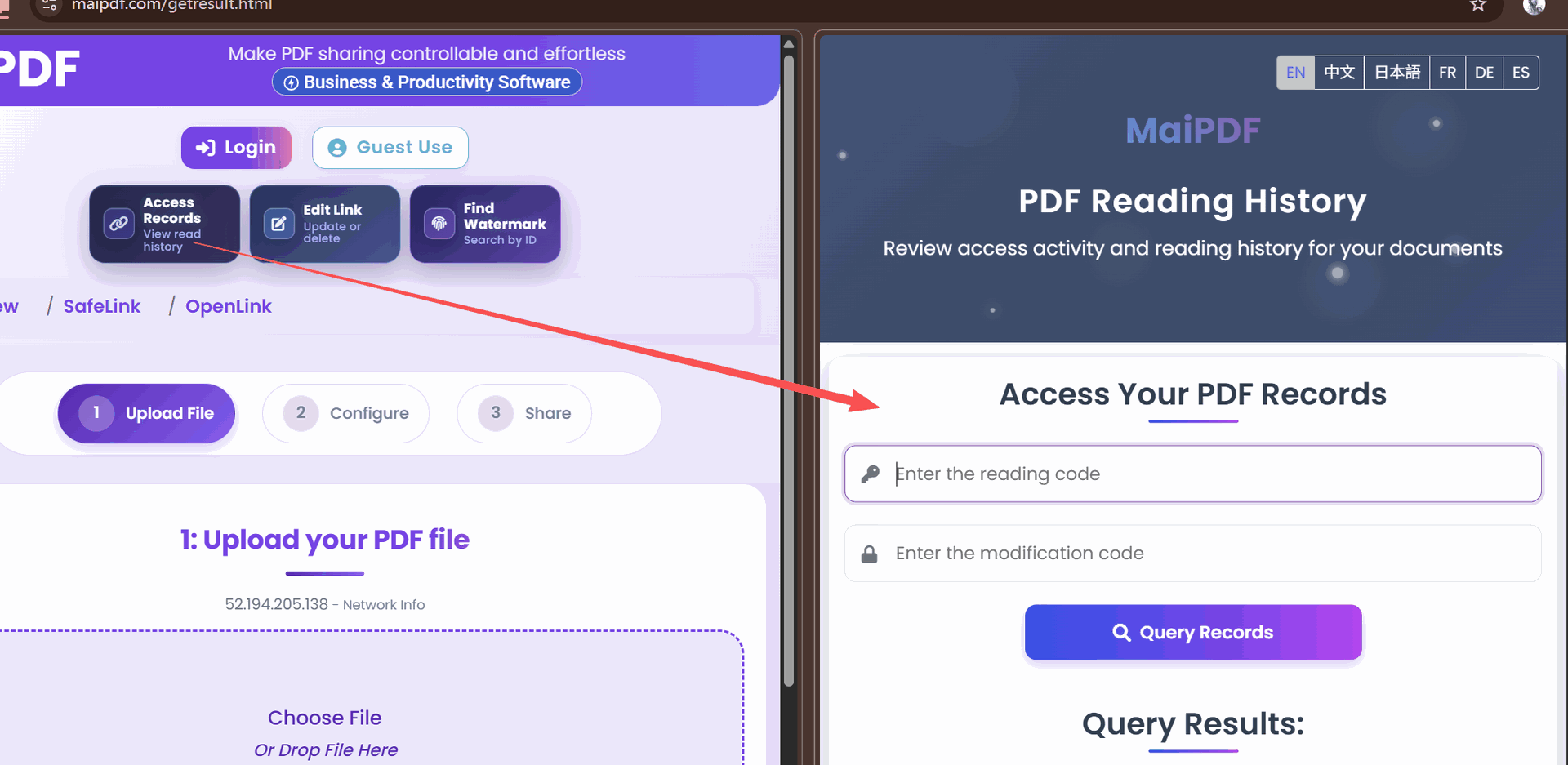
This is free data that most freelancers ignore because they share via attachment (no tracking) or cloud links (analytics buried in dashboards they never check).
Quick setup checklist
- Upload your portfolio PDF at maipdf.com
- Disable download + enable watermark
- Set open limit to 20–50 (enough for a prospecting round)
- Copy the link and paste it into your outreach
- Check access records before follow-up calls
Related reading:
- How to Securely Share PDFs with Modern Controls — broader guide to controlled sharing
- Email PDF Links Instead of Attachments — why links beat attachments for professional communication
- PDF Access Control: View Limits and Time Restrictions — deep dive into open limits and expiry
- Control PDF Access: Enable or Disable Downloads — when to allow vs block downloads