Prevent screenshot on PDFs: MaiPDF Secure desktop app (complete guide)
Bottom line: A PDF opened in a browser cannot reliably prevent screenshots. The browser sandbox does not get OS-level control over Print Screen, snipping tools, or screen recorders.
To prevent screenshot on PDFs, protect the document as .maipdf in the MaiPDF Secure desktop app (Windows / macOS) and have readers open the file only inside that app. This is the current MaiPDF path for screenshot-aware protection, device binding, revocation, and protected-reader controls.
Why browsers cannot do this
| Layer | What it can do | What it cannot do |
|---|---|---|
| Online link (maipdf.com) | Expiry, opens, watermark, access tracking | Block OS capture APIs |
| MaiPDF App (.maipdf) | Protected reader + SecureScreen-class controls | Stop a second camera at the screen |
For current MaiPDF positioning, treat the browser link as the fast path and the .maipdf app workflow as the stronger protection path.
Can it prevent screenshot? — three MaiPDF paths
| Method | Prevent screenshot? |
|---|---|
| maipdf.com link | No — watermark / access control only |
MaiPDF Secure + .maipdf | Yes — OS-level block or detect (varies by platform) |
Download and install (desktop)
- Go to drm.maipdf.com.
- Download the installer for Windows or macOS.
- Run the installer; open MaiPDF Secure.
- Sign in with Google (required for packing and reading licensed files).
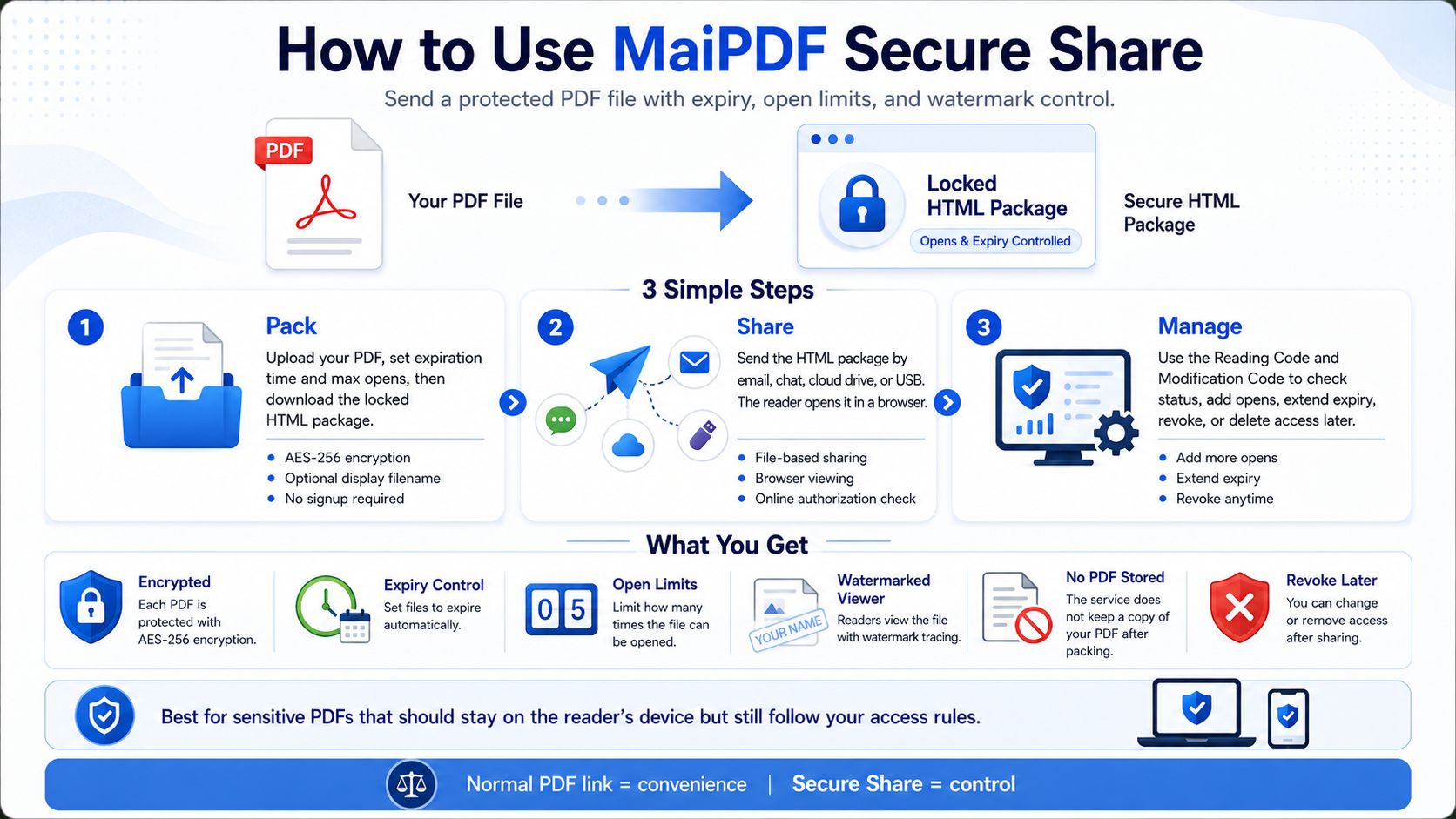
Screenshots above are desktop UI only — we do not have mobile UI screenshots in this article repo. Android and iOS builds exist; screenshot strength is highest on Android among mobile platforms.
| Platform | Where to get it |
|---|---|
| Windows | drm.maipdf.com installer |
| macOS | drm.maipdf.com DMG or Mac App Store |
| Android | Google Play or site APK |
| iPhone / iPad | App Store |
Mainland China
Domestic app stores (Huawei, Xiaomi, 应用宝, etc.) are not first-wave. Soft copyright registration and other compliance steps come first, then formal store submission.
Until listed: overseas Apple ID, Google Play, or direct download from drm.maipdf.com for desktop / APK.
Pack a .maipdf on desktop — step by step
1. Choose the source PDF
Use the final version you want readers to see. Protected files are created from a specific source PDF, so later PDF edits should be protected again as a new .maipdf file.
2. Open Protect / Pack in the app
From the MaiPDF Secure home screen, start Protect PDF (DRM pack). Select your PDF from disk.
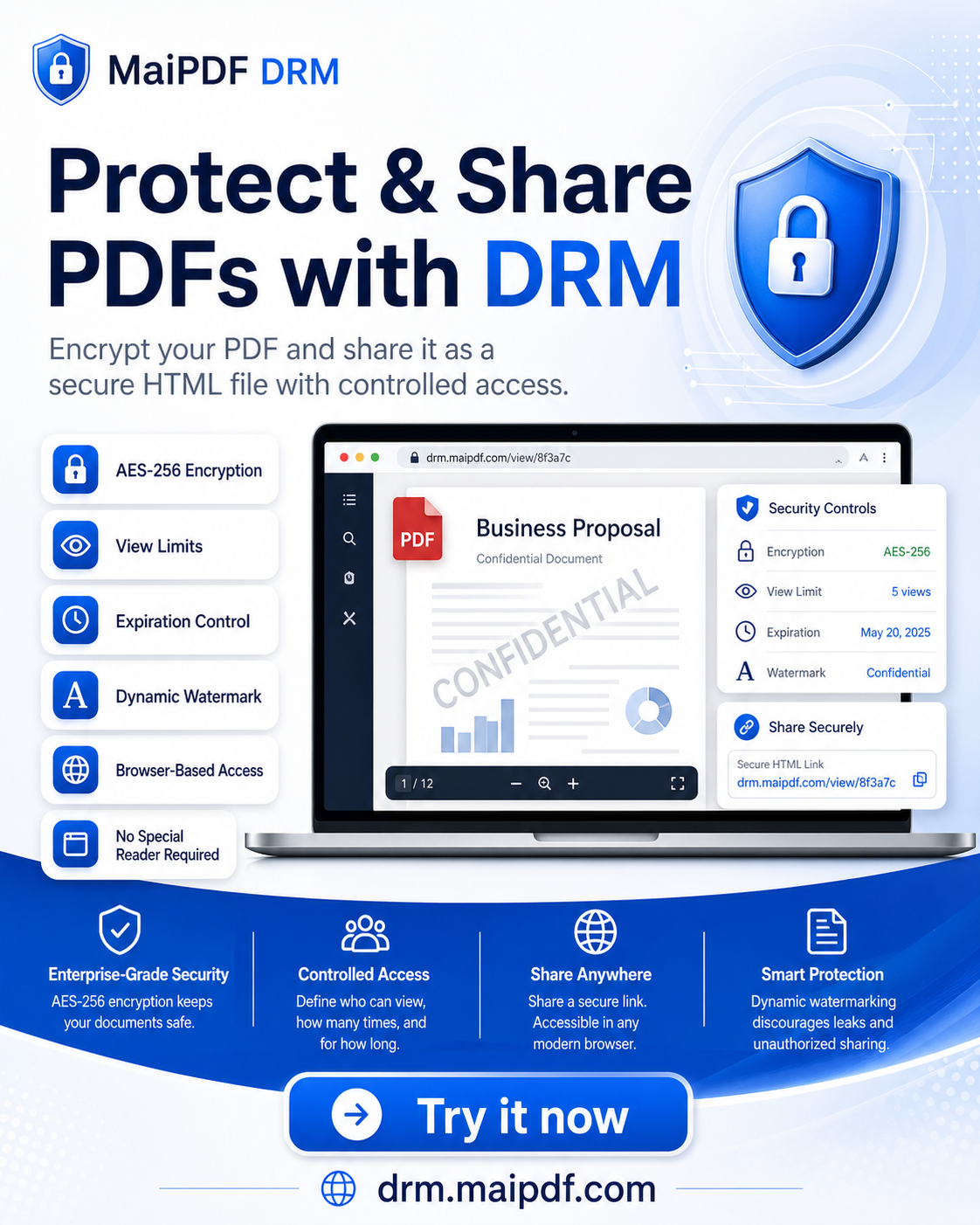
3. Set license rules
| Rule | Purpose |
|---|---|
| Expiry | Hard stop date for the license |
| Open limit | Max unlock count across all recipients |
| Allowed emails | Optional — only listed Google accounts may open |
| Device limit | Cap how many devices each account may bind |
Rules are enforced server-side at open time, while the file format and reader are native.
4. Export .maipdf
The app writes a single .maipdf file. Send it like any attachment — email, USB, Teams, internal portal.
5. Tell the recipient
They must:
- Install MaiPDF Secure (same platform family — desktop pack opens on desktop app).
- Sign in with an allowed Google account (if you restricted emails).
- Open the
.maipdfinside the app — not in Adobe Acrobat, Preview, or a browser.
6. Manage the license
From the app license list or drm.maipdf.com/dashboard:
- Add opens
- Push expiry
- Revoke (all copies stop on next open attempt)
- Delete license
Platform behavior (screenshot / recording)
| Platform | Typical behavior |
|---|---|
| Android | Strongest — OS-level secure flag on the reader surface |
| Windows | Block or inhibit common capture paths in the native viewer |
| macOS | Block or inhibit common capture paths in the native viewer |
| iOS | More detect + watermark than hard block — plan accordingly |
Exact behavior can change with OS updates. Test on the same OS your audience uses before a mass send.
What the app adds beyond browser sharing
- Prevent screenshot / screen recording where the OS allows
- Device integrity checks — rooted / jailbroken / debug environments may be refused
- Native viewer — no browser devtools extraction path
- Trace watermarks on pages in addition to capture controls
What still does not work
- Second camera pointed at the screen — no product can prevent this
- Air-gapped open — license check still needs network at unlock
- Editing packed content — repack required for PDF changes
When to use online sharing instead
Use a regular MaiPDF online sharing link when:
- Recipients should not install anything
- Screenshot control is not a hard requirement
- You mainly need fast delivery, QR codes, view limits, expiry, watermarking, and access tracking
Use .maipdf when contracts, courseware, unreleased designs, or internal confidential PDFs need capture control, device binding, and revocation.
FAQ
Is it free? Yes — current pricing is free for personal and team use. No enterprise quote to start.
Same account as maipdf.com? Different products. MaiPDF Secure uses Google sign-in via Firebase for the DRM app line.
vs LockLizard? Similar category (managed reader, revoke, devices). LockLizard is a long-established paid enterprise vendor. MaiPDF Secure targets the same controls without enterprise pricing → comparison.
Browser link or App DRM? Browser link = fastest sharing, no install, good for QR codes and access tracking. App DRM = .maipdf, native reader, prevent screenshot where supported.