Share PDF Online — A Cleaner Workflow Than Attachments
2026 update: Online sharing is the low-friction path for links and QR codes. When the document is paid, confidential, or screenshot-sensitive, route readers to App DRM / .maipdf. See Online PDF Sharing vs App DRM.
Sharing a PDF online isn’t “the same thing as attaching it, just with a URL.” It flips the shape of the thing you’re sending. An attachment is a copy that escapes you. An online link is a destination you still own. One of those keeps getting worse over time; the other keeps working.
Quick navigation
- Why the attachment workflow keeps breaking
- What changes when you share through a link
- The full flow, end to end
- Where an online PDF link actually fits
- What you still control after the send
- Common mistakes
- FAQ
- Related reading
Why the attachment workflow keeps breaking
Email attachments were designed for the world of “one file, one inbox, one reader.” They don’t survive modern sharing — not because email is bad, but because the file itself is the wrong unit.
- Forwarding is effortless. Every copy you send can spawn N more copies without any policy following.
- Mobile opening is painful. On a phone, a 30-page PDF attachment is a five-step hike before the first word is visible.
- There’s no natural expiry. The file stays readable long after the project, proposal, or review window has ended.
- You have no visibility. Was it opened? Skimmed? Ignored? Forwarded to a competitor? You can’t tell.
- Revisions multiply chaos. Version 3 is in one inbox, Version 4 in another, Version 5 is attached to a reply-all thread from last week.
- Files hit size limits. Design decks, high-res scans, compliance bundles — the good documents are usually too big.
Cloud-drive folders fix some of this but introduce their own friction: “sign in to see it,” permissions dialogs, and a sharing UX that wasn’t built for one-document handoffs.
What changes when you share through a link
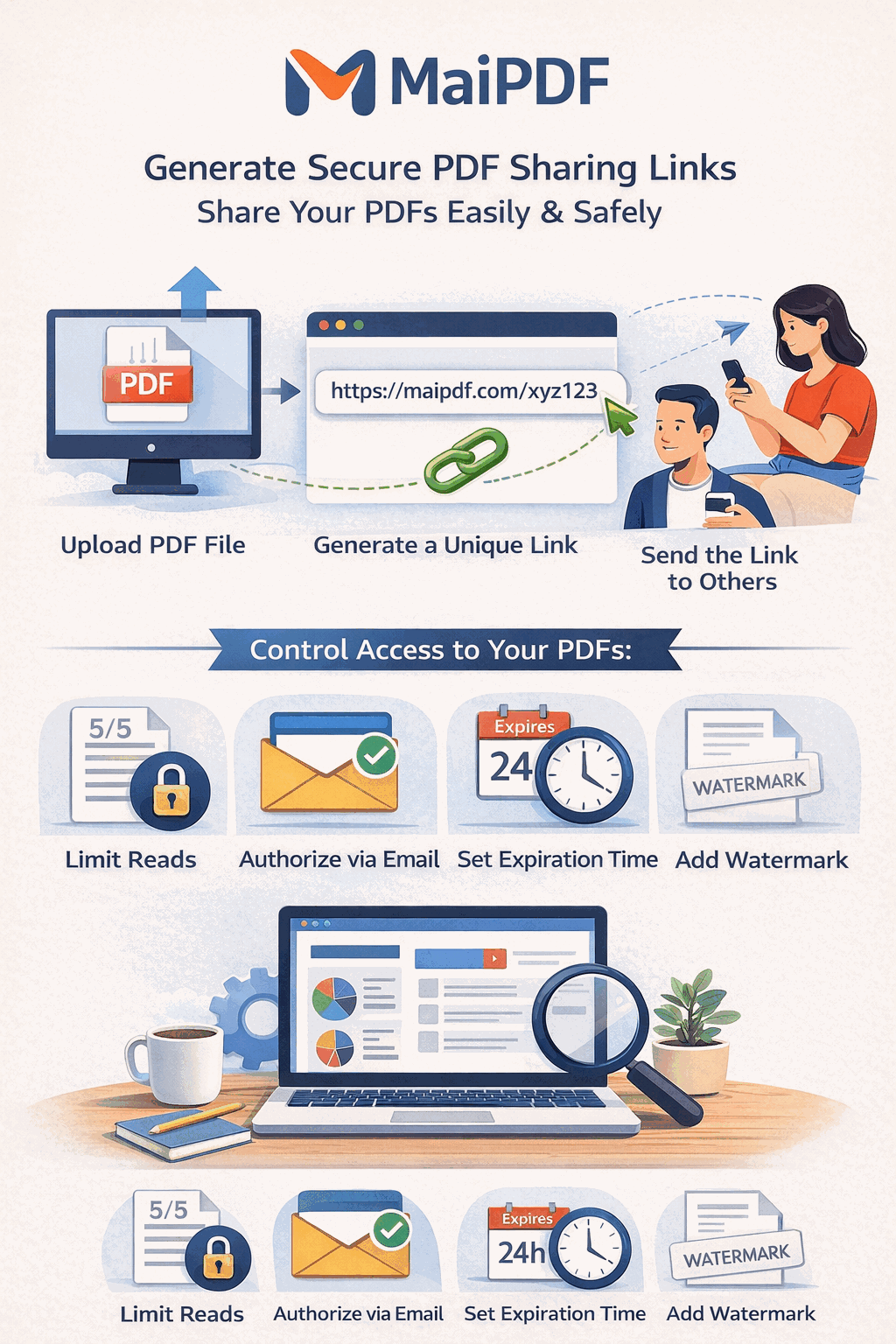
A managed PDF link (what MaiPDF gives you) keeps the one document central. Everything else — access rules, revisions, analytics — hangs off that single URL.
| What the reader experiences | What you, the sender, keep |
|---|---|
| Click → document loads in their browser, phone or desktop | a control panel where you can still edit, revoke, extend, replace |
| No download, no account, no plugin | view counts, open logs, timing data |
| Same link works via email, chat, QR code, printed handout | per-audience links with per-audience rules |
| Always sees the current version | swap the file anytime without changing the URL |
| Reads without saving a local copy of something sensitive | fewer rogue copies exist at all |
The reader sees “a professional link.” You see “the same link I’m still holding the steering wheel on.”
The full flow, end to end
- Upload the PDF at maipdf.com. No software, no account required for a basic share; signing in makes everything later easier.
- Configure only the controls that match the job. Most documents need two or three — not every switch.
- Share the generated URL (and matching QR code) through whatever channel you already use: email, chat, Slack DM, deck footer, printed flyer.
- Check once on your phone before it goes anywhere real — catches 90% of “looks bad on mobile” embarrassments.
- Open the control panel later when you need to revise, revoke, or check who’s been reading.
That’s the entire workflow. The interesting part isn’t the upload — it’s that steps 4 and 5 exist at all. With an attachment, once you press send, the document is gone from your control. With a link, it never leaves.
Where an online PDF link actually fits
Not every PDF needs a managed link. The honest guide is to ask what the document’s job is.
| Document job | Online link fits because… |
|---|---|
| Proposal or quote | review window ends cleanly; no stale copies in inboxes |
| Portfolio / resume | one stable URL; readable on any phone; updatable later |
| Internal draft in review | reviewers read; file doesn’t escape the review group |
| Client deliverable with revisions | swap the file without re-sending; clients always see current |
| Event handout with a QR code | print → scan → read in the browser, no mystery downloads |
| Pricing sheet to a prospect | prospect reads; competitors can’t shop the numbers around |
| Study / course materials | student access window opens with the course, closes with it |
| Training guide for a cohort | cohort reads; content doesn’t re-circulate to non-participants |
| Contract draft under negotiation | each side reads the same version; every revision tracked |
Where it fits less well: public reference PDFs people genuinely need to download and keep offline (manuals, templates, receipts, printable forms). Those are attachment-or-download jobs — use the right tool for the job.
What you still control after the send
This is the part that’s invisible until you actually need it — and then it’s the whole point.
| After you’ve already sent the link, you can… | What that means in practice |
|---|---|
| Check who opened it, when, from where | you know whether the prospect actually looked at the proposal |
| Tighten or loosen the rules | extend an expiry because the review is running late; cap opens because it’s circulating too wide |
| Revoke access entirely | the deal fell through? kill the link in one click |
| Replace the file behind the URL | push Revision 4 without re-sending; every future open shows the new one |
| Add email verification after the fact | realized it should have been gated? add the gate without regenerating the URL |
| Turn on a watermark mid-flight | if you start seeing suspicious opens, you can add traceability on the spot |
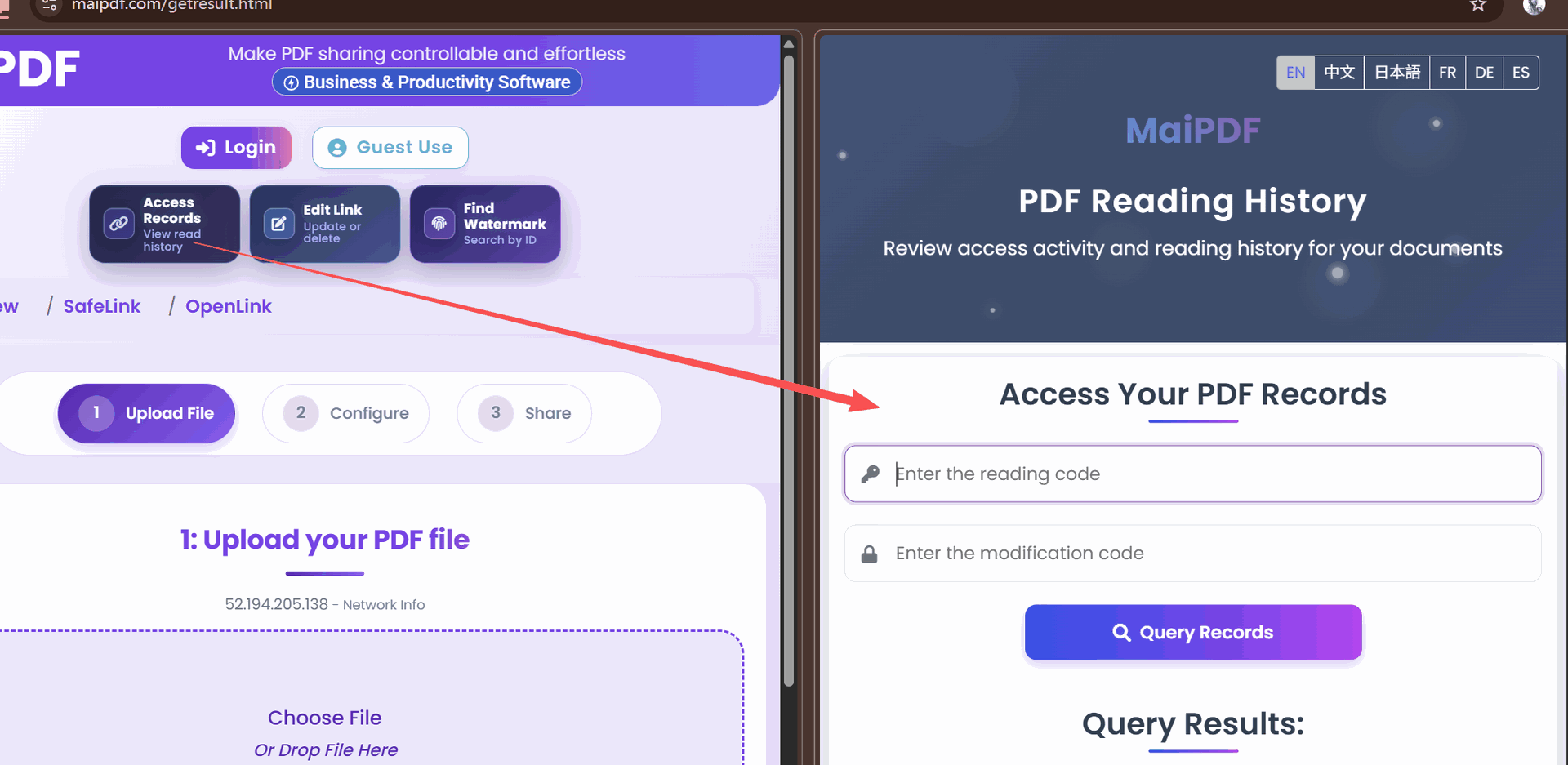
The common case is boring: you just check once that the reader actually opened it. The uncommon cases — revisions, revocations, extensions — are what justify skipping attachments in the first place.
Common mistakes
| Mistake | Why it hurts | Do instead |
|---|---|---|
| Sending the attachment and the link in the same email | readers open the attachment and ignore every control | send the link only |
| Using one “forever” link for every audience | impossible to tell engagement apart or revoke per audience | one link per audience segment |
| Creating a new URL for every revision | reviewers lose track, bookmarks break | replace the file behind the same link |
| Skipping the mobile check | first impression fails for half the readers | always open once on your phone before sending |
| Over-restricting by default | support tickets instead of signatures | start minimal; tighten only when needed |
| Never opening the control panel again | the link becomes as dumb as an attachment | check access at least once; revoke or extend as needed |
FAQ
Does the reader need to install anything, create an account, or sign in? No. Any modern browser — mobile or desktop — opens a MaiPDF link without a plugin, account, or download.
Is it free? Yes. Core sharing is free. Some advanced controls (heavy-usage quotas, larger files) may need an account.
What’s the file size limit? Single-file upload cap is 80 MB, which covers virtually every sensible PDF.
Does the link break if I revise the document? No — that’s the point. If you signed in when uploading, swap the file from the control panel. If you were a guest, use the modify-code you saved at upload time. Either way, the URL doesn’t change.
Does sharing a link “securely” mean it’s impossible to leak? No. It means every leak has a trail. Screenshots still exist. The difference is that a managed link with view-only + watermark + access log gives you identification, attribution, and the ability to revoke. An attachment gives you nothing.
Do I need to worry about the link breaking one day? Links stay active as long as the document exists under your control. If you don’t set an expiry, it keeps working. If you set one, it dies on the date you chose — and you can always extend.