QR Codes for Document Distribution: From Link to Scan
QR Codes for Document Distribution: From Link to Scan
2026 update: QR codes are excellent for low-friction browser access. If the QR code points to paid or screenshot-sensitive material, pair it with App DRM guidance or a protected .maipdf workflow. See PDF DRM for Online Courses.
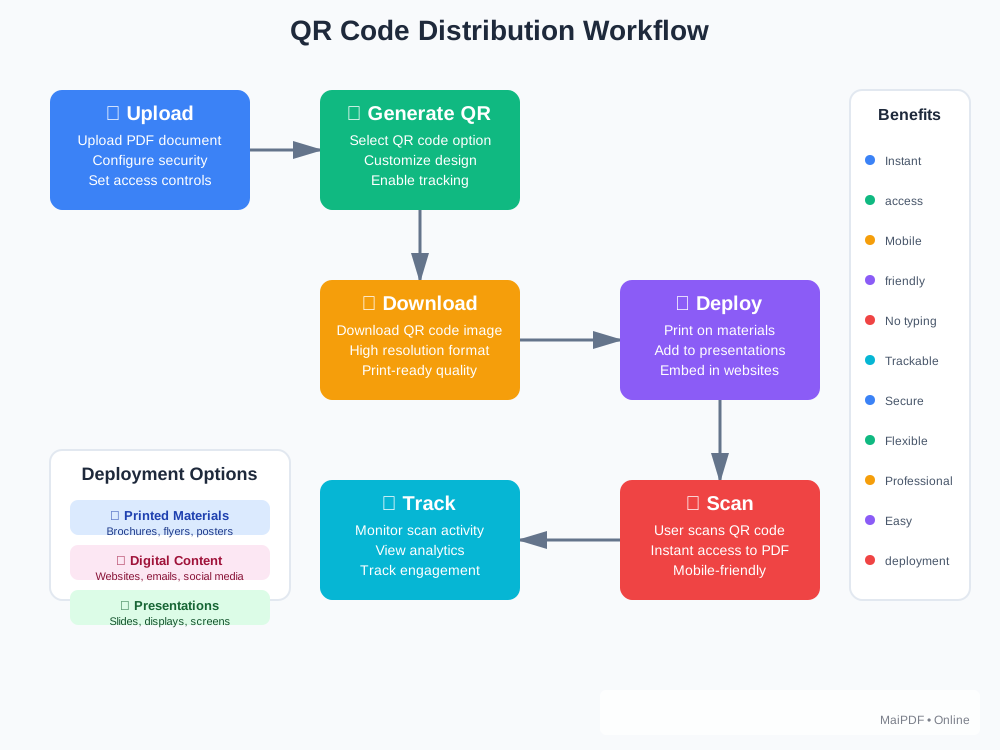
A QR code is a picture of a URL. Once it's printed or posted, anyone who sees it can scan it — so the real work is choosing the right link behind the code, placing it where your audience will actually scan, and watching the access log to see what happened.
Why distribute a document by QR
- No typing. A long URL on a flyer never gets typed; a QR code gets scanned.
- Same link, many channels. Paste the QR on a poster, a slide, a badge, and a packaging insert — all traffic lands on one page you still control.
- You can swap the file later. In MaiPDF, replacing the underlying PDF keeps the same shared URL, so the printed QR does not have to be reprinted when the document updates.
Where QR distribution actually helps
Instead of a generic “posters and flyers” list, here are the verticals where teams reach for QR first and what they hand out:
Healthcare
Patient intake packets at the reception desk, aftercare instructions at discharge, and medication guides on prescription bags. Scanning is faster than printing multi-page handouts for every visit.
Real estate
Open-house brochures on yard signs and window decals, full floor plans behind a sign on the kitchen counter, neighborhood reports on business cards.
Manufacturing and field service
Equipment manuals and safety sheets stuck to the machine itself. The right document is one scan from the operator instead of a binder in an office.
Education and events
Course syllabus on the classroom door, workshop handouts on the seat, speaker decks on the conference badge.
Digital vs physical placement
QR codes earn their keep in print, but the same codes also belong in digital surfaces your audience photographs:
- Print. Posters, flyers, packaging, business cards, stickers on hardware.
- Slides and video. A QR in the corner of a closing slide or livestream overlay so remote viewers can pull the deck without chasing a link in chat.
- Email and chat. Useful when recipients read mail on a laptop and want the document on their phone — scanning is faster than forwarding to themselves.
Control presets by scenario
Not every distributed document needs the same lock. Pick one preset before you generate the QR:
- Public brochure. No password. No expiry, or a long one. Watermark off. You want reach; the access log is mostly for curiosity.
- Partner deck. Email verification on, allowlist your partner domains, 30–90 day expiry, dynamic watermark with the viewer’s email. Scans from outside the allowlist are denied and logged.
- Internal handout. Password or email verification, view limit per person, short expiry, watermark on. Good for onboarding PDFs pinned to a breakroom wall where the audience is known but the wall is public.
Offline distribution checklist
Most QR failures in the wild are print failures, not software failures:
- Minimum print size: roughly 2 × 2 cm. Smaller than that and phone cameras struggle, especially in low light.
- Leave a quiet zone. White margin around the code equal to at least the width of four modules. QR scanners need the empty frame to lock on.
- High contrast only. Dark code on light background. Skip the trendy inverted or low-contrast styles — they raise scan failure rates on older phones.
- Print a short URL underneath. A human-readable fallback so the code still works if the print smudges or the lighting is bad.
- Test at the real distance. A QR on a conference badge needs to scan from across a handshake; one on a poster needs to scan from the other side of a hallway. Generate the code, print a sample, walk to the actual distance, scan.
- Plan for 3× your audience. If you expect 100 people at an event, print for 300 scans — people scan out of curiosity, share with colleagues, and come back later.
What the access log tells you
The reason to distribute through a QR pointing at a controlled link — instead of attaching the PDF directly — is that you get a log. After a print run, that log usually answers three practical questions:
- Did distribution land? Total opens by day, split between the hours you expected (during the event) and the long tail (people scanning the poster a week later).
- What device mix? Mostly mobile means your PDF layout has to survive a phone screen. A surprise spike in desktop opens usually means someone forwarded the link rather than the QR.
- Are strangers trying to get in? Expired-link attempts, wrong-password attempts, and denied email domains all show up. On a public brochure these are noise; on a partner deck they are the point.
MaiPDF also automatically flips a PDF into stricter mode once it crosses 10,000 total accesses — the original per-view limits stop enforcing and the watermark is disabled, with a note in the log. If you’re printing for a mass audience, decide beforehand whether that’s fine or whether you want to rotate to a fresh link.
What QR codes don’t fix
- Secrecy. Once the code is on a wall, anyone who walks by can scan it. Put the access controls on the link, not on the code.
- Bad PDFs. A 40-page scanned contract is still painful on a phone. Fix the document before you print the code.
- Wrong link. The most common post-print regret. Test the scan, open the result, read the first page, then send it to the printer.