How to Protect a Confidential PDF Before Sending It to Clients
Before you send a confidential PDF to a client, ask one question:
If this file is forwarded tomorrow, what control do I still have?
For many documents, a normal email attachment is enough. For proposals, pricing sheets, legal drafts, investor materials, internal reports, partner manuals, and paid deliverables, it is not.
MaiPDF supports two ways to send confidential PDFs with more control:
- Online Cloud Sharing — a managed browser link or QR code with expiry, view limits, watermarks, and access records.
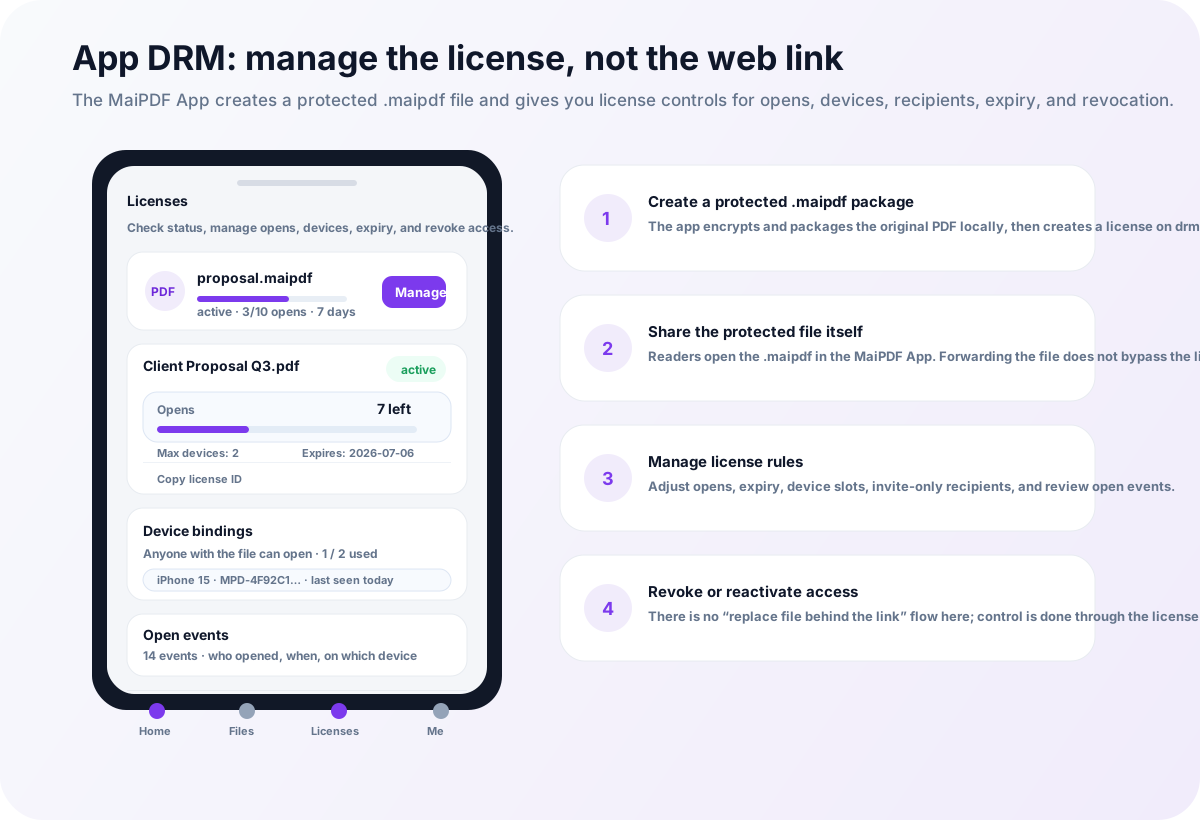
- App DRM /
.maipdf— a protected file opened inside the MaiPDF App with device binding, revocation, and screenshot-aware reading.
The risk of sending the raw PDF
A raw PDF attachment creates three problems:
- No future control: after download, you cannot reliably revoke access.
- No audience boundary: the client can forward the file to anyone.
- Weak accountability: if the file leaks, you may not know where it came from.
Password protection helps only a little. If the client can forward the PDF, they can usually forward the password too.
Step 1: classify the document
Use the value of the document to choose the delivery method.
| Document type | Suggested protection |
|---|---|
| Public brochure | Normal link or Online Cloud Sharing |
| Proposal preview | Online Cloud Sharing with expiry |
| Pricing sheet | Online Cloud Sharing + watermark |
| Contract draft | Online Cloud Sharing with access records |
| Paid deliverable | App DRM / .maipdf |
| Investor or board material | App DRM / .maipdf |
| Confidential training manual | App DRM / .maipdf |
The goal is not maximum friction. The goal is matching the control level to the business risk.
Step 2: use a controlled link for normal client sharing
For most client documents, use MaiPDF Online Cloud Sharing instead of attaching the original PDF.
Useful settings include:
- expiry date for proposal deadlines
- open limits for short review windows
- dynamic watermark with email or session identity
- disabled download and print where appropriate
- access records to see whether the client opened the file
- link disablement if the deal status changes
This is ideal when the client needs low-friction access and you still want more control than email.
Step 3: use App DRM for sensitive or paid files
If the PDF is a high-value deliverable, use App DRM.
A .maipdf file is not just a web link. It is opened inside the MaiPDF protected reader, where access can be checked against license rules.
Use this for:
- paid research reports
- premium templates
- legal or financial files
- confidential board packs
- partner onboarding manuals
- client-only training workbooks
With App DRM, you can combine device binding, expiry, watermarks, and license revocation.
Step 4: plan revocation before you send
Revocation should not be an emergency feature you think about after something goes wrong.
Before sending the PDF, decide:
- when the access should expire
- who should be able to open it
- whether access should survive a refund or cancelled project
- whether one recipient may use multiple devices
- how you will replace the file if a newer version is issued
For a broader workflow, read how to revoke access to a PDF after sending.
Step 5: be honest about screenshot risk
Browser-based sharing cannot fully prevent operating-system screenshots. App-based protected reading can reduce screenshot and screen-recording risk on supported platforms, but no software can stop someone from taking a photo with another phone.
That is why confidential PDF protection should combine:
- controlled access
- short validity windows
- device rules
- watermark tracing
- revocation
- clear recipient expectations