PDF Sharing with QR Code: Complete Guide
PDF Sharing with QR Code: Complete Guide
2026 update: QR-code PDF sharing is convenient, but it does not by itself stop screenshots or account sharing. For high-value materials, combine QR distribution with App DRM / .maipdf where appropriate. See Secure PDF Reader with Screenshot Protection.
A QR code is just a picture of a URL. The sharing quality comes from the link behind it — the file you uploaded, the controls you set, and whether you tested the scan before printing. This guide walks the full setup.
Where QR sharing earns its place
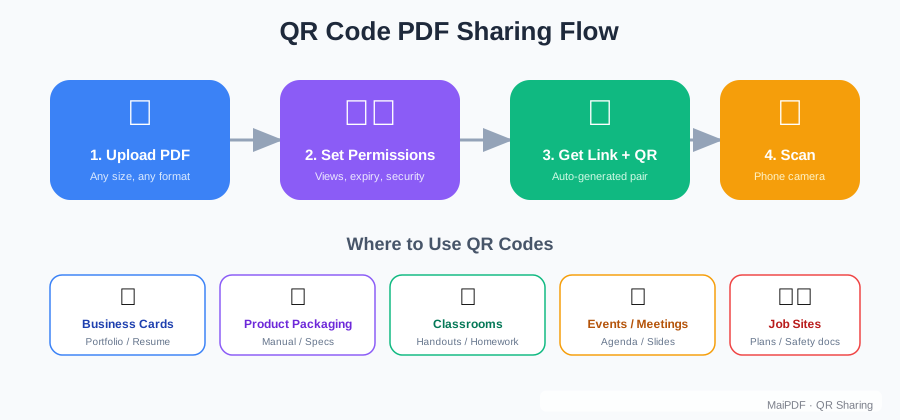
QR sharing works best when the first contact with the document is physical or visual and you want the fastest possible path from “I see it” to “I’m reading it”:
- Posters, flyers, brochures — nobody types a long URL off a wall.
- Business cards and printed resumes — one scan opens the full portfolio or CV.
- Packaging, labels, and stickers on hardware — the printed object leads to a longer manual or compliance sheet.
- Event booths, badges, and classroom handouts — many people open the same file in the same five minutes.
For the distribution-side playbook (industry examples, placement strategy, access-log reading), see QR Codes for Document Distribution. This guide focuses on getting the setup right.
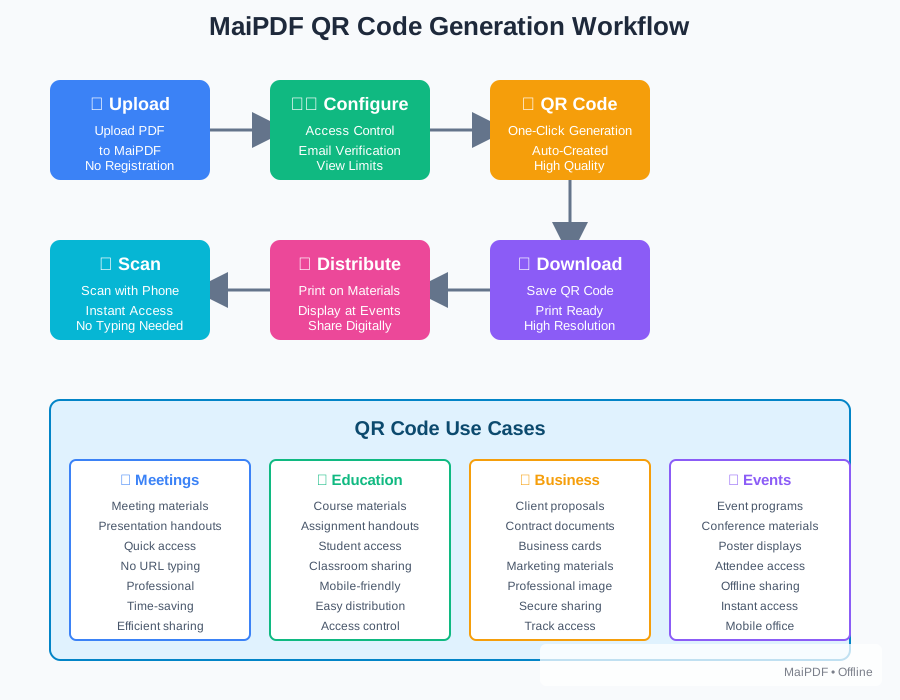
The setup in four steps
- Upload the PDF to MaiPDF. Files up to 80 MB are supported. The upload returns a single shareable link — that link is what the QR will encode.
- Choose controls before generating the code. Expiry, view limits, password or email verification, watermark, and download restrictions are set on the link. Once printed, the code is fixed; the controls are not.
- Generate the QR tied to that link. MaiPDF builds the image directly from the managed URL, and the same PDF accepts different codes for different channels if you want per-channel analytics.
- Test on real phones before printing. iPhone and Android camera apps both handle QR natively now, but low-light scans, older devices, and printed-versus-screen codes all behave differently in practice.
File specs worth getting right
- Size. MaiPDF accepts up to 80 MB per PDF. Large scan-heavy files still open, but mobile users on cellular connections will feel every megabyte — compress before upload when you can.
- First page matters. Most scanners tap once and decide. Put the title, a one-line summary, and a visible hook on page 1.
- Mobile readability. Single-column body, 11 pt minimum, avoid tables that need horizontal scrolling. A perfect QR flow that lands on an unreadable PDF still fails.
Print specs that decide whether the scan works
Most QR failures in the wild are not software failures — they are print failures:
- Minimum print size roughly 2 × 2 cm on paper. Smaller than that, camera autofocus struggles.
- In slides, 200 × 200 px minimum so phones photographing a projected screen still get a clean lock.
- Quiet zone required — leave white space around the code equal to at least four modules (roughly the width of the corner square). Scanners need that empty frame.
- Keep contrast high. Dark code on light background. Inverted codes and low-contrast styled versions raise scan failure rates on older phones.
- Print a short URL underneath the code. A human-readable fallback for when the print smudges, the lighting is bad, or somebody wants to forward the link from a laptop.
- Context line. “Scan for the full brochure” or “Scan to read the manual” converts dramatically better than a naked code.
Which access controls carry over to QR
Every control on the underlying link applies to every scan of the QR — the code does not bypass anything:
- Expiry date. The QR stops resolving to the document the moment the link expires.
- View limit. Per-person or total view caps enforce on scanned opens exactly like typed opens.
- Password or email verification. Scanners see the same gate as anyone clicking the link directly.
- Dynamic watermark. The viewer’s email or IP is stamped on the page after access.
- Download restriction. Toggles view-only vs download-allowed.
Test checklist before you print
Run through these once — printing mistakes are expensive:
- Scan the generated code with an iPhone and an Android phone.
- Open the resulting link on both; check the first page renders fast on mobile.
- Verify that the control you set (password, verification, expiry) triggers correctly on first scan.
- Test at the real scan distance: a poster across a hallway, a badge at handshake range, a slide from the back of the room.
- Print one sample, not the full run. Scan the printed sample, not just the screen.
The big advantage: update the PDF without reprinting the code
In MaiPDF you can replace the underlying file while keeping the same shared URL, which means the same printed QR keeps working:
- A menu, manual, or price list changes — update the PDF, the posters stay on the wall.
- A catalog or portfolio is refreshed for the next quarter — existing business cards still resolve to the current version.
- Event handouts change after the conference goes live — one QR can stay in circulation across multiple revisions.
Set a reminder to update the file, not the code. This is the feature most people are surprised by.
Common mistakes
- Printing before real-device testing. Scan on actual phones, not a generator preview.
- Linking to a PDF that reads badly on mobile. Fix the document first; the code is cheap, the reprint is not.
- Over-styling the code. Colored, inverted, or logo-embedded codes look great on a design mockup and fail on old phones. Reliability beats decoration.
- Forgetting the access policy. A public poster should not point at a link with no expiry and no view cap. Match the controls to how public the code will be.
- One code for everything. If you want to know whether the conference booth or the email signature is driving opens, generate a separate QR for each and compare the access logs.
Short answer
Upload the PDF to MaiPDF, decide the controls (expiry, verification, watermark), generate the QR from the managed link, print it at 2 cm minimum with a quiet zone and a short URL fallback, and test the scan on a real iPhone and Android before the full print run. When the document changes, replace the file — the code keeps working.