Educator's Guide to PDF Sharing: Distribute Course Materials Securely
Educator’s Guide to PDF Sharing: Distribute Course Materials Securely
Teachers, professors, and corporate trainers share PDFs constantly — syllabi, lecture notes, exams, handouts, lab manuals. The challenge is sharing broadly enough for every student to access materials while preventing unauthorized redistribution.
2026 update: MaiPDF now has two education workflows. Use Online Cloud Sharing for fast browser links, QR codes, view limits, expiry, and tracking. Use MaiPDF App DRM / .maipdf when course materials are paid, screenshot-sensitive, device-bound, or need revocation after a refund or course end.
What Educators Actually Need
| Requirement | Why It Matters |
|---|---|
| Easy link sharing | Students click a link; no software installation needed |
| Download control | Stop exam papers from circulating permanently |
| Expiration dates | Materials become unavailable after a term ends |
| View tracking | Verify who accessed what (for accountability) |
| Device compatibility | Students use phones, tablets, laptops, Chromebooks |
| App DRM option | Protect high-value PDFs with .maipdf, device binding, revocation, and screenshot-aware reading |
When to use Online Sharing vs App DRM
| Teaching material | Better path |
|---|---|
| Syllabus, public handout, reading list | Online Cloud Sharing |
| Lecture notes for a large class | Online Cloud Sharing |
| Homework packet with short access window | Online Cloud Sharing with expiry |
| Paid workbook or coaching notes | App DRM / .maipdf |
| Exam-prep pack or answer key | App DRM / .maipdf |
| Corporate training manual | App DRM / .maipdf |
Browser-based sharing is convenient, but a browser page cannot fully block OS-level screenshots. For the higher-security education path, see PDF DRM for Online Courses and How to Prevent Students from Sharing Course PDFs.
Common Distribution Scenarios
Scenario 1: Lecture Notes (Semester-Long Access)
Settings:
- Download: ON (students annotate offline)
- View limit: unlimited
- Expiration: end of semester
Students need these repeatedly. Let them download and annotate. Set expiration at semester end so links stop working when the course is over.
Scenario 2: Exam Papers (High Security)
Settings:
- Download: OFF
- View limit: 2 views per student
- Expiration: exam day + 1
Exams are the most sensitive documents teachers share. Disable downloads entirely. Set view limits low — one view to study, one view as backup. Expire on exam day.
For additional protection, use separate links per section so a leaked link only affects one class period.
Scenario 3: Handouts for a Single Class Session
Settings:
- Download: OFF
- View limit: moderate (30 for a class of 25)
- Expiration: 48 hours
Quick-reference handouts for one session. Students access them during class and shortly after. No need for permanent availability.
Scenario 4: Research Papers / Supplementary Reading
Settings:
- Download: ON
- View limit: unlimited
- Expiration: end of semester
Students need to read these carefully, highlight, and take notes. Allow downloads but let the links expire so materials don’t circulate indefinitely.
Step-by-Step Setup on MaiPDF
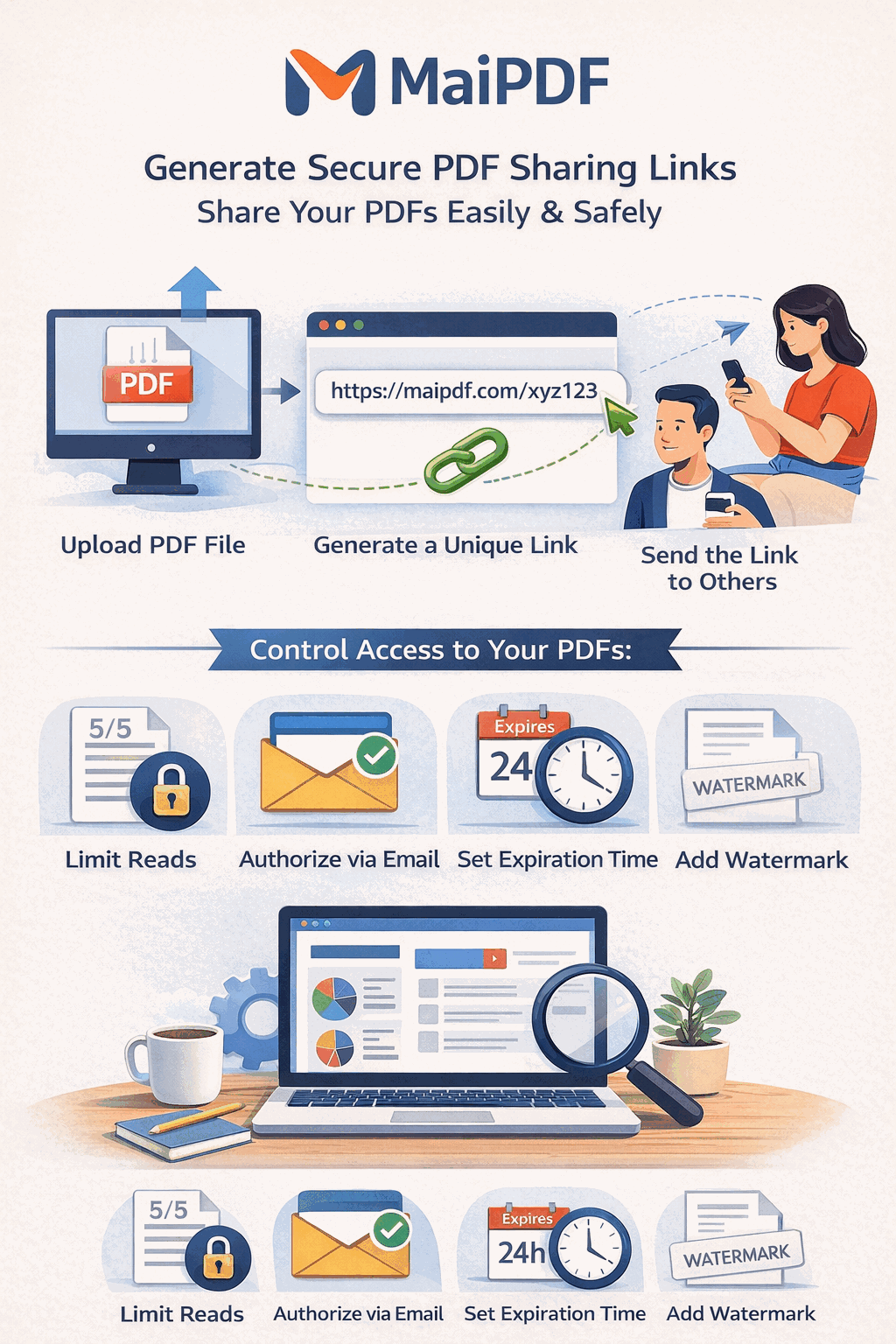
- Upload your PDF at maipdf.com

-
Configure access controls:
- Set view limit appropriate to class size
- Choose download ON or OFF
- Set expiration date
-
Copy the link and paste into your LMS (Canvas, Moodle, Blackboard, Google Classroom) or send via email
-
Monitor views in the dashboard to see which materials students are actually accessing
LMS Integration Tips
Most Learning Management Systems accept external URLs. Drop the MaiPDF link directly into:
- Assignment descriptions — attach materials without uploading to LMS storage
- Module pages — embed links in weekly content modules
- Announcement posts — share timely materials with one link
The advantage over LMS file uploads: you can update the PDF (using document replacement) without changing the link. Students always see the latest version.
Handling Large Classes
For classes with 100+ students:
- Create section-specific links — 3 sections of 40 students get 3 separate links. If one leaks, revoke just that one.
- Set view limits generously — multiply expected students by 2-3 to account for legitimate repeat views.
- Monitor view spikes — sudden access spikes outside class hours may indicate link sharing beyond the enrolled group.
Academic Integrity Support
Controlled PDF sharing directly supports academic integrity:
| Traditional Approach | Secure Sharing Approach |
|---|---|
| Email exam PDF → lives in inboxes forever | Link expires after exam |
| Upload to LMS → downloadable permanently | Download disabled; view-only |
| Print and hand out → photocopied and shared | Digital only; tracked views |
📄 Upload exam PDF
    ↓
🔒 Set: No download, 2 views, expires exam day
    ↓
🔗 Post link in LMS (one per section)
    ↓
👁️ Monitor: verify views match enrollment
    ↓
❌ Link auto-expires after exam
Privacy Considerations
When using view tracking in educational settings:
- Inform students that access is tracked (add a note in the syllabus)
- Use tracking for accountability, not surveillance
- Comply with institutional policies (FERPA in the US, GDPR in Europe)
Getting Started
Upload your first course document at maipdf.com. Start with lecture notes (low-risk) to learn the workflow, then apply tighter controls for exams and assessments.