Temporary PDF Sharing Links (Simple Guide) 
Temporary PDF Sharing Links
Sometimes you need to share a PDF for a short time without losing control. Instead of re-sending files, you can share one link and set clear limits.
This guide explains how temporary links work in MaiPDF: you decide how many times the file can be opened and whether downloads are allowed. When the limit is reached, the link stops working.
Why use temporary links
- Business docs: limit views for proposals or quotes
- Training files: allow viewing without downloads
- Short‑term access: stop the link after a few opens
- Sensitive content: keep sharing controlled
Detailed Feature Introduction
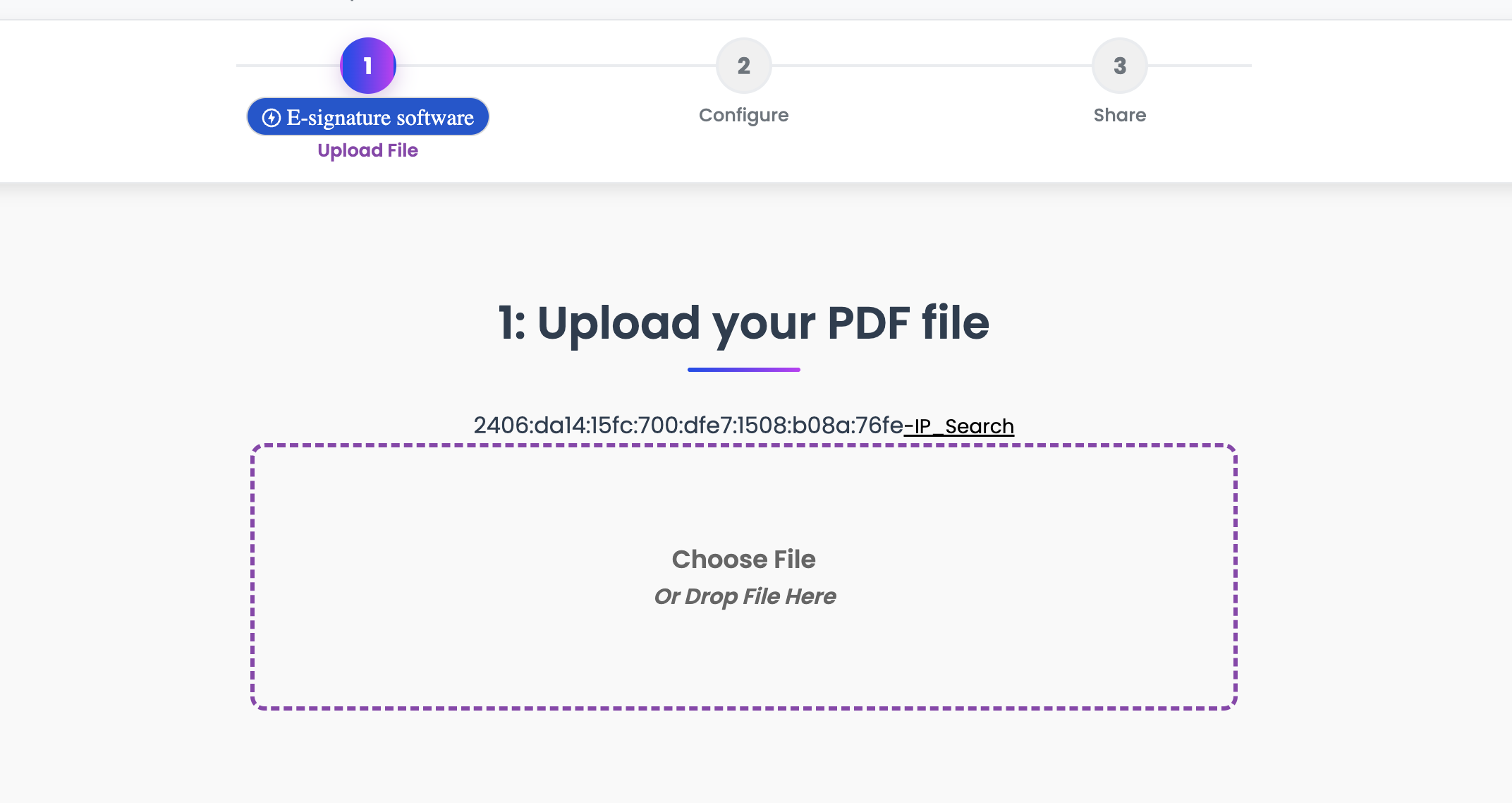
Upload and generate a link
Upload your PDF, then generate a sharing link and QR code.
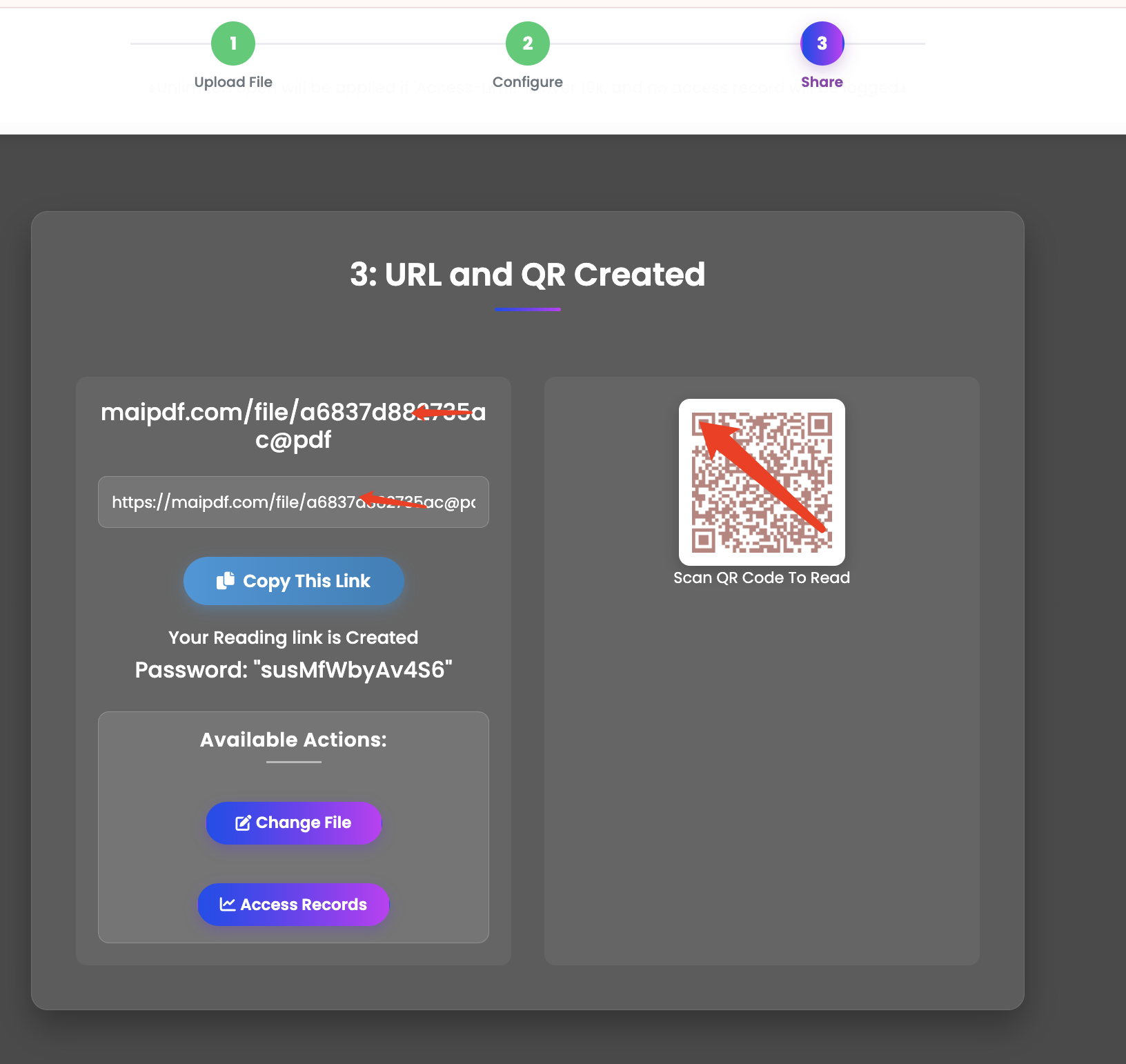
After upload, you get a unique link for this file.
Access limit (number of opens)
Set how many times the link can be opened:
- Single open for one recipient
- A few opens (3–10) for small sharing
- Higher limits when needed
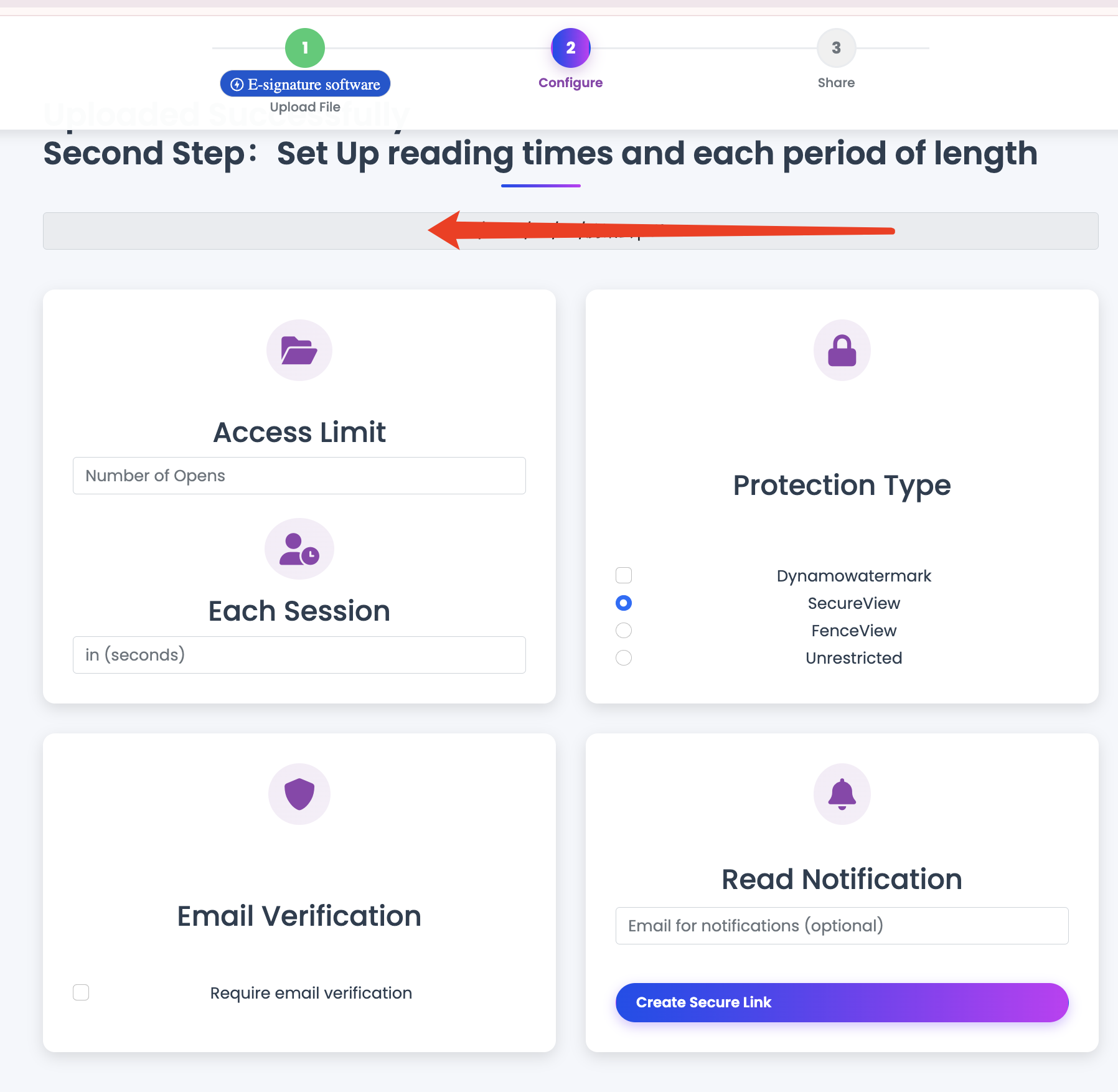
When the limit is reached, the link stops working.
Download control
Choose between:
- Allow download (offline use/printing)
- View‑only (no local file)
Summary
Temporary links keep PDF sharing simple and controlled: set view limits, choose download mode, and share one link with confidence.
Related Articles: