PDF Attachment vs Link in Email: Best Practices (2026)
TL;DR: For everyday work mail, prefer a link. Use an attachment only when policy or legal really needs a file frozen inside the message.
Modern link tools (including MaiPDF’s main flow) let you upload once, then set rules—expiry, how many times it may open, optional Telegram read alerts, email verification, viewing mode, and more—before you paste the URL into email.
When a link is the better default
Say yes to a link if any of these is true:
- The PDF might change after you send.
- Many people need one current copy, not ten inbox copies.
- The file is large (attachments bounce or annoy mobile readers).
- You want a cutoff date, open limits, or to turn access off later without a mass “new attachment” email.
When an attachment is still correct
Use an attachment only when you must:
- IT blocks external links.
- Someone needs a copy that works fully offline from day one.
- You need a fixed snapshot for records—and you still use a clear, dated filename (avoid vague names like
final.pdf).
Quick comparison
Updates
Attachment: old copies linger in threads.
Link: one live target; fewer “which version?” moments.
Audit / proof
Attachment: easy to point at the sent file.
Link: keep process records if your policy requires it.
What a “configured” link can include (MaiPDF)
After upload, step Configure on the main tool is where you match risk to settings—for example:
- Access limit (how many opens) and each session length
- Expiration (presets like 1h / 24h / 5 days, or custom)
- Read alerts via Telegram (optional; link the bot and chat id)
- Email verification before reading
- Viewing mode: SecureView (stricter on-screen), FenceView (stronger deterrence against casual screenshots), or Unrestricted (lighter limits)
- Dynamic watermark (where available) to show reader/time cues on the page
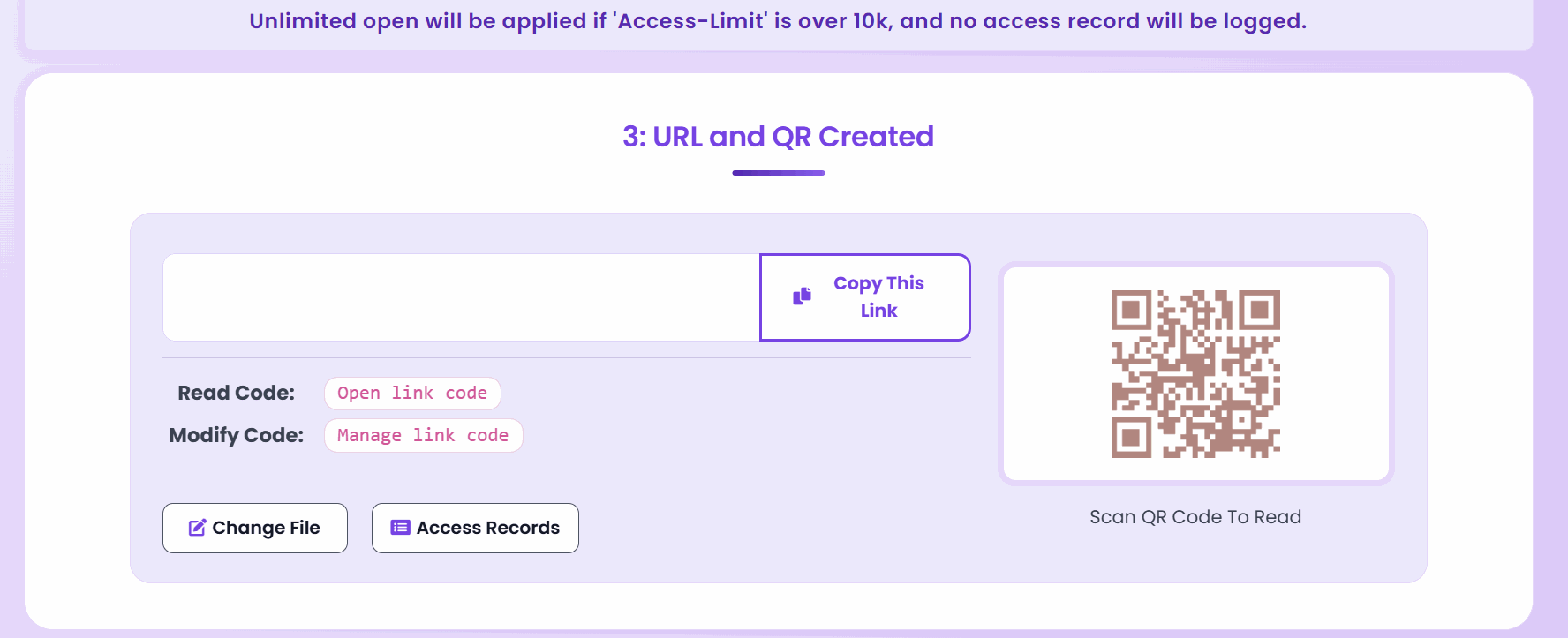
Then step Share gives you URL + QR plus Read / Modify codes for later management—same idea as the screen below.
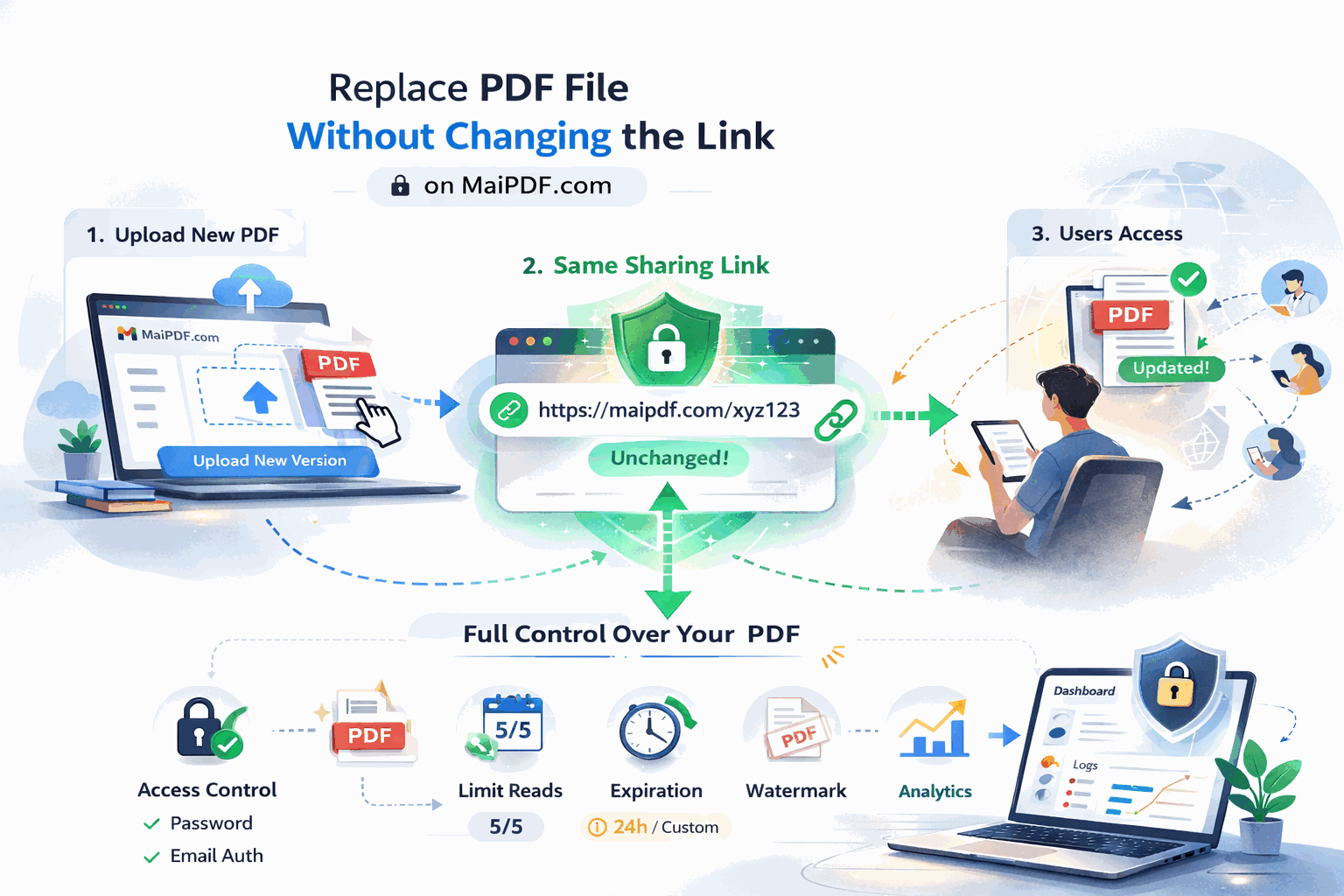
One link, updated file
Same audience and same URL, but a newer PDF behind it—beats endless “final / final_v2 / final_really_final” attachment chains.
Email snippets you can paste
Link (default)
Subject: PDF for review — [document name]
Hi [Name],
Please open: [link]
It stops working after [date] / [opens]. Reply if it fails.
Attachment (exception)
Subject: PDF attached — [name], v2, 2026-03-01
Attached supersedes the previous version; use a new filename each time so threads stay clear.
Habits that prevent mix‑ups
- Never send both link and attachment without saying which is official.
- Replace vague “click here” with the document name and purpose.
- Don’t reuse one sensitive link for unrelated groups.
- For external sensitive files, always pair the link with expiry and sane limits (as your tool allows).