How to Create a QR Code for PDF Download 
How to Create a QR Code for PDF Download
Use this when you need fast document delivery from posters, slides, booths, packaging inserts, or business cards.
Quick Setup
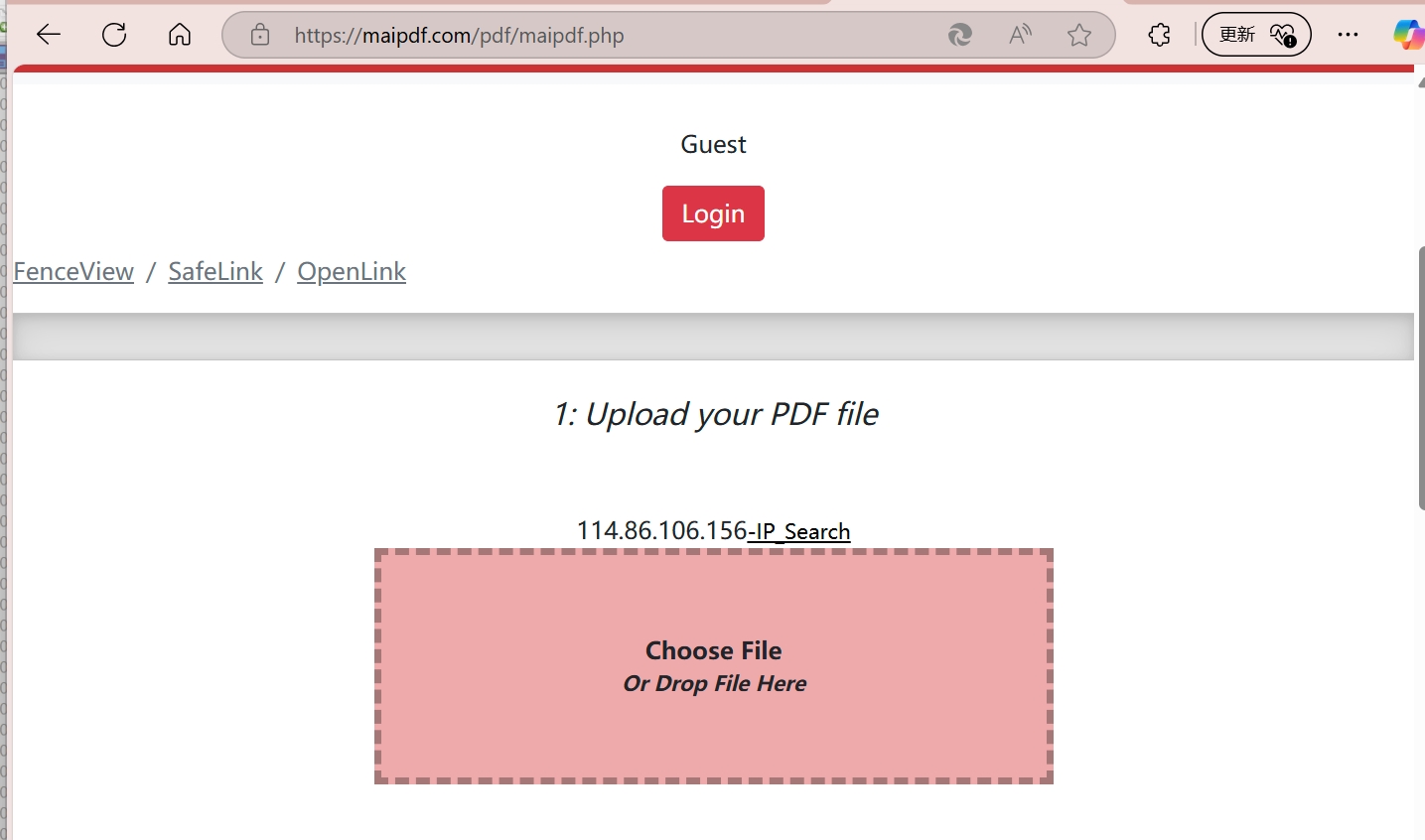
- Finalize your PDF and keep filename clear (
Product-Catalog-Q2-2026.pdf). - Upload it to an HTTPS location that recipients can access without login.
- Copy a stable share link (or a direct-download link if your use case requires it).
- Convert that link into a QR code.
- Test on iOS and Android before printing.
- Place the QR where users can scan comfortably (eye level, enough quiet space).
Link Rules That Prevent Failure
- Use HTTPS links only.
- Avoid links that expire too early.
- Keep one canonical link per campaign.
- Re-test after any file update.
Best-Fit Use Cases
- Event brochures and product sheets
- Menus, forms, and onboarding docs
- Portfolio/resume handouts
- Classroom and training materials
Final Takeaway
The workflow is simple: upload PDF, create link, generate QR, test on mobile, then publish.
If you need control later, use a link provider that supports expiry, download rules, and open stats.